
Prerequisites
- A Twinfield account with access to the Developer Portal (
https://developers.twinfield.com). - The company (administration) code(s) you want to sync (e.g.
1000). You can also discover these later by syncing theofficestable first.
Step 1 — Register an application in Twinfield
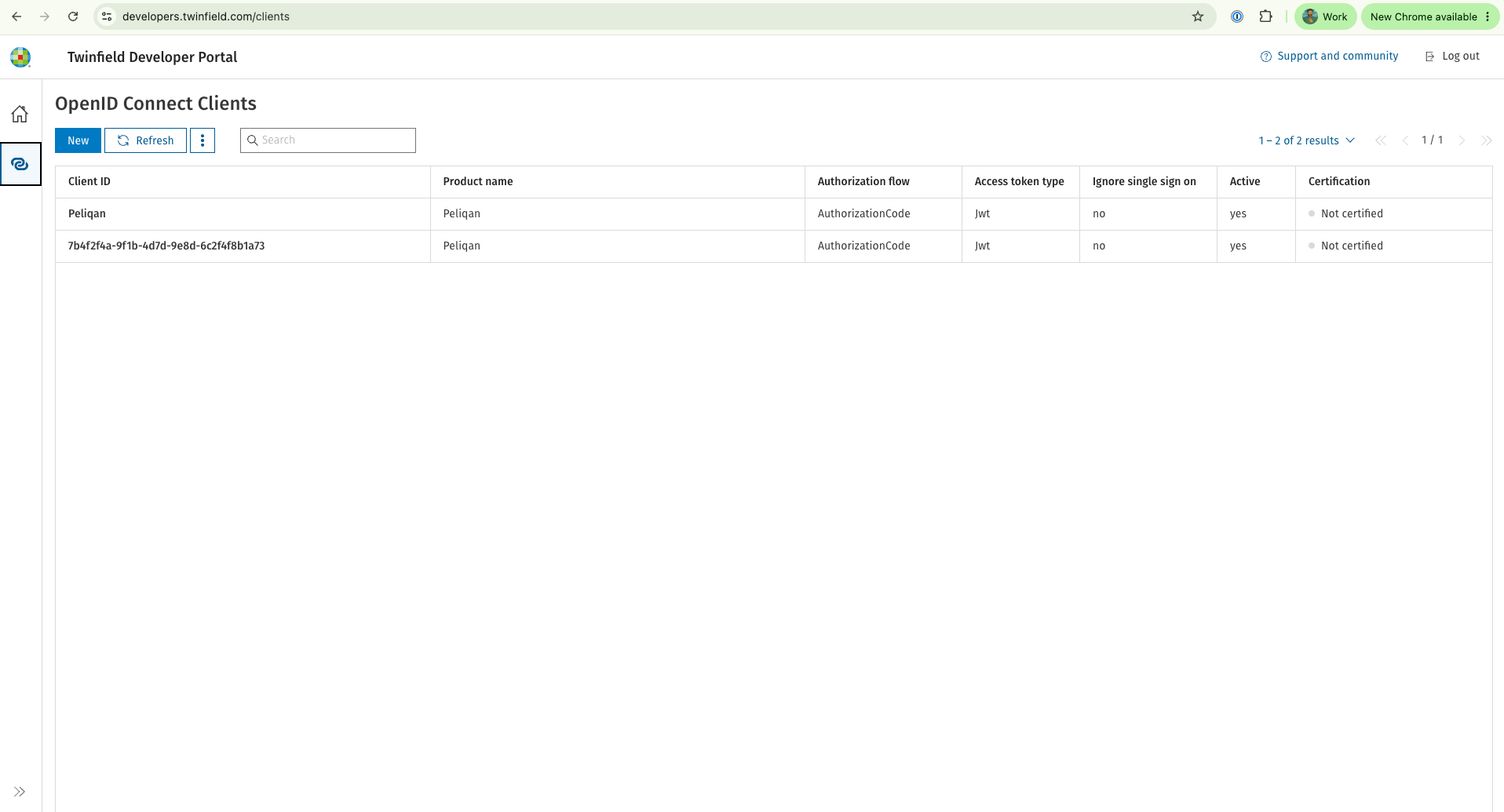
- Sign in to the Twinfield Developer Portal → Clients → New.
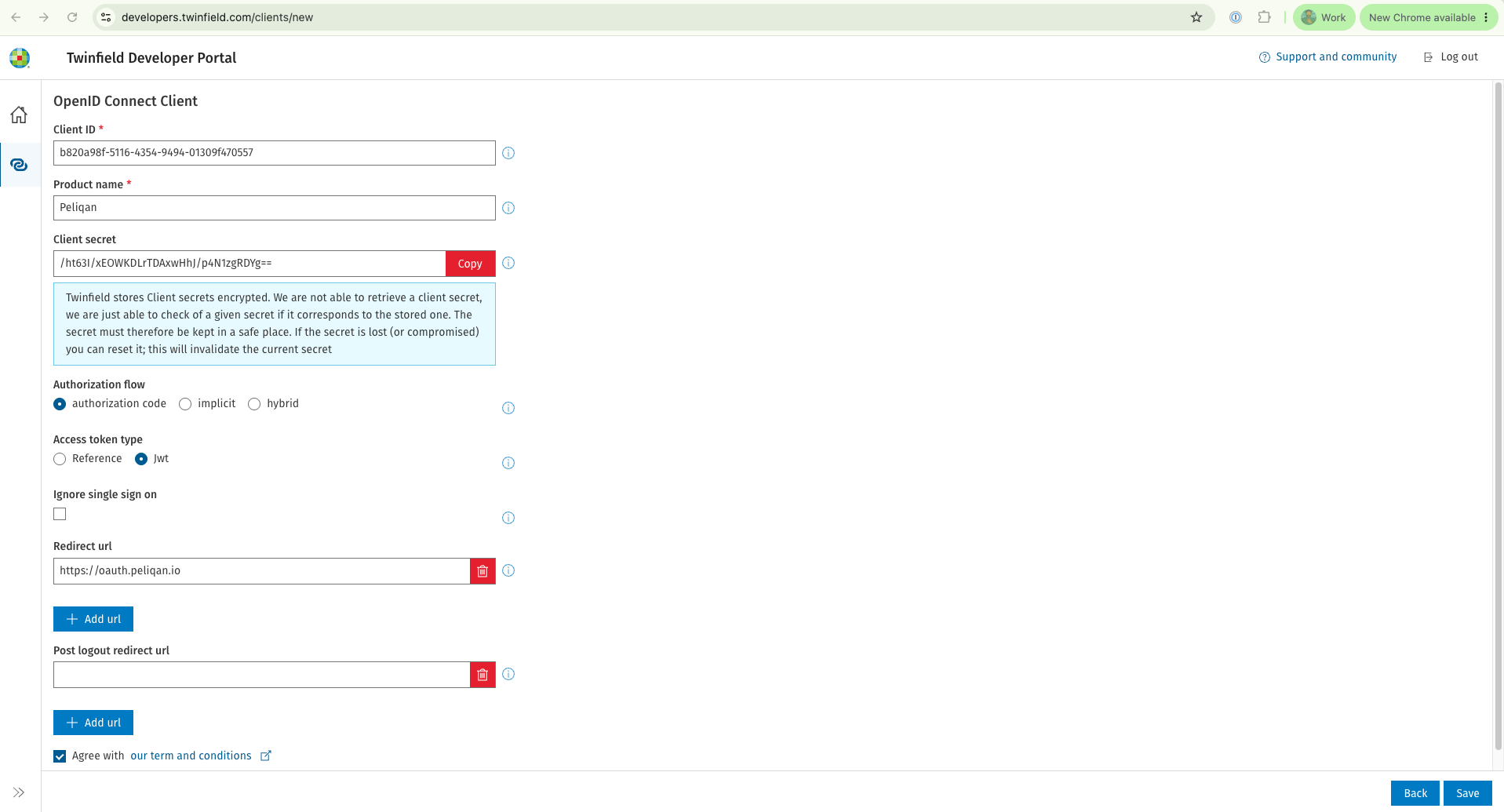
- Set the Redirect URI to exactly: No trailing slash, no extra path — it must match exactly or login will fail.
- Save and copy the generated Client ID and Client Secret.
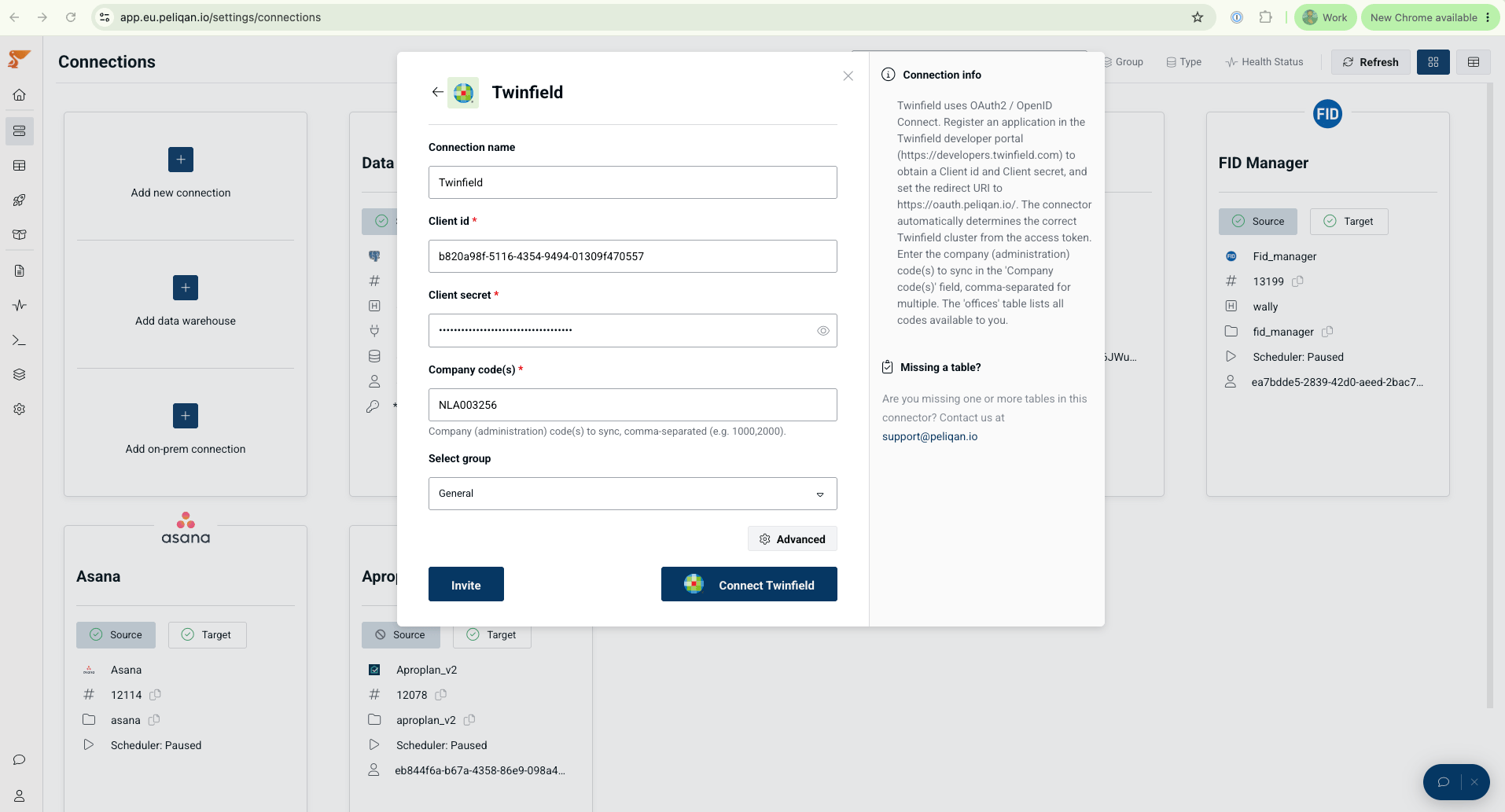
Step 2 — Add the Twinfield connector in Peliqan
- In Peliqan, go to Add data source → search Twinfield.
- Fill in the connect form:
Step 3 — Authorize
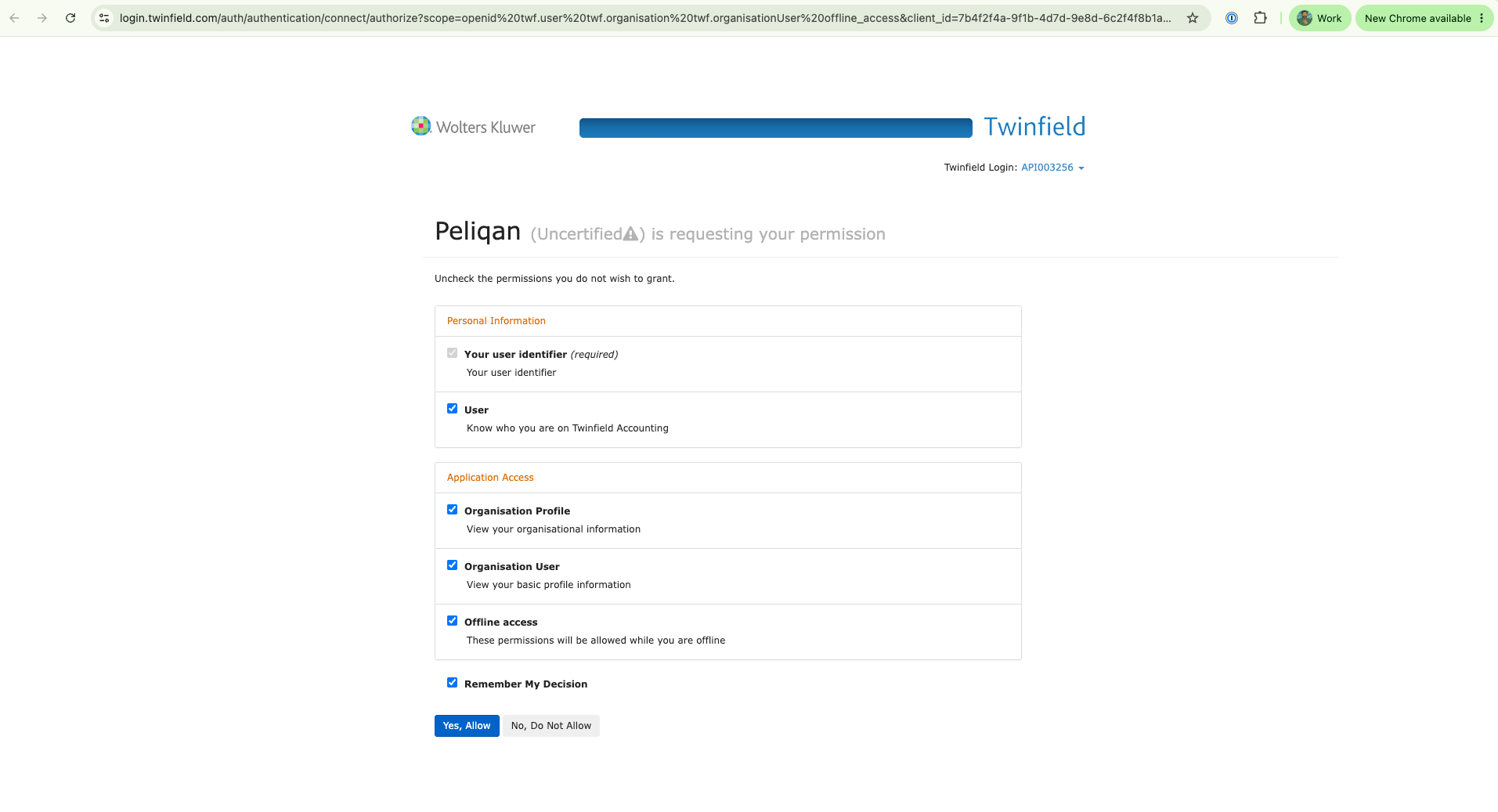
- Click Connect / Authorize.
- You’ll be redirected to login.twinfield.com — sign in and approve access.
- On success you’re returned to Peliqan and the connection is created. The connector automatically detects the correct Twinfield cluster from your login — no extra config needed.
Step 4 — Select tables & sync
- Don’t know your company codes? Sync the
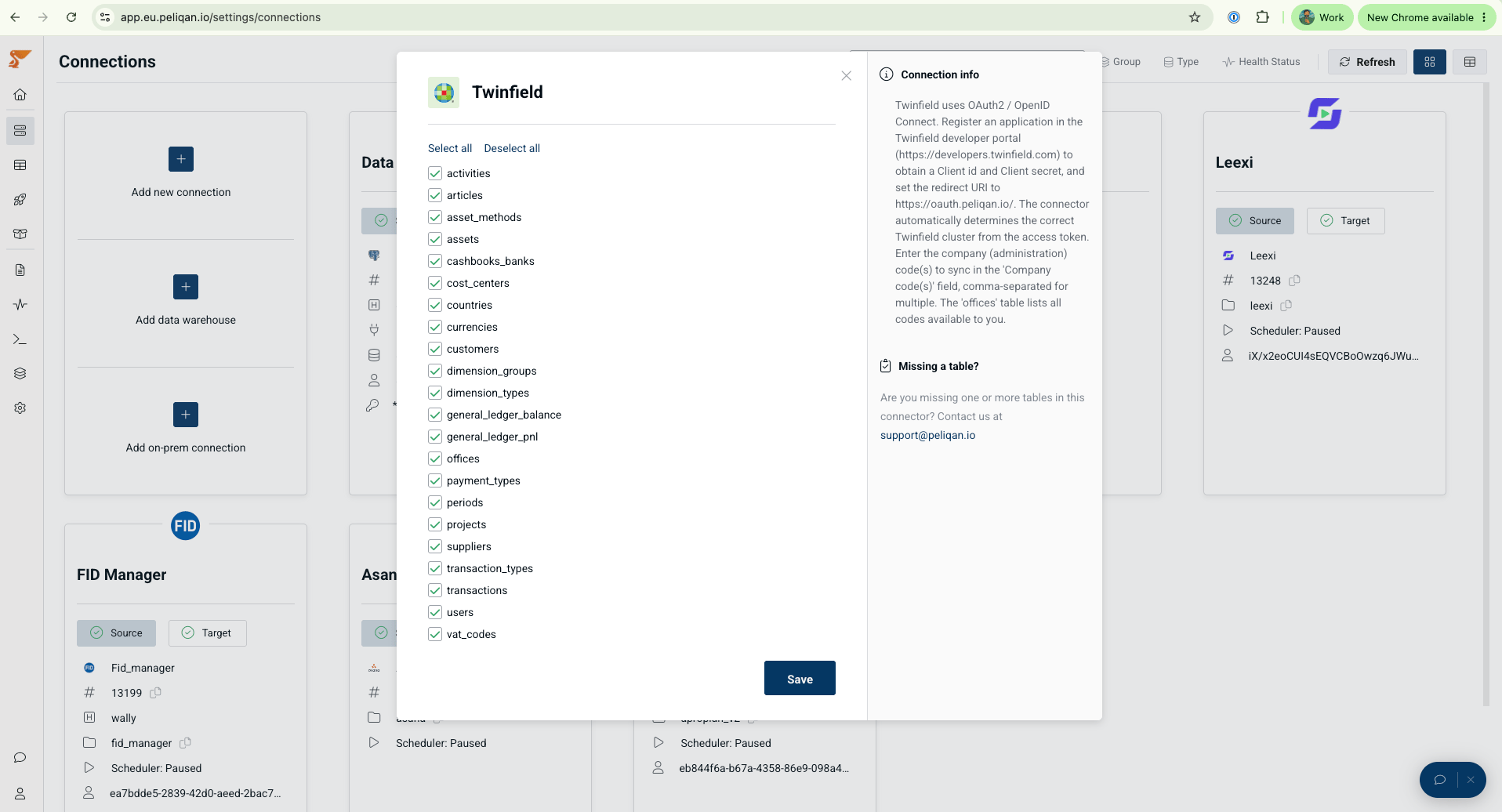
officestable first — it lists every administration code available to you. Then put the right code(s) in Company code(s) and re-sync. - Click on Advanced Button, select the tables you want and run the sync. Data lands in your Peliqan data warehouse.
Good to know
- Multiple companies: every administration-scoped table is synced once per company code you entered.
- Transactions sync incrementally (only changed records after the first full load); the reference/master tables do a full refresh each run.
- Sync speed: the connector is throttled to stay within Twinfield’s rate limits (tighter for uncertified apps). Large/multi-company syncs take longer by design.