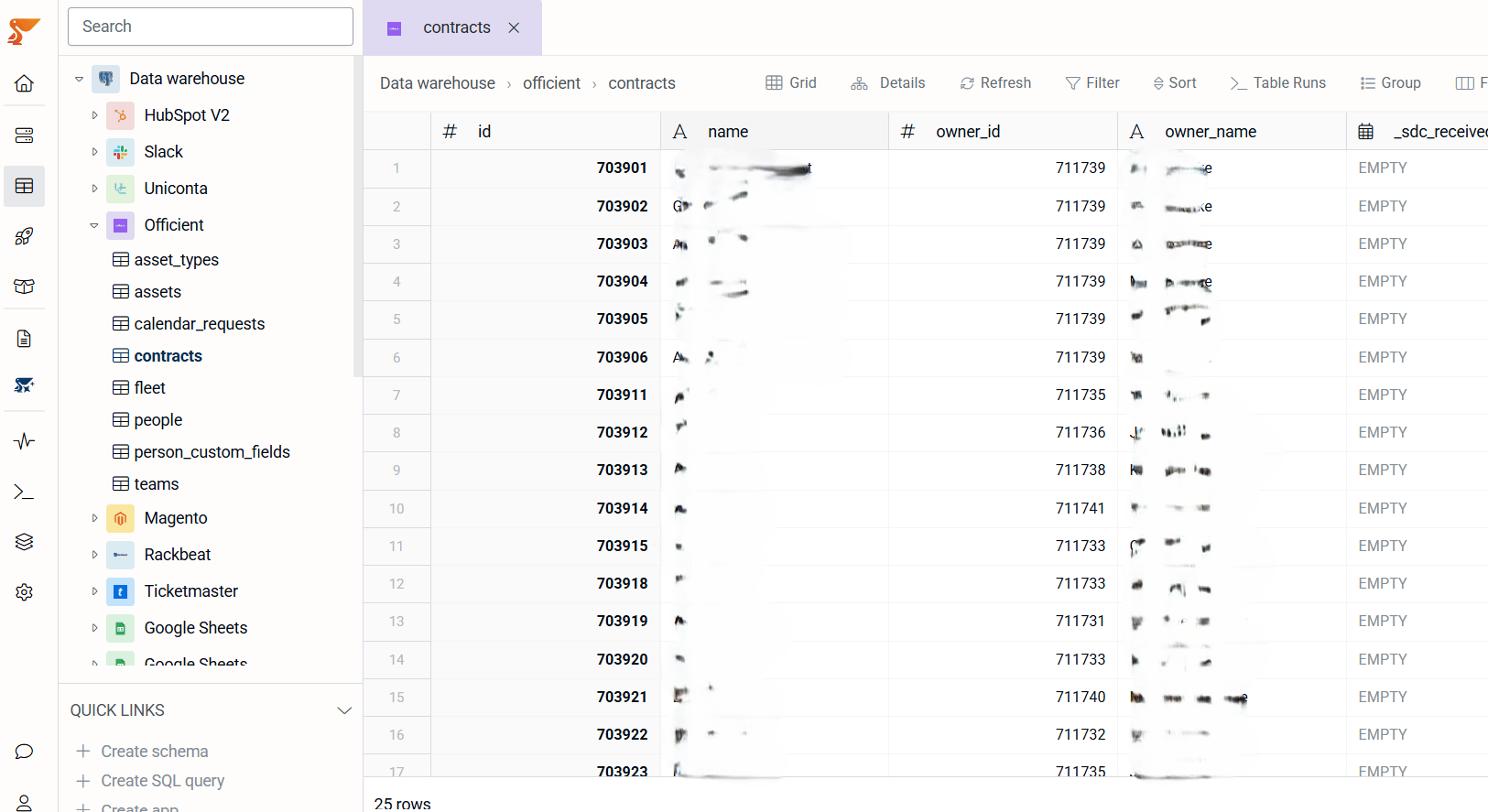
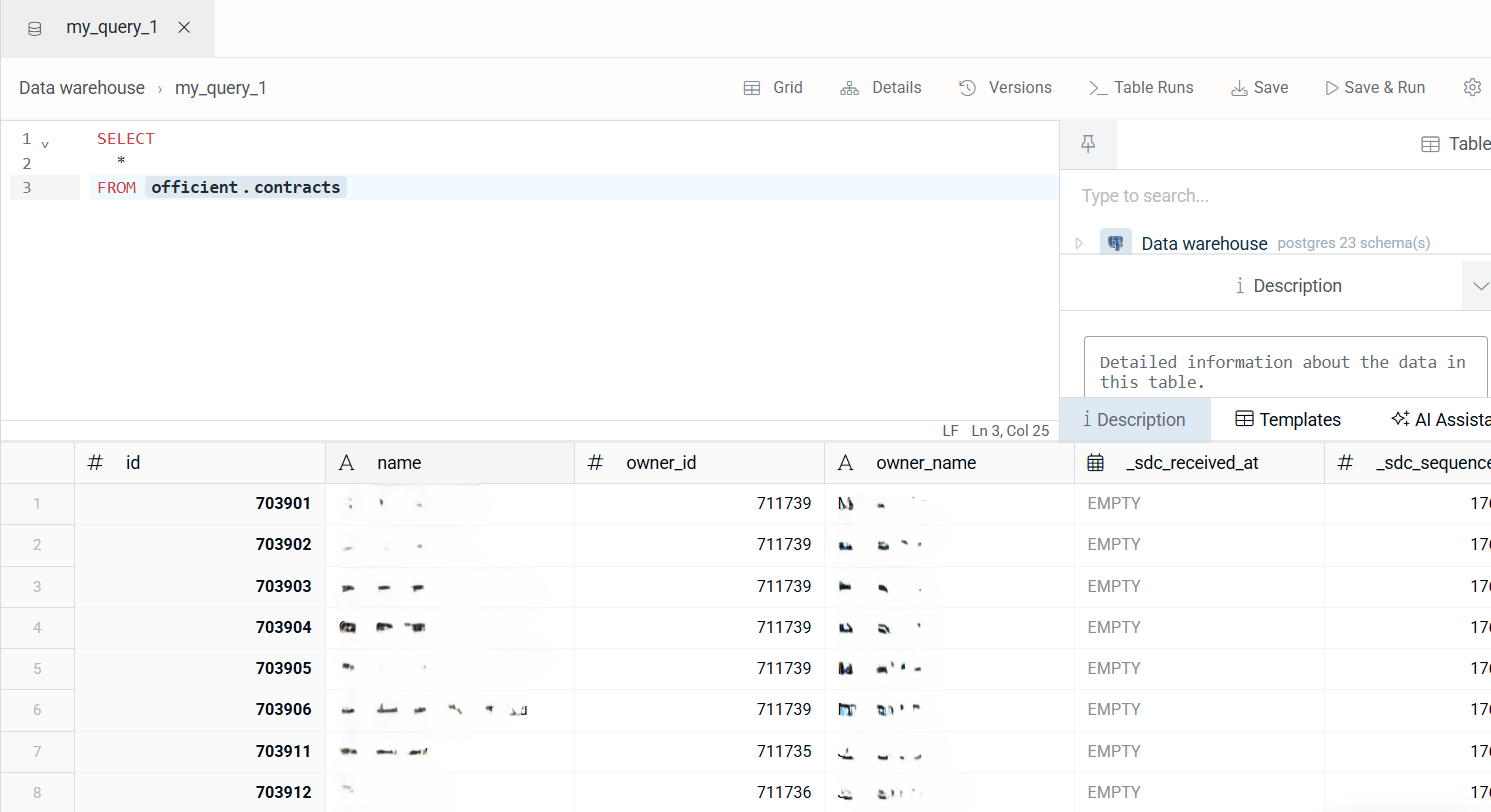
- Automate HR data flows into analytics or reporting systems
- Sync employee, contract, and wage records with other business applications
- Ensure up-to-date visibility into absences, assets, and fleet across the organization
Before Connecting Data Pipeline
Officient supports two ways of getting an access token: a personal access token (generated directly in the interface, for integrating with your own account) and OAuth 2.0 (for apps that connect to an account on a customer’s behalf). Peliqan uses OAuth 2.0 (Authorization Code flow), which requires an OAuth app (Client ID and Client Secret) to be created in Officient first. See Officient’s Authentication docs for reference. Test credentials: It’s recommended to test with a sandbox account before connecting production data. You can request a sandbox account from Officient atOfficientProduct@exact.com.
Create an OAuth app in Officient
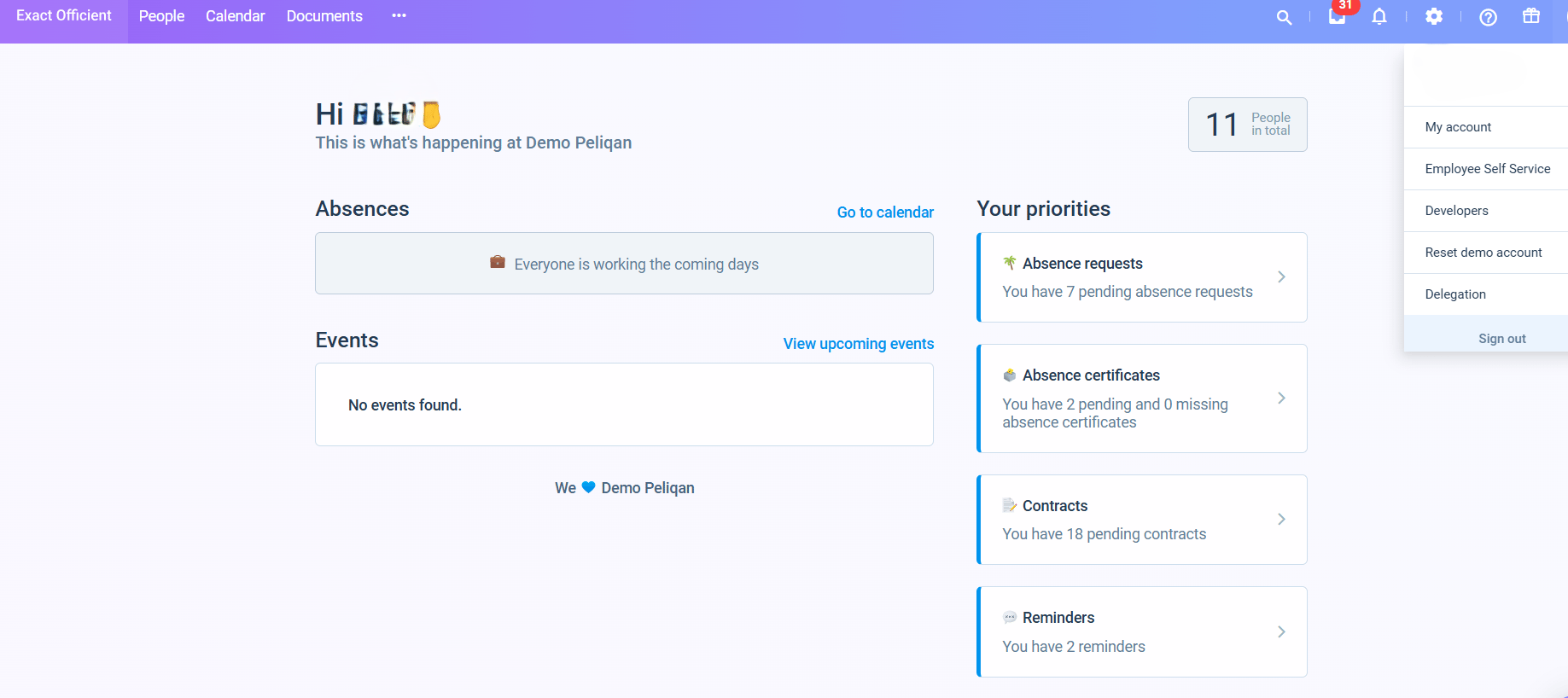
- Log in to your Officient account and open the Developer Portal.
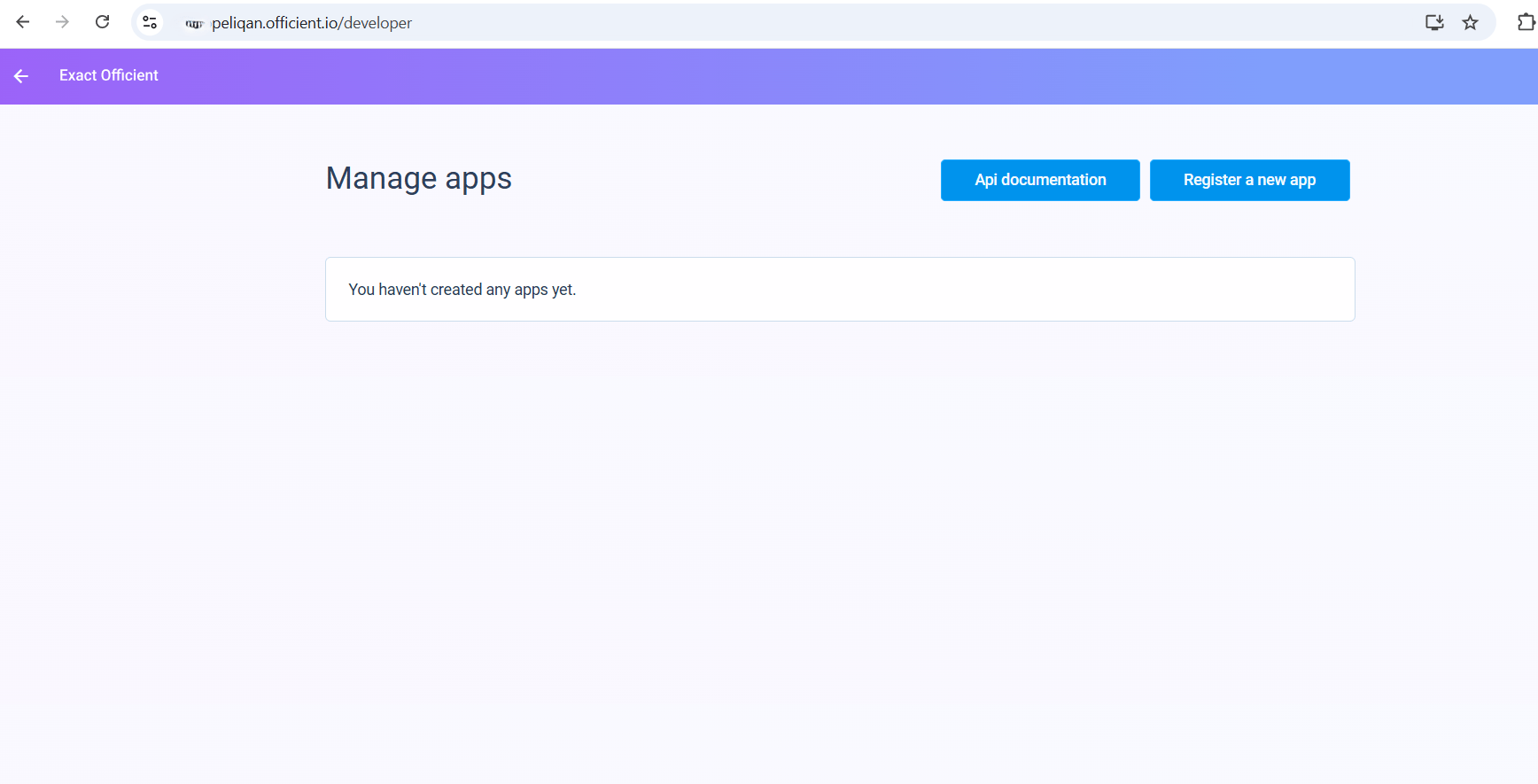
- Click Register a new app (or select an existing app from the list if you already created one).
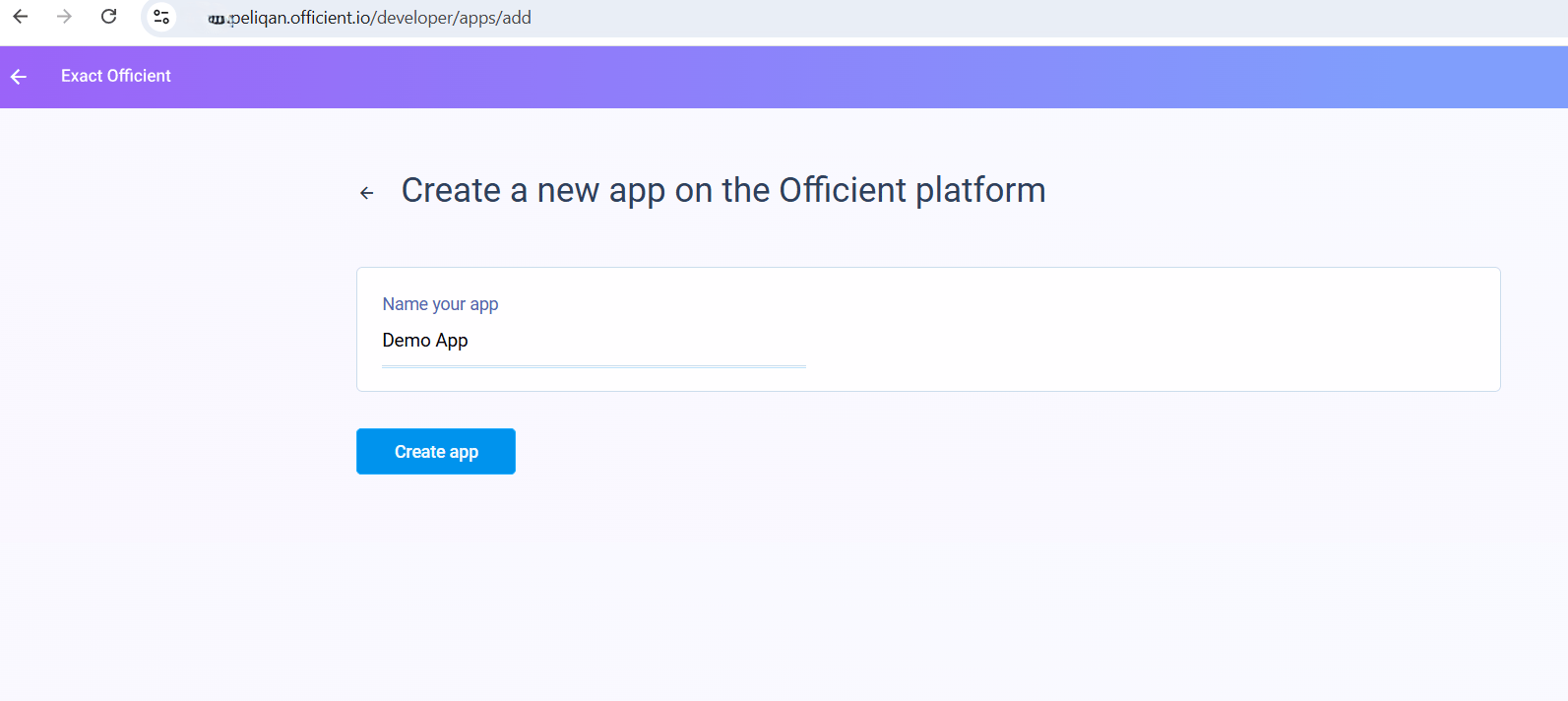
- Enter an App name (for example: Demo App) and create the app.
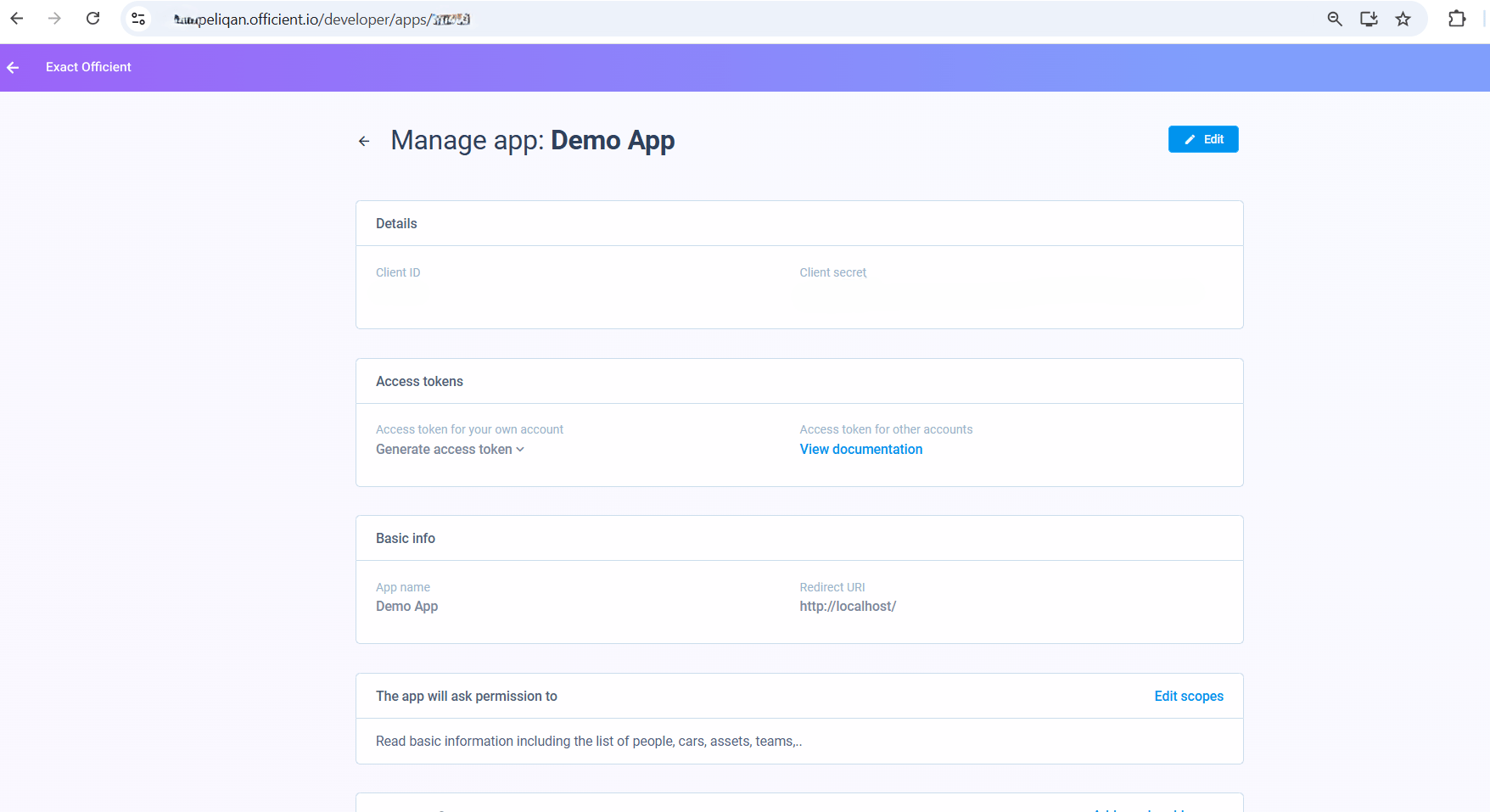
- After the app is created, open the Manage App screen. You will see the Client ID, Client Secret, and Redirect URI.
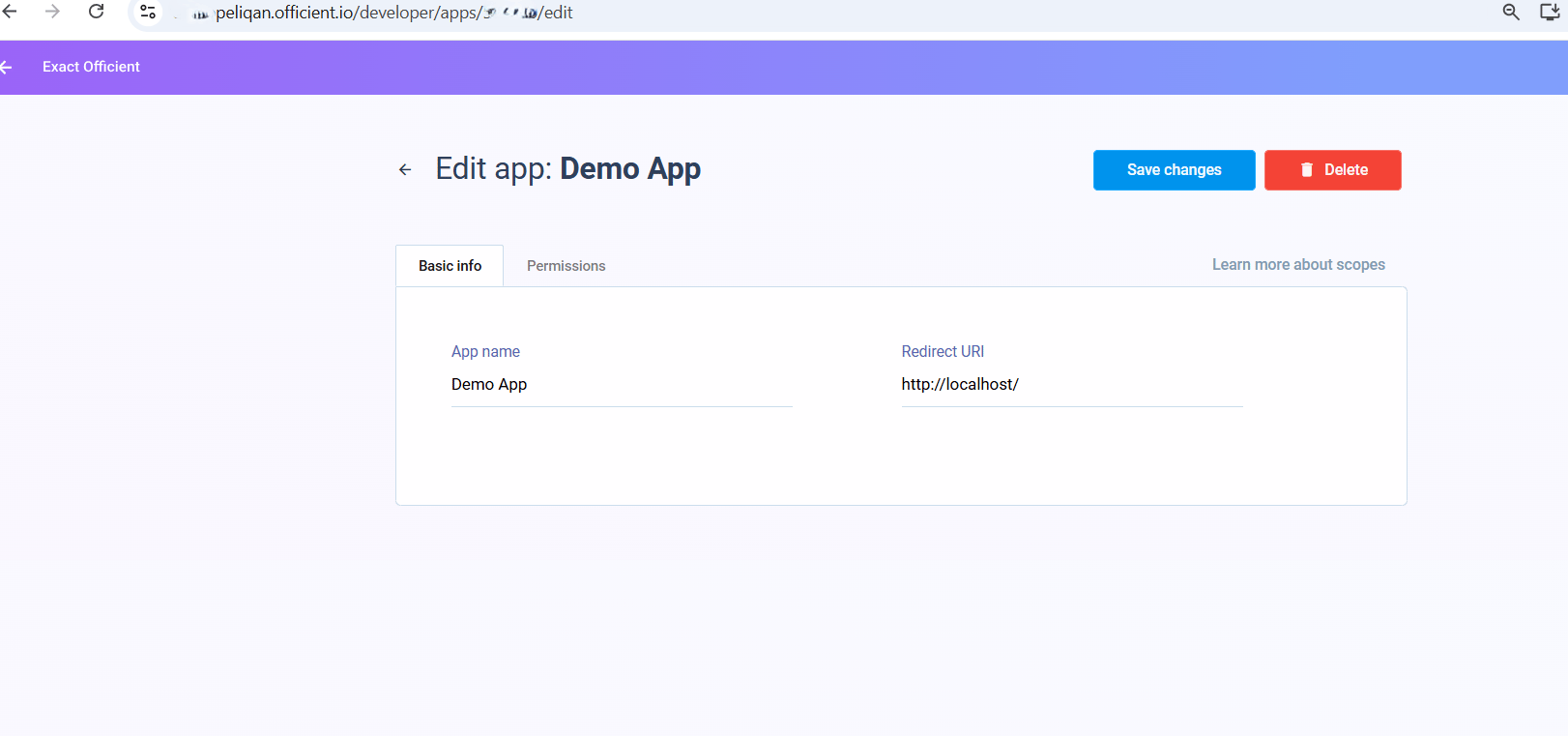
- Click Edit to set the Redirect URI to
https://oauth.peliqan.ioand grant the required permissions (scopes).
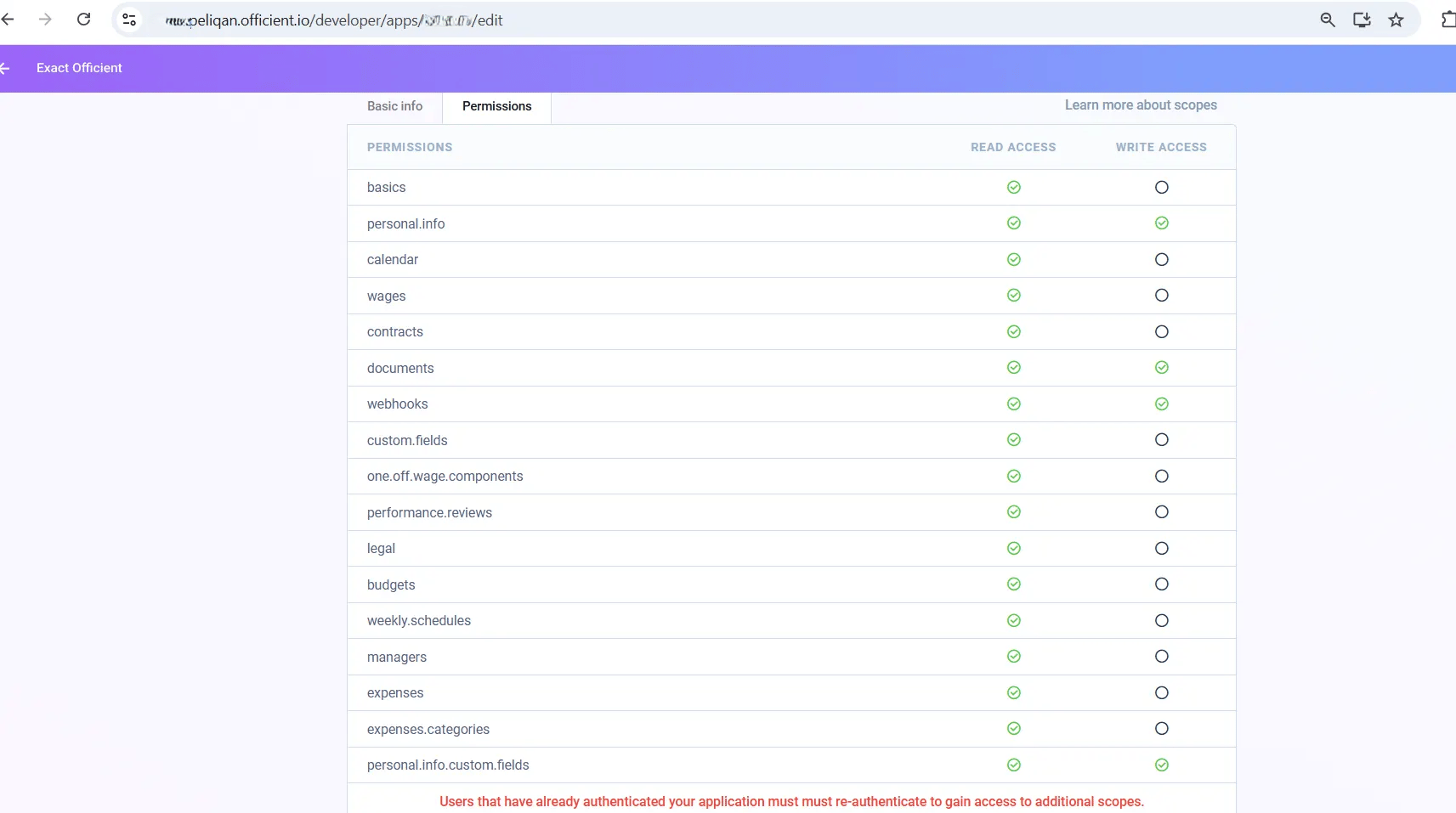
- Save your changes, then copy the Client ID and Client Secret — you’ll need both in Peliqan.
Officient Data Pipeline
Connect Officient through the Peliqan Connectivity module: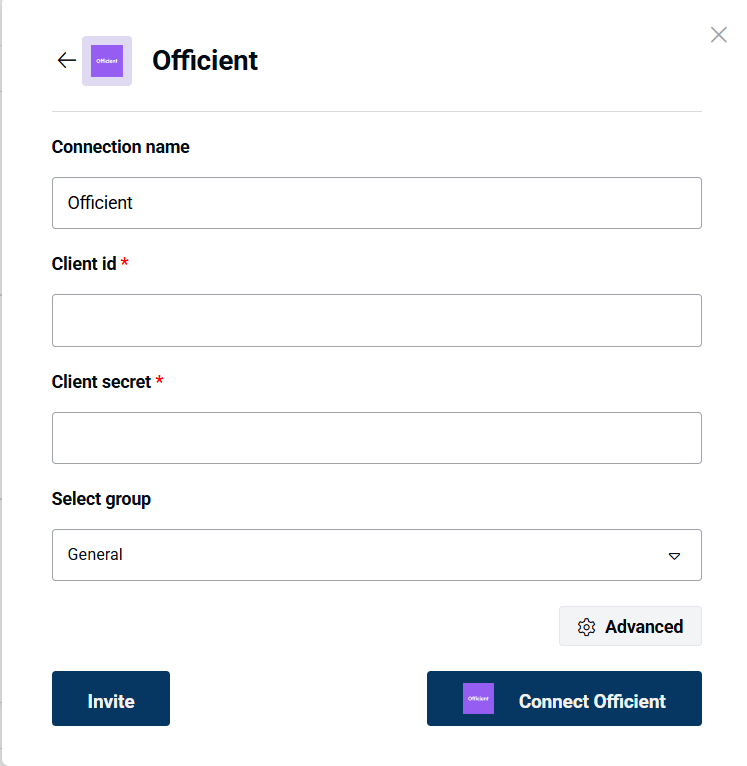
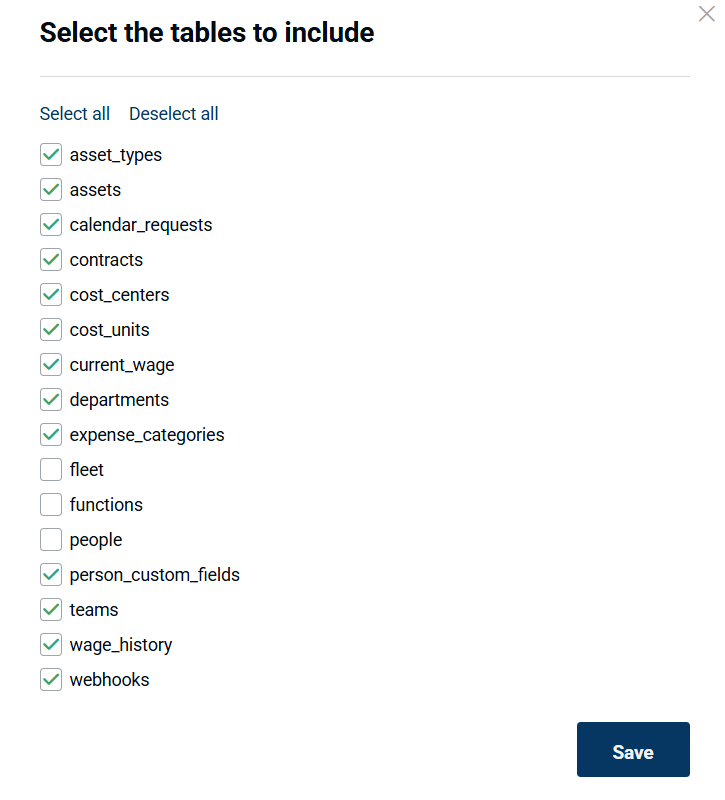
Officient data sync to a data warehouse
Peliqan offers an out-of-the-box data warehouse. Optionally, you can choose to sync Officient data to your own data warehouse such as Snowflake, Google BigQuery, MS SQL, etc. Data will be synced to the selected data warehouse and made available through the Peliqan UI for browsing and analysis.