Pre-Requisites
1. Create a Google Cloud Project
- Sign in to Google Cloud Console.
- Create a new Google Cloud Project (or select an existing one).
- Ensure the project is linked to your Google Workspace (required for Internal apps).
2. Enable Google Drive API
- Google Cloud Console, on left corner navigate to Menu → More products → Google Workspace → Product Library
- Locate Drive API and click Enable. This allows your project to access Google Drive resources.
3. Configure OAuth Consent Screen
- In Google Cloud Console, go to OAuth Consent Screen.
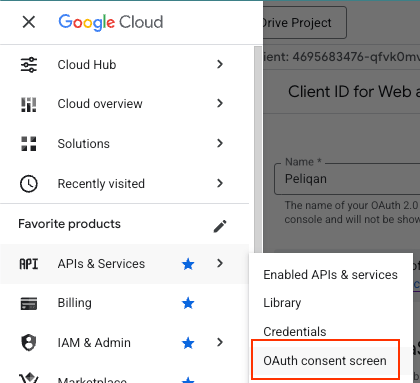
- Under App Information, provide an application name and support email. Click Next
- Under Audience, Select Internal (recommended for Workspace-only usage). Click Next.
- Under Contact Information, Enter an email address for Google notifications. Click Next.
- Review the Google API Services User Data Policy, click Continue and then Create. OAuth consent screen is now configured.
4. Create OAuth 2.0 Client Credentials
- Go to: Google Auth Platform → Clients
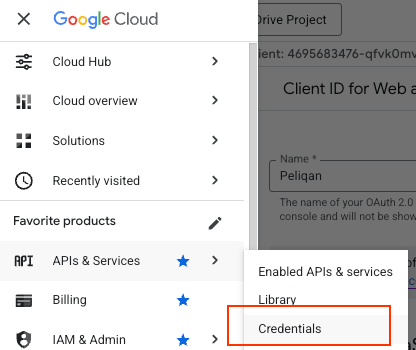
- Click Create Client and Choose Application type → Web application. Provide a unique name for your application.
- Under Redirect URI/Callback URI, add:
https://oauth.peliqan.ioand click Create. - Save the generated
client_idandclient_secret
Connect Google Drive
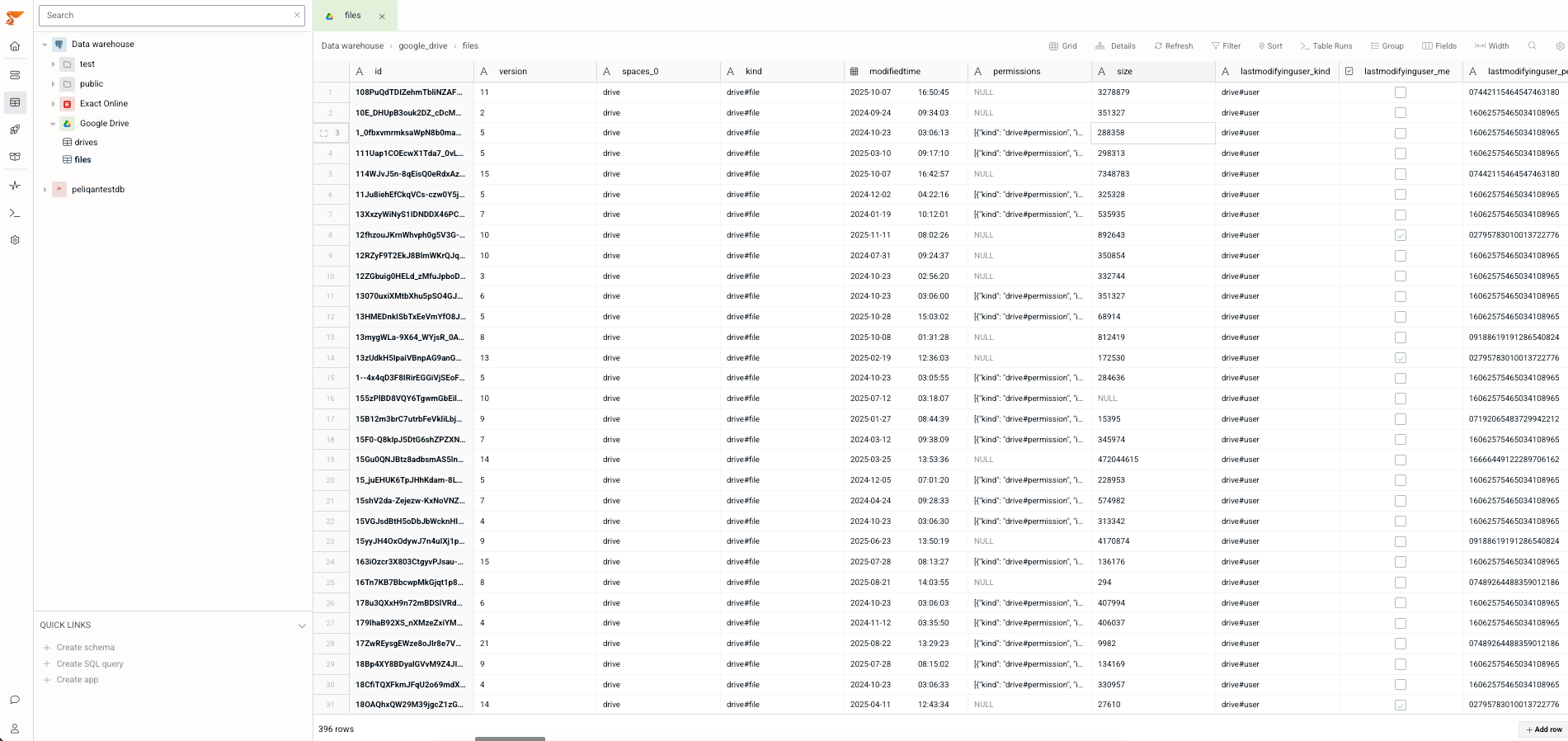
In Peliqan, go to Connections → Add Connection → Select Google Drive in the list → Enter the Generatedclient_id and client_secret
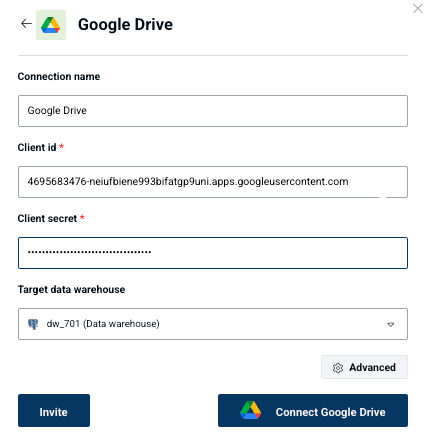
Google Drive data sync to a data warehouse
Peliqan offers an out of the box data warehouse. Optionally the user can choose to sync Google Drive data to their own data warehouse such as Snowflake, Google BigQuery, MS SQL etc. Data will be synced to the chosen data warehouse and made available through the Peliqan UI for exploration.