
×
‹
›
Logo
  • Go to Home
Book a demo

Search

Basics

Advanced

For developers

Connectors

Contact support

Helpdesk portal

Peliqan documentation
BigQuery - Getting started in Peliqan

BigQuery - Getting started in Peliqan

Google BigQuery is a fully managed, serverless data warehouse offered by Google as part of the Google Cloud Platform. It is designed for analyzing large datasets quickly using SQL. BigQuery separates storage and compute, allowing users to run highly scalable queries without managing infrastructure.

This page describes how to use Google BigQuery in Peliqan as a data source and/or as a target data warehouse, so that Peliqan can be used for ELT to sync data from your sources into BigQuery.

BigQuery deployment options

There are 2 deployment options for BigQuery:

  1. Peliqan provisioned BigQuery data warehouse
  2. Bring your own BigQuery instance

If you want to connect your own BigQuery instance, follow the below steps under “How to connect BigQuery”.

How to connect BigQuery

In BigQuery

Login to GCP Console.

Create a new project or select an existing project.

Go to IAM, create a Service Account.

Add a role to the Service account for BigQuery, e.g. BigQuery Data Editor.

Create a secret key of type “JSON” for the Service account.

In Peliqan

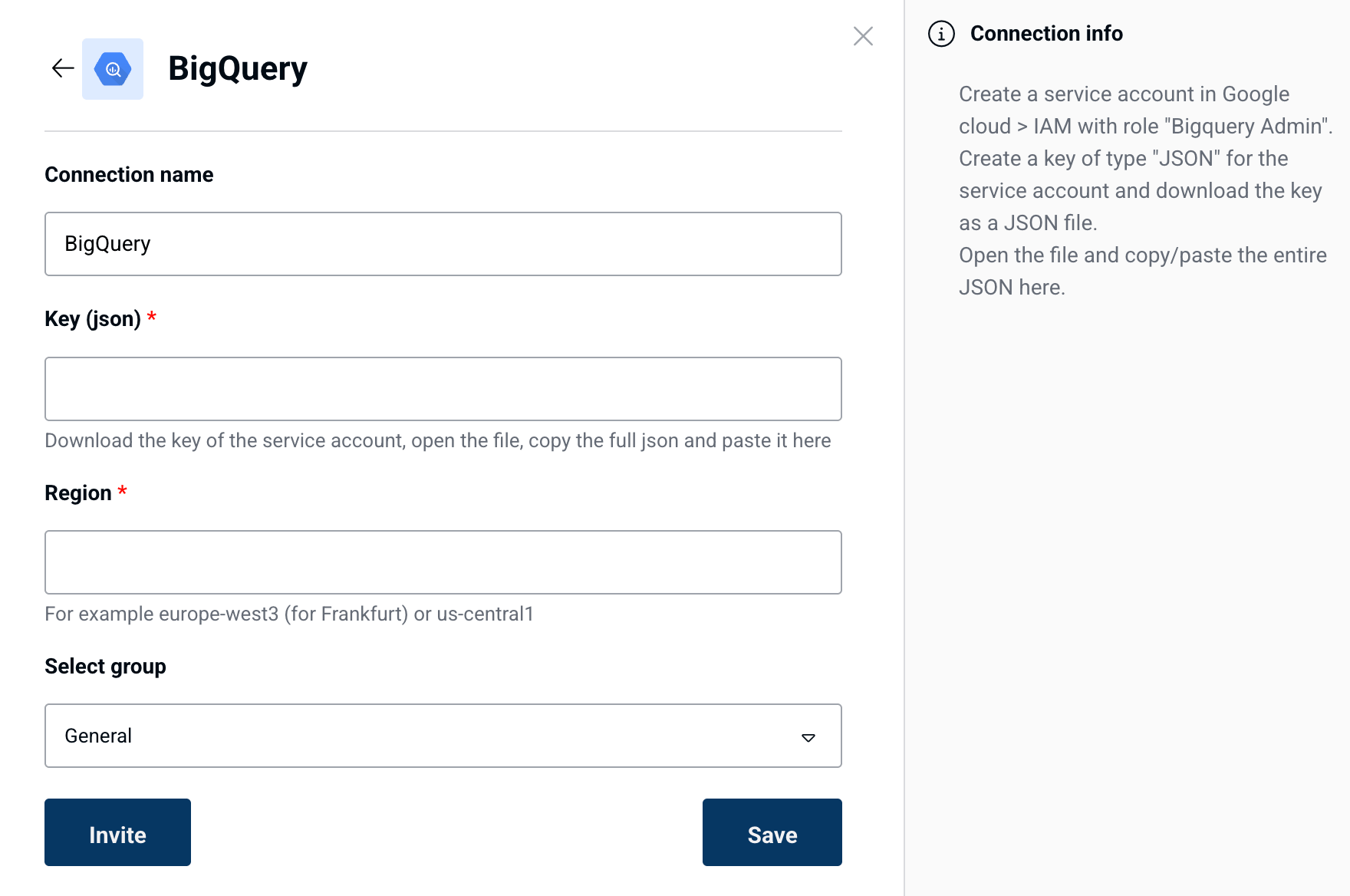
In Peliqan, under Connections, click on Add Connection.

Find Bigquery in the list.

Add your region and paste your JSON key (from a service account).
image

Once BigQuery is added, when you add an ETL connection (e.g. to a CRM) you will be able to select Bigquery as the target.

Peliqan will create a new Dataset per connection and it will create tables under the Dataset.

Using BigQuery in Peliqan Data Apps (Python scripts)

Example writeback to BigQuery:

How to migrate from Peliqan's Postgres DWH to Peliqan's Bigquery DWH.

1. ELT Connections

For each existing ELT connection: add a new connection to target Bigquery.

Once the migration is done, delete the old connections to Postgres.

Avg. time spending: 10 minutes per connection.

2. Data transformations

Recreate your queries (copy/paste) under a schema (dataset) in Bigquery.

Test each query on Bigquery.

In case your query does not work on Bigquery: rewrite it, with the help of Peliqan's AI Assistant.

If your query has "Create as view" enabled: enable this setting on your new query.

If your query has "Replicate" (materialize) enabled: enable this setting on your new query.

View the lineage of your queries to test in the correct order: test source queries first, then downstream queries.

Avg. Time spending: 10 - 30 minutes per query, depending on complexity.

3. Data apps

For each Data App (Python script) using the DWH: update the DWH connection from Postgres to Bigquery. Update the functions that read from and write to BigQuery (see examples above).

Avg. Time spending: 5-20 minutes per script.

For SQL queries used in code: test queries and update for Bigquery if needed (see above).

Avg. Time spending: 10 - 30 minutes per query, depending on complexity.

4. Power BI and other data consumers

Switch the DWH connection from Postgres DWH to Bigquery DWH.

E.g. Power BI: Get data > Database > choose Google Bigquery

dbconn = pq.dbconnect('BigQuery')

project_name = 'myproject-483208' # GCP project name
dataset_id = 'my_dataset'         # Name (id) of the dataset in BigQuery

# Execute a query
f"TRUNCATE TABLE my_dataset.my_table;"
result = dbconn.execute(project_name, query = query)

# Write datasets to the DWH (BigQuery) with ELT logic
result = dbconn.write(dataset_id, "my_table", records = records, pk = "id")
st.write(result)