
Connect Instagram
Make sure your Instagram Business Account is linked to a Facebook page. Example: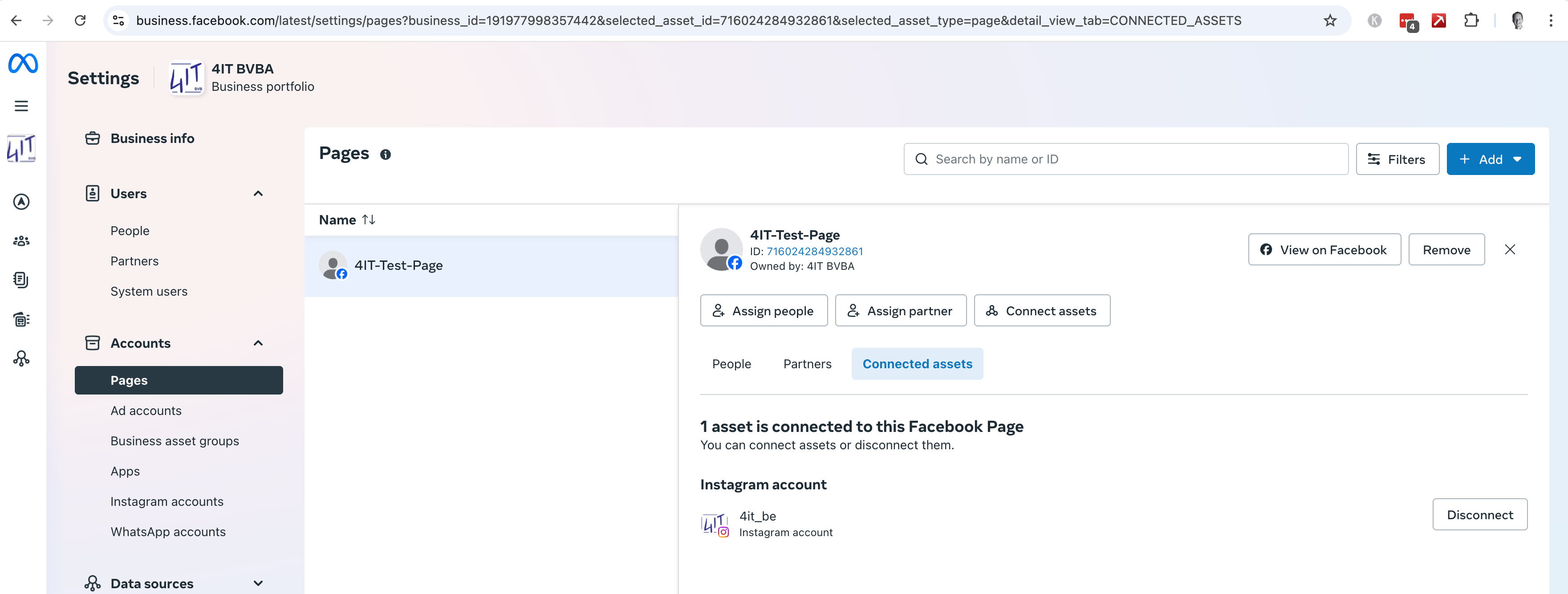
System User Token
- Create a System User (to have a permanent token): Facebook Business Manager > System Users https://business.facebook.com/settings
- Assign assets to the System User:
- Add Facebook page(s) - for the Instagram connector: select a Facebook page which is linked to the Instagram Business Account
- Add the app (with permission “full access”)
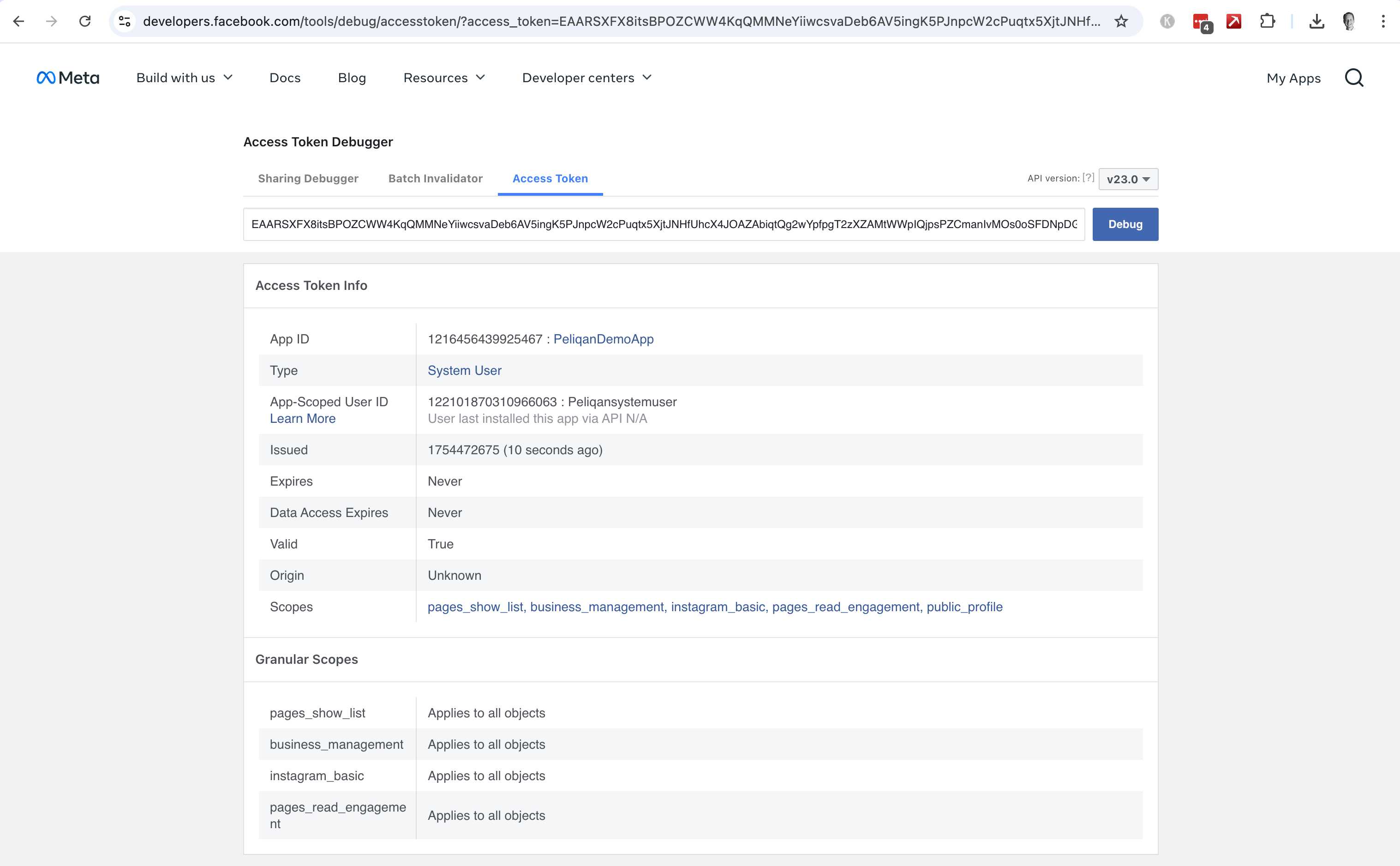
- Generate a token for the System User:
- Select your Facebook app
- Expiration: never
- Assign permissions:
pages_show_list,pages_read_engagement,instagram_basic,instagram_manage_insights
Instagram Business Account ID
To get your Instagram Business Account ID, first Add a “Facebook Ads” connection.- Open the Pages table in Facebook Ads.
- Find the Facebook page that’s linked to your Instagram Business Account.
- Copy the value of the “Instagram Business Account Id” for that page.