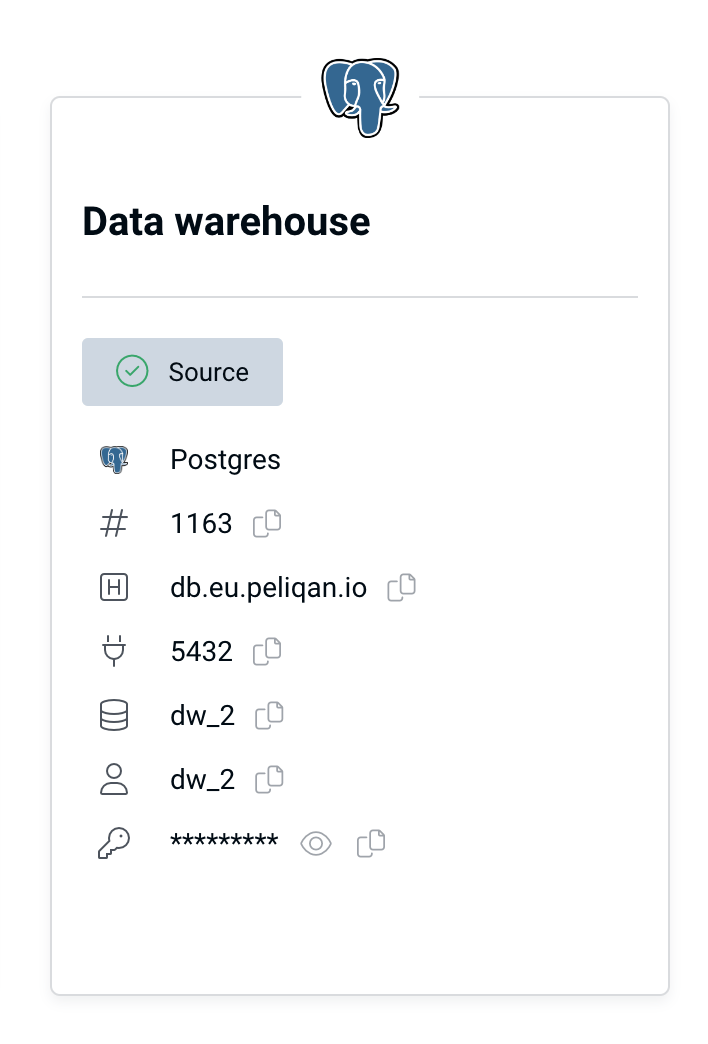
- Connection type: Postgres (default data warehouse type in Peliqan)
- Server:
- db.eu.peliqan.io
- db.mydatacloud.com
- db.us.peliqan.io
- … (check in your account under Connections > Data warehouse connection)
- User name & password: copy / paste from the Data Warehouse Connection tile (see above)
- Database name: same as the user name
- SSL: enabled
Step by step
In Power BI, click on “Get Data” and then “More” or “Get data from another source”. Select PostgreSQL from the list: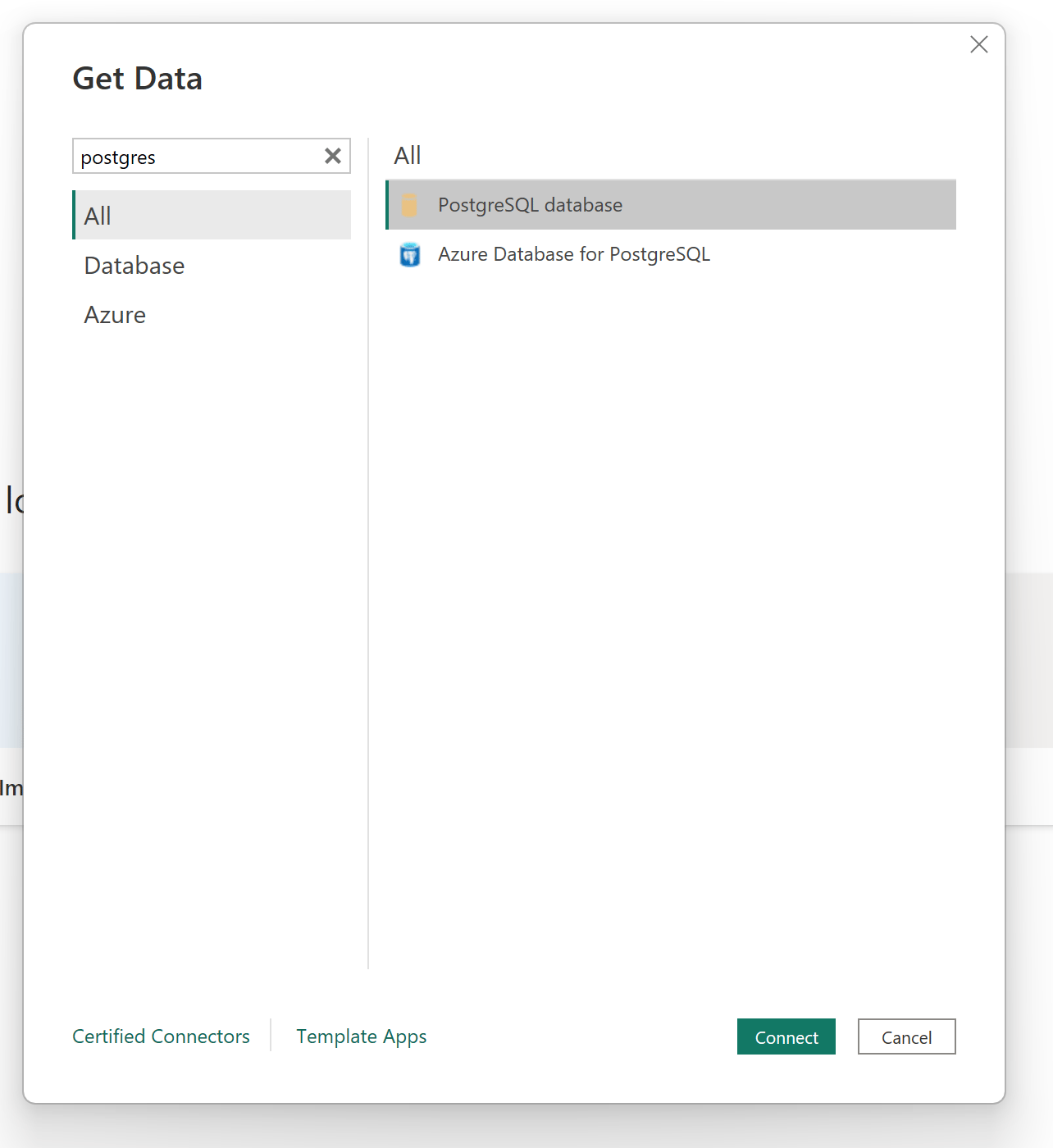
db.eu.peliqan.io , the database name and click OK:
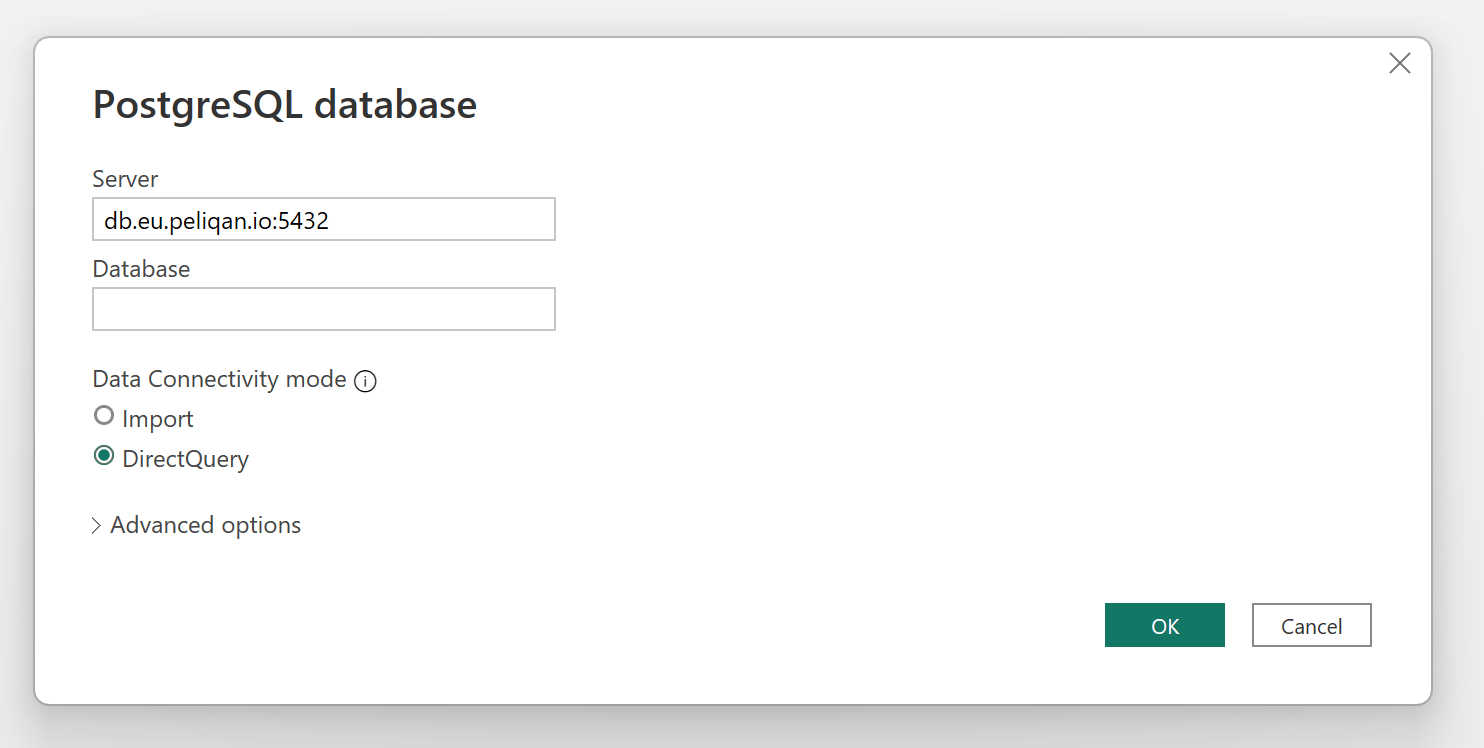
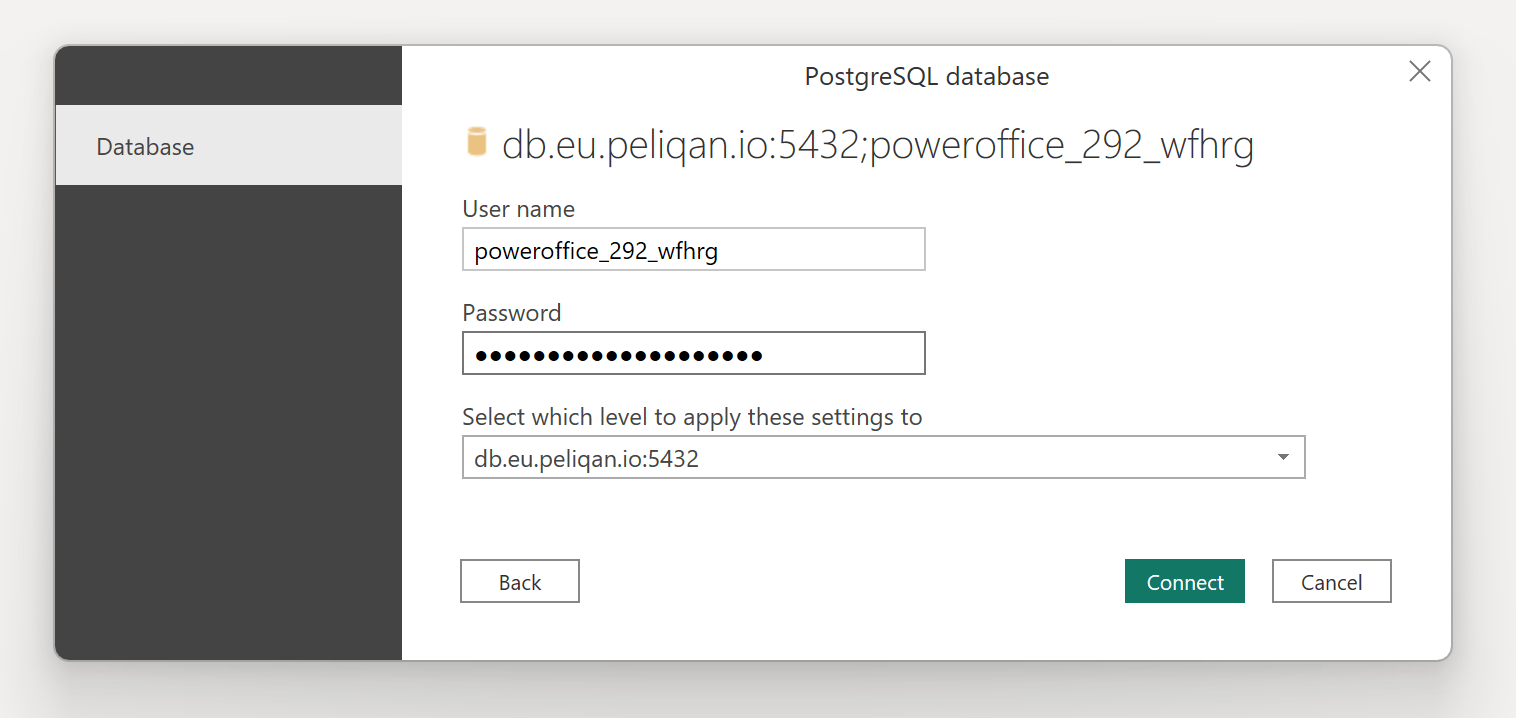
☝ When Power BI does not ask for a login and password, go to the Home menu ribbon, click on Transform Data and select “Data source settings” from the drop-down menu. Select the existing datasource and change its credentials, or remove it completely.
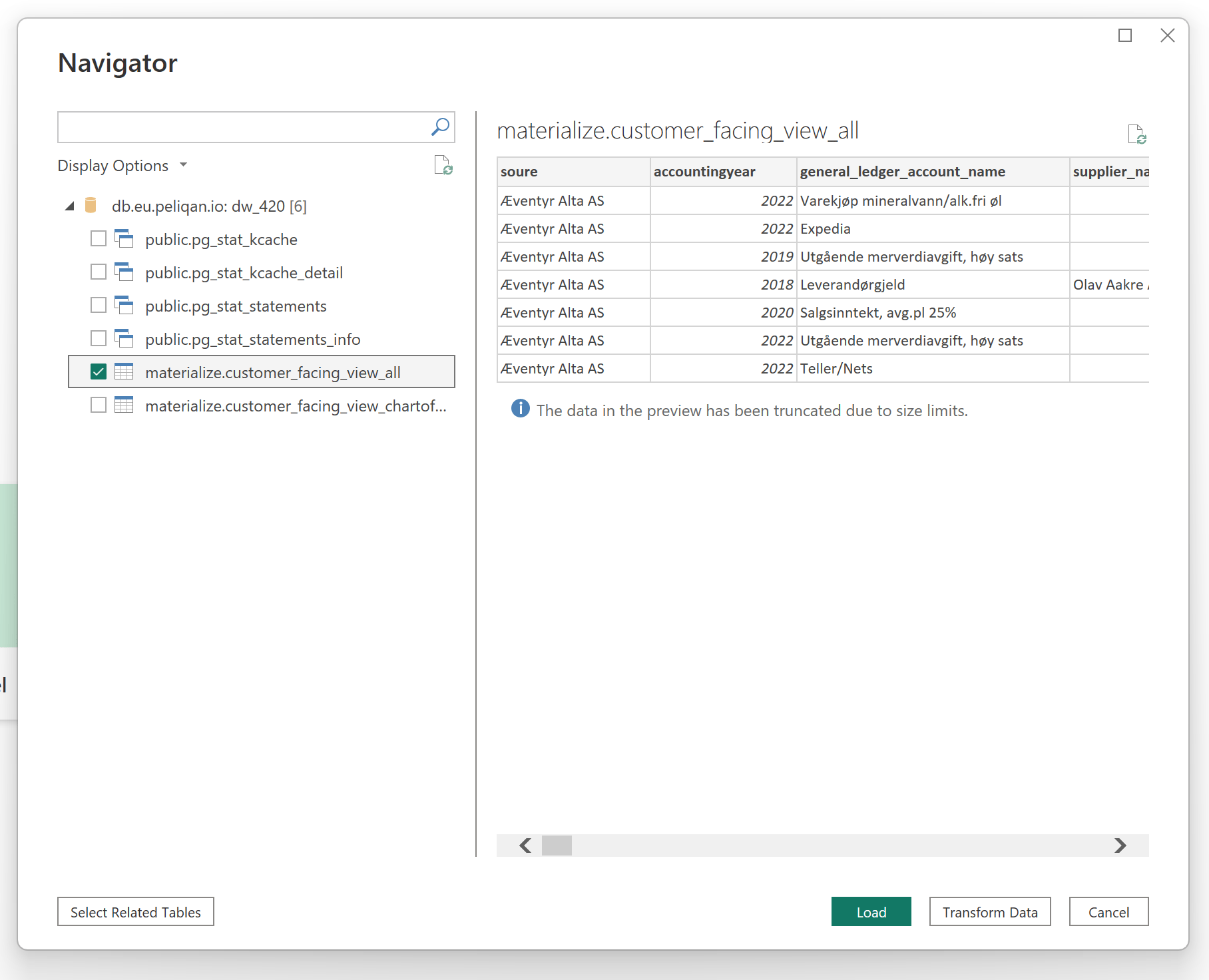
Click here for more info. </aside> Select the tables to include in Power BI:
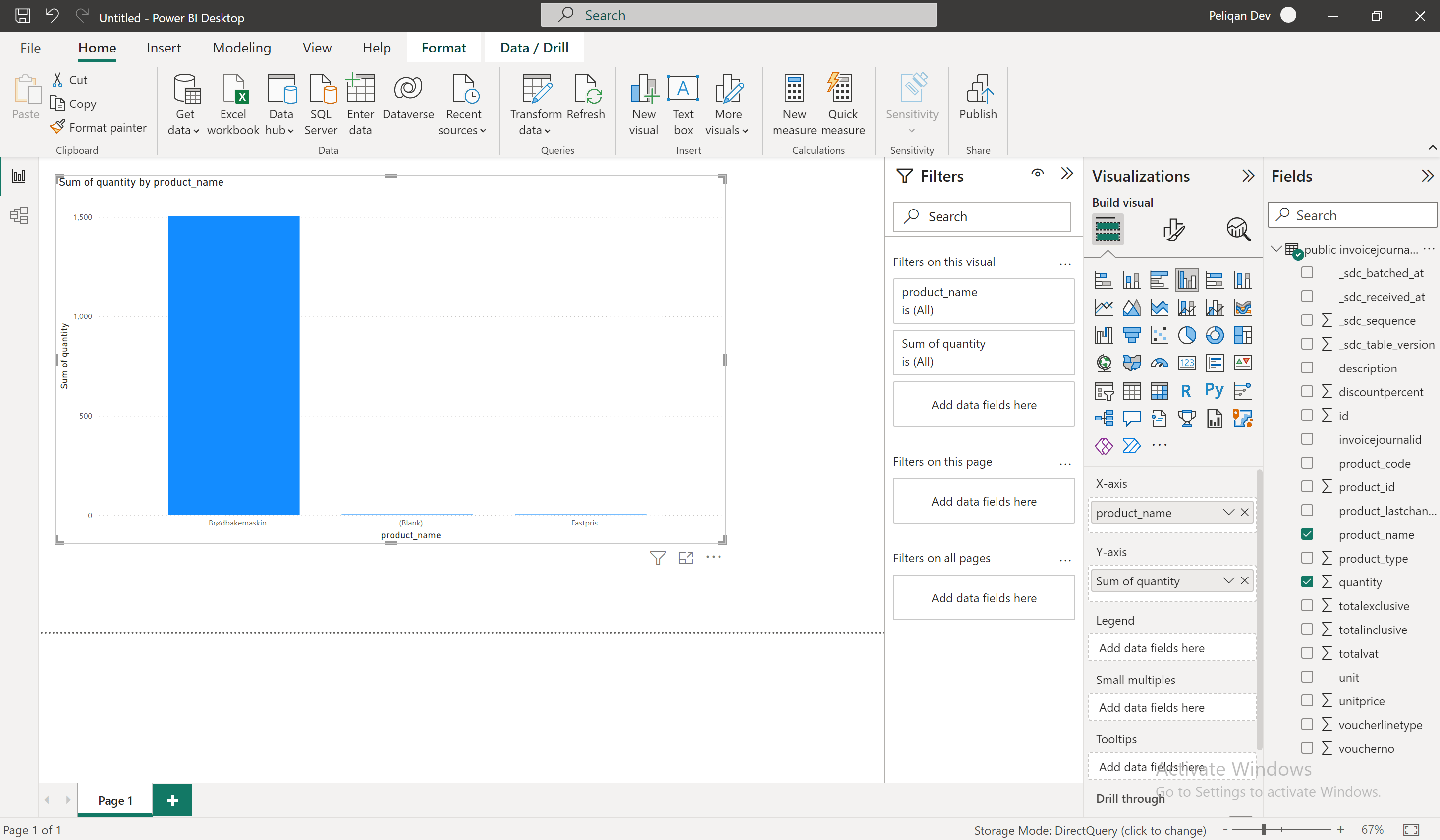
Troubleshooting
Error “Please install Npgsql version 4.0.10.0 or earlier”
A recent Windows update (August/September 2024) might cause issues for Power BI to connect to Postgres. The Peliqan built-in data warehouse runs on Postgres. You might get the error “Please install Npgsql version 4.0.10.0 or earlier” when doing a Refresh in Power BI Desktop: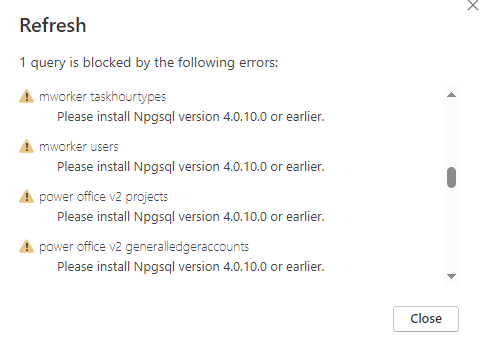
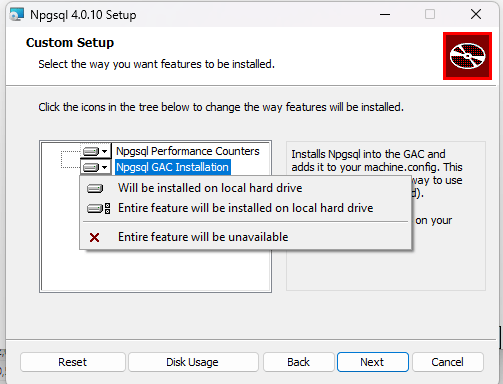
Error on SSL certificate (encryption)
Make sure to set the data source to “Encrypt connections”. Settings > Data sources > Edit permissions > Check the checkbox “Encrypt connections”.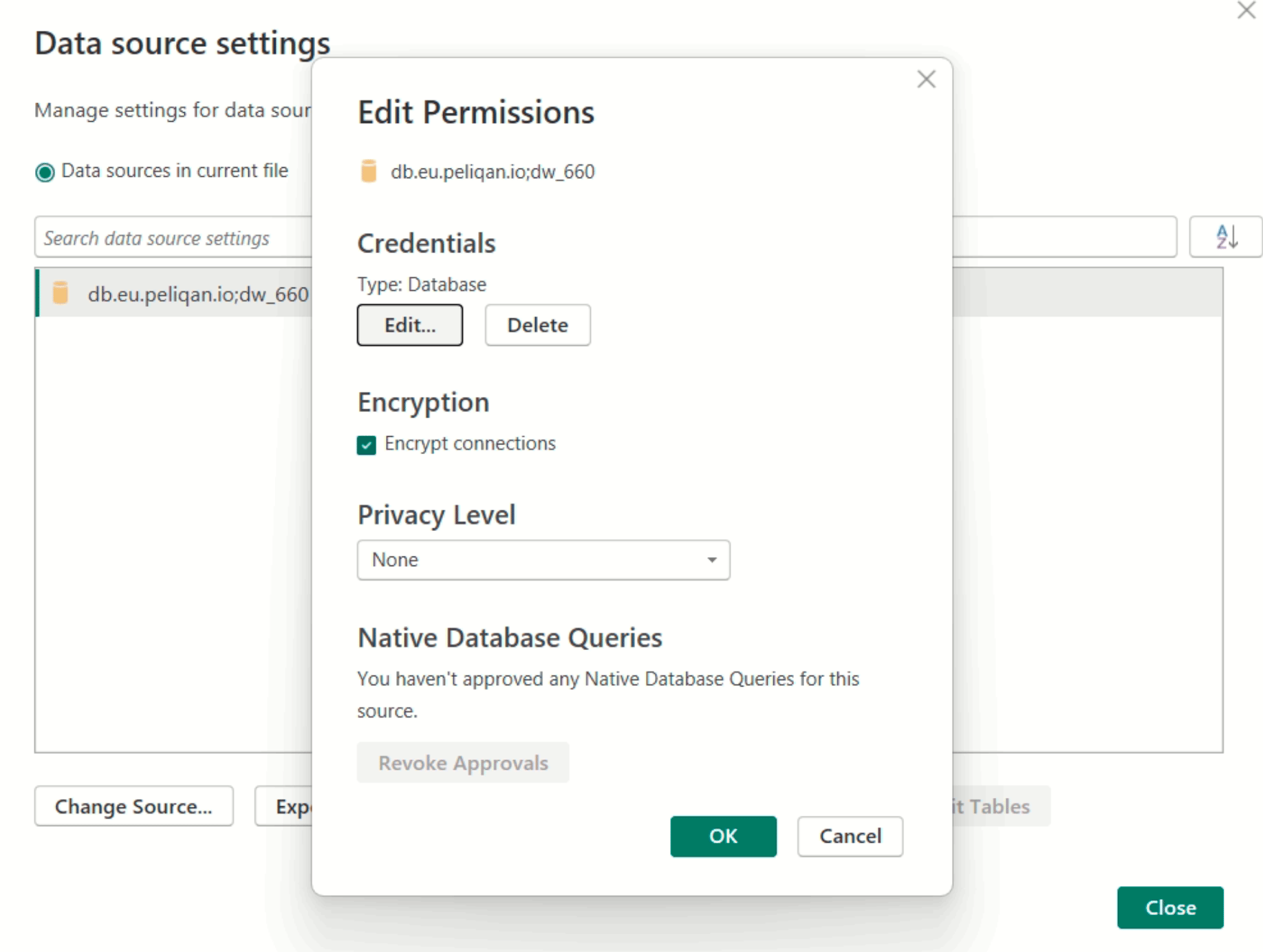
Error “The remote certificate is invalid according to the validation procedure”
If you receive the error “The remote certificate is invalid according to the validation procedure”, this is because the root certificate used by the Peliqan data warehouse is not installed on your computer. You can verify this under Root Certificates in Certificate Managercertmgr.
Following certificate must be present: Go Daddy Root Certificate Authority - G2
Windows will automatically install the certificate when needed, however MDM solutions (Mobile Device Management) might have blocked automatic install of root certificates.
This can be checked in the Windows Registry under: HKEY_LOCAL_MACHINE\SOFTWARE\Policies\Microsoft\SystemCertificates\AuthRoot.
Check if there is a DWORD DisableRootAutoUpdate. If the value is 1, auto updates are disabled. Change the value to 0 or manually install the certificate.
Download the root certificate for the Peliqan data warehouse:
peliqan_dwh_root_certificate_godaddy_g2.pem
Or download gdroot-g2.crt from Godaddy: https://aboutssl.org/go-daddy-root-certificates/
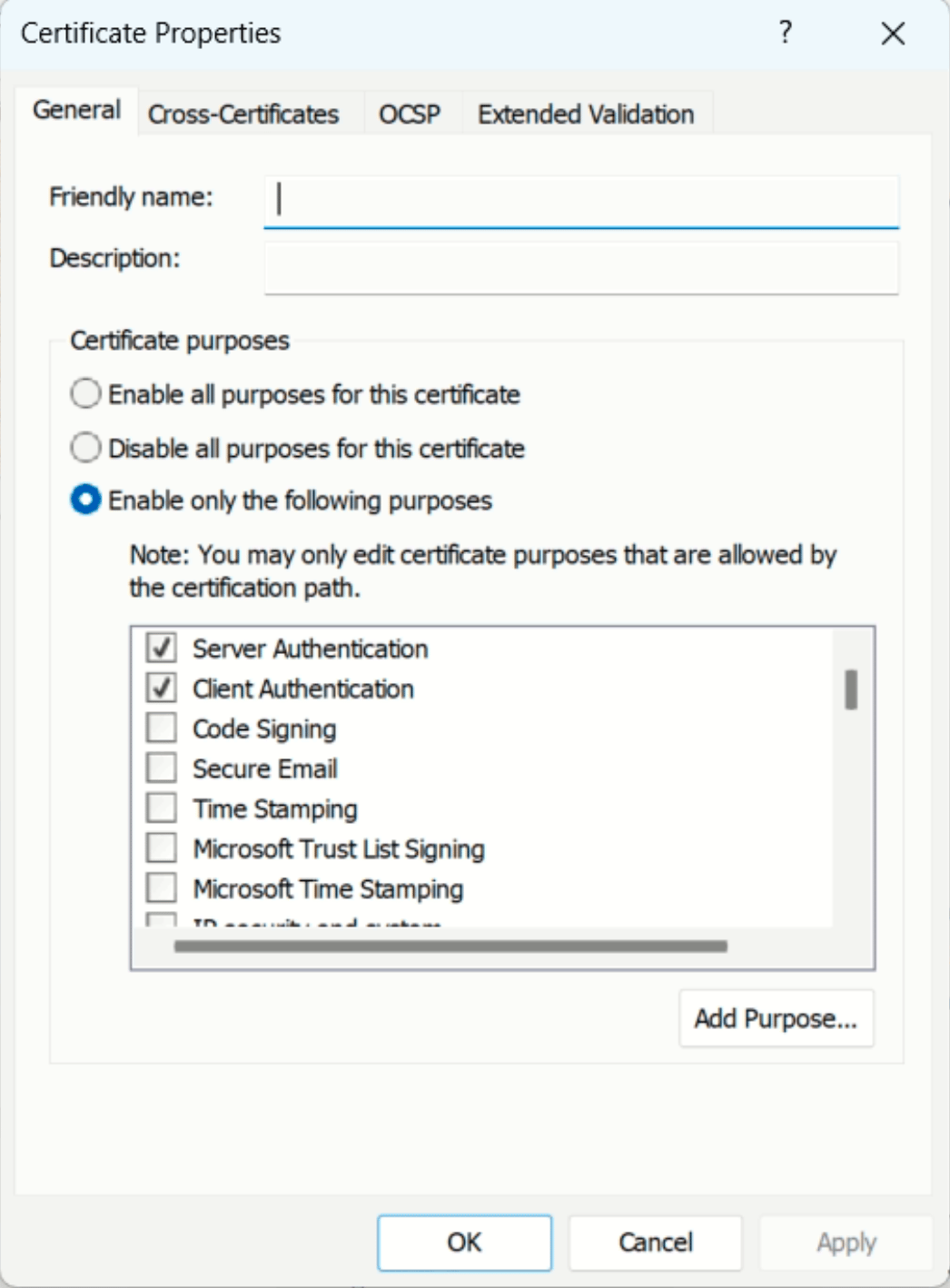
Make sure the “Intended Purpose” for the roort certificate is set to <All> (Enable all purposes for this certificate), or that Server Authentication is checked. Double click the certificate in Certificate manager > tab Details > button “Edit Properties” > Certificate purposes: