
Introduction
Reverse ETL is the concept of writing data back into business applications, using the data warehouse as a source. This approach allows to use curated clean data from the data warehouse to keep data in business applications in sync. For example you could sync customers and invoices from your ERP to your accounting software (using the data warehouse as in-between). Click here to watch a 7 minute how-to video on Reverse ETL in PeliqanData flow overview
The entire data flow consists of 2 phases:- ELT pipeline: Data is synced from the source into the Peliqan data warehouse
- Reverse ETL: Data from the data warehouse is written to a business application
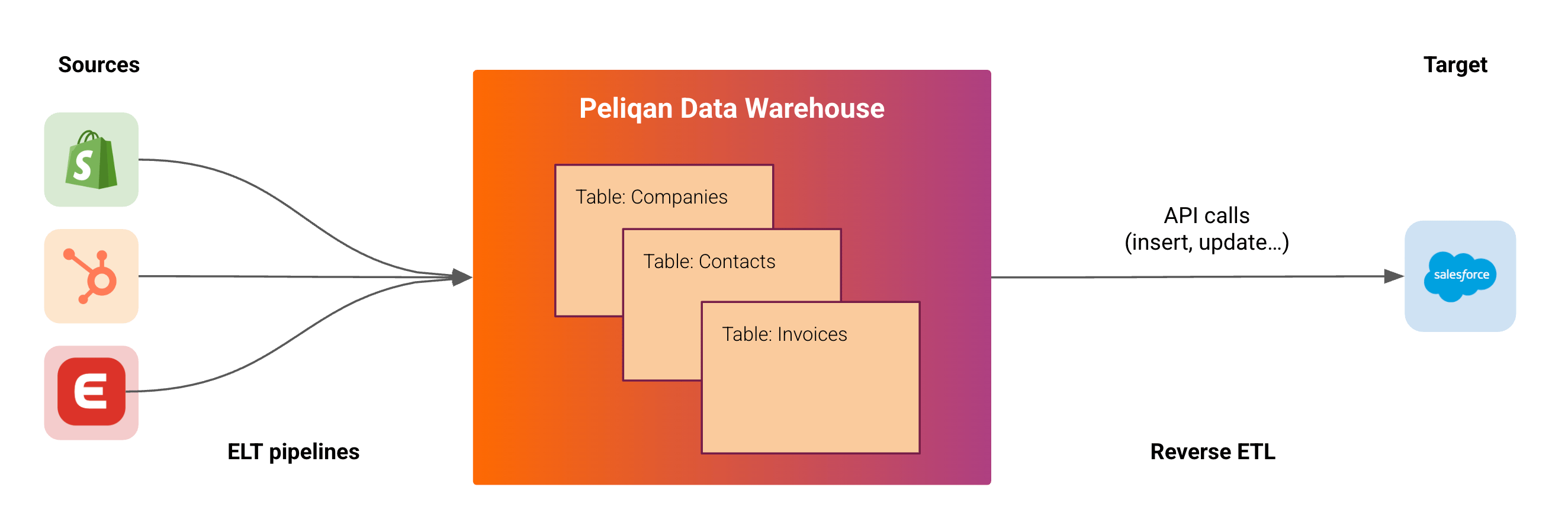
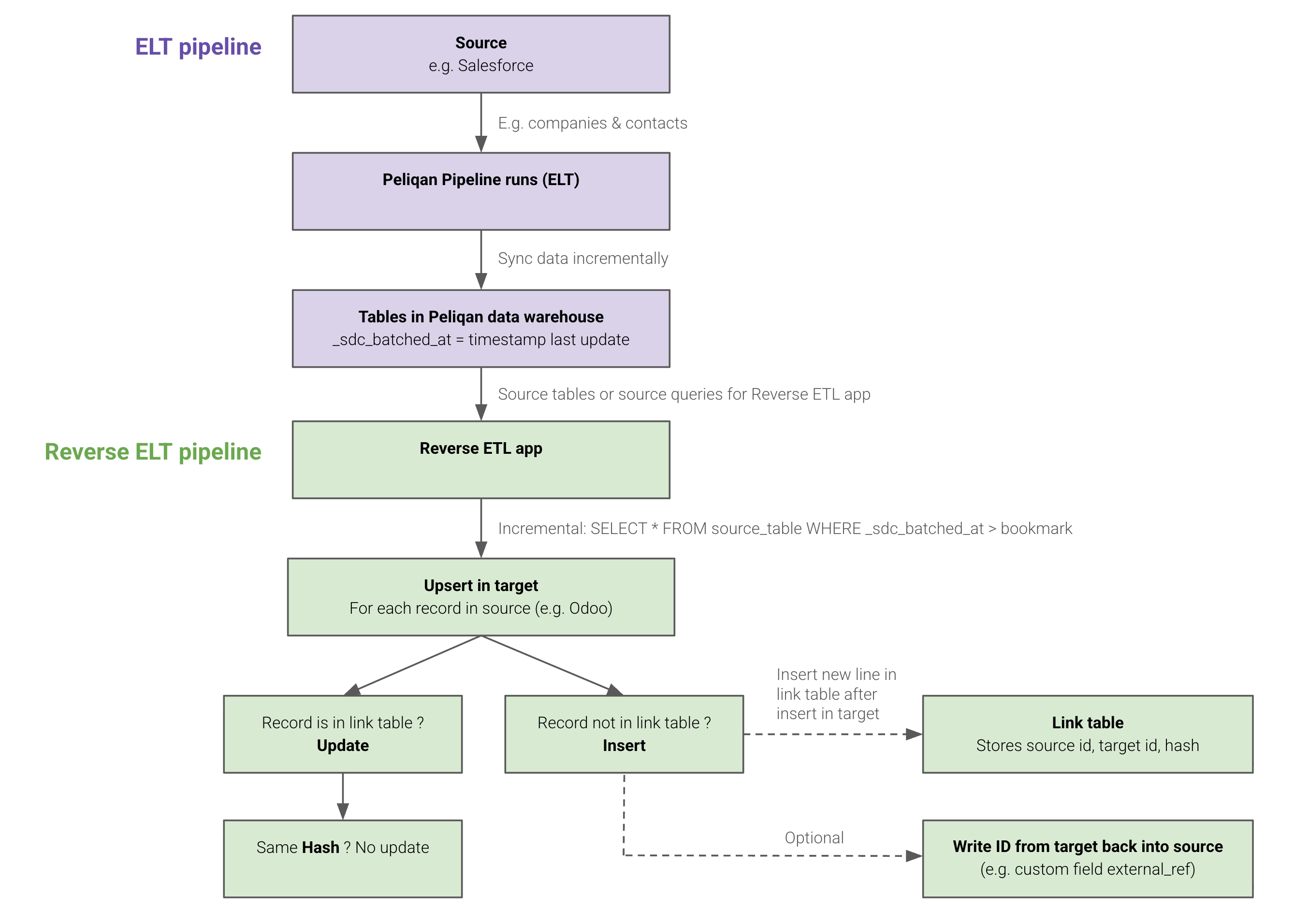
You can also implement Custom Data Syncs (Custom Reverse ETL flows) in Peliqan using low-code Python scripts, based on one of the provided templates. For more information visit: Custom data syncs
Prerequisites
Before usign the Peliqan Reverse ETL app, make sure you have a good understanding of following basic concepts in the Peliqan data platform:- ELT pipelines: sync data into the data warehouse
- Data explorer: explore source data
- Data apps: low-code Python scripts in Peliqan
- Add a connection to the source: this will sync data into the data warehouse, which will be the source data for the Reverse ETL app.
- Add a connection to the target: this connection will be mainly used for making API calls to the target (inserts & updates) as well as optionally doing QA checks on the target data.
Install the Reverse ETL app
In Peliqan, go to the Build section (rocket icon in left). Find the Reverse ETL app and click on Install Template.
Add syncs
In the app, in the left pane, add a sync for each object type, for example a sync for “Companies” and a sync for “Contacts”.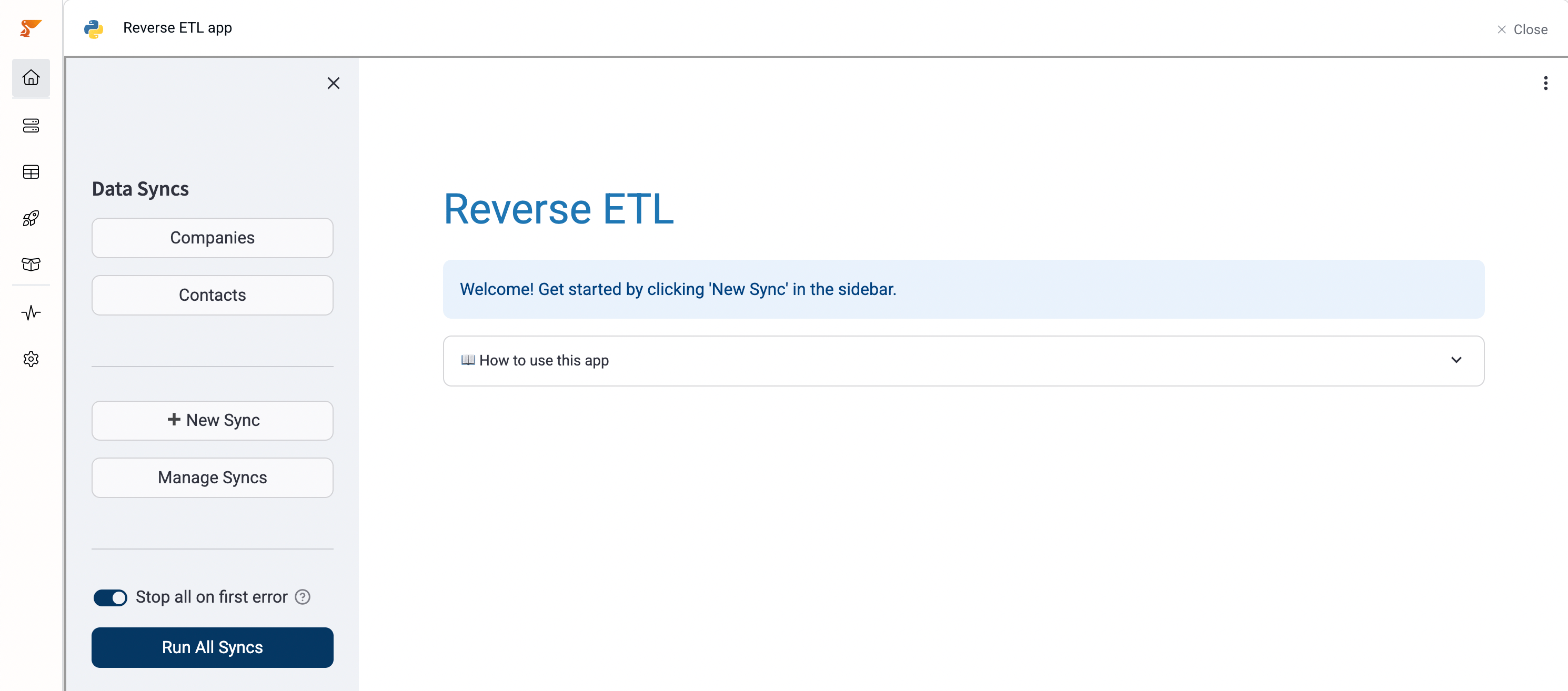
General tab
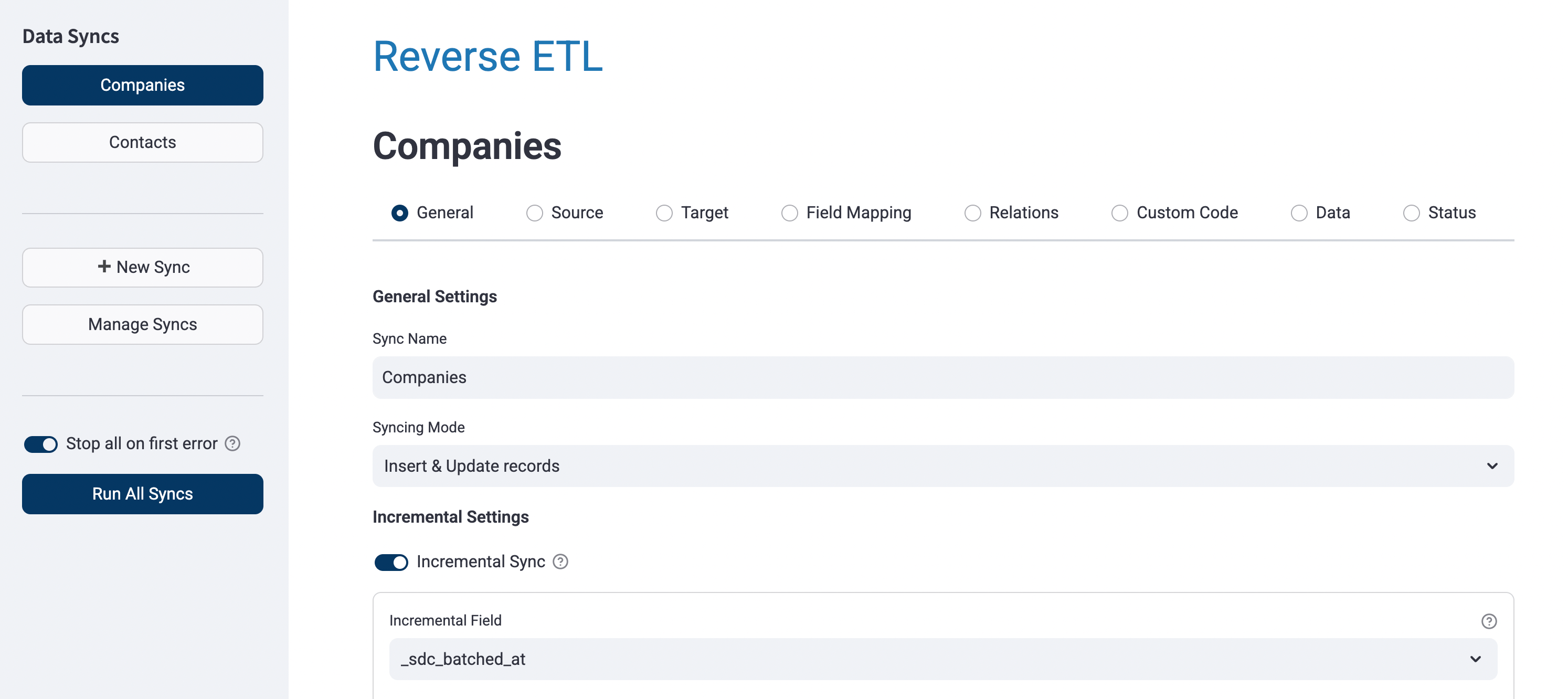
Sync mode
For each sync, choose the sync mode, e.g. “Insert & Update records”.Incremental sync
Enable incremental sync, if the source data has a “timestamp last update” field. Incremental sync means that on each scheduled run, only new & updated records from the source are processed, as opposed to processing all records from the source on each run. Peliqan pipelines always add a timestamp_sdc_batched_at so this is the default timestamp source column to use.
If you use a source query (scope query), make sure to include this column in your query so that it is available for the Reverse ETL app to read.
Run pipeline first
Use this to make sure the source data (data warehouse tables) is up to date before running the Reverse ETL logic.Write back of id
Use this feature to write the new id (after insert in the target) back into a field in the source. Usually a custom field is used for this. Example: sync Contacts from Hubspot to Odoo. After insert of a new Contact in Odoo, the Odoo id is written to a custom field odoo_id in Hubspot. Note that this is optional, the id’s of source and target are also stored in Link tables, see below.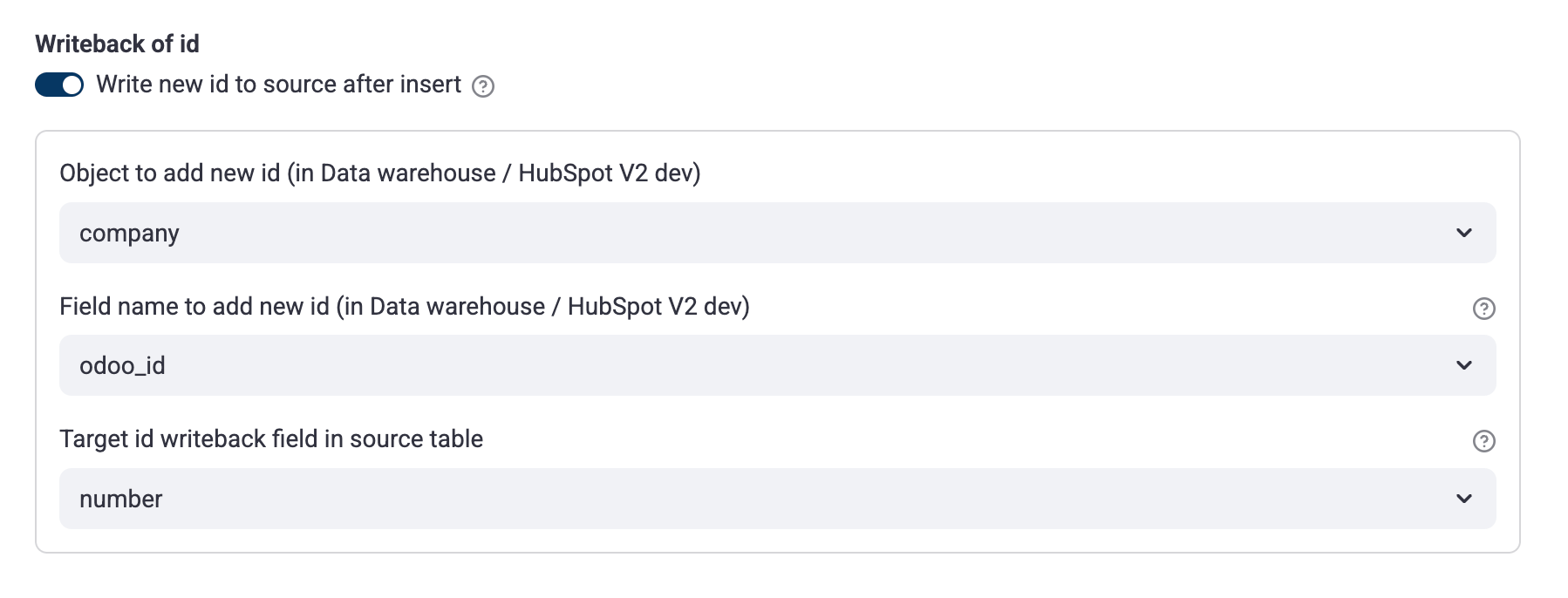
Error handling
Choose whether or not the Reverse ETL run should stop if an error is encountered while writing to the target. Enable “Alert emails” on the Reverse ETL script (under Build) to receive emails when an error occurs in a scheduled run. Note that this option is only available once a schedule is active.2-way sync
Use this when syncing in 2 directions. In this case one sync is configured for each direction and each sync is linked to its “equivalent” sync in the other direction. This is to avoid unnessary updates and eternal loops. Note that the “hash” feature (see below) also avoids eternal loops. Example syncing Companies and Contacts between Hubspot and Odoo in both directions. Syncs to configure:- Companies - Hubspot to Odoo
- Contacts - Hubspot to Odoo
- Companies - Odoo to Hubspot
- Contacts - Odoo to Hubspot
Source tab
Select a source table. See below on how to write a “source query” in order to transform data and map it to the target model. When you have created a source query, make sure to select this as the source table.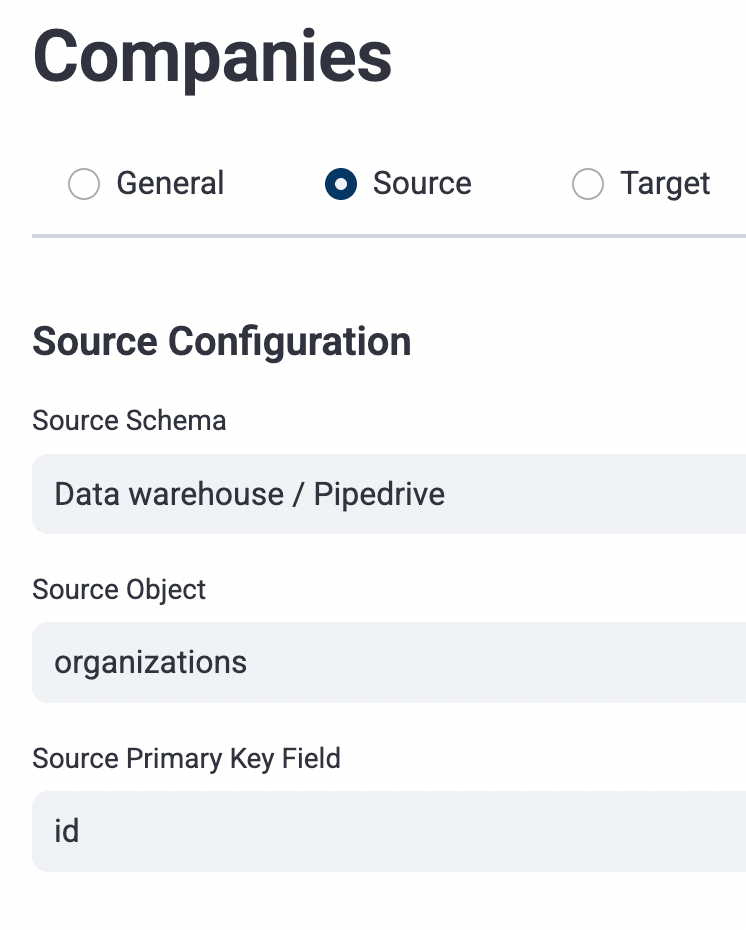
Target tab
Select a target. You have to configure a Target API Object, this will be used to perform writeback to the target (using Peliqan’s writeback functions in the selected Connector).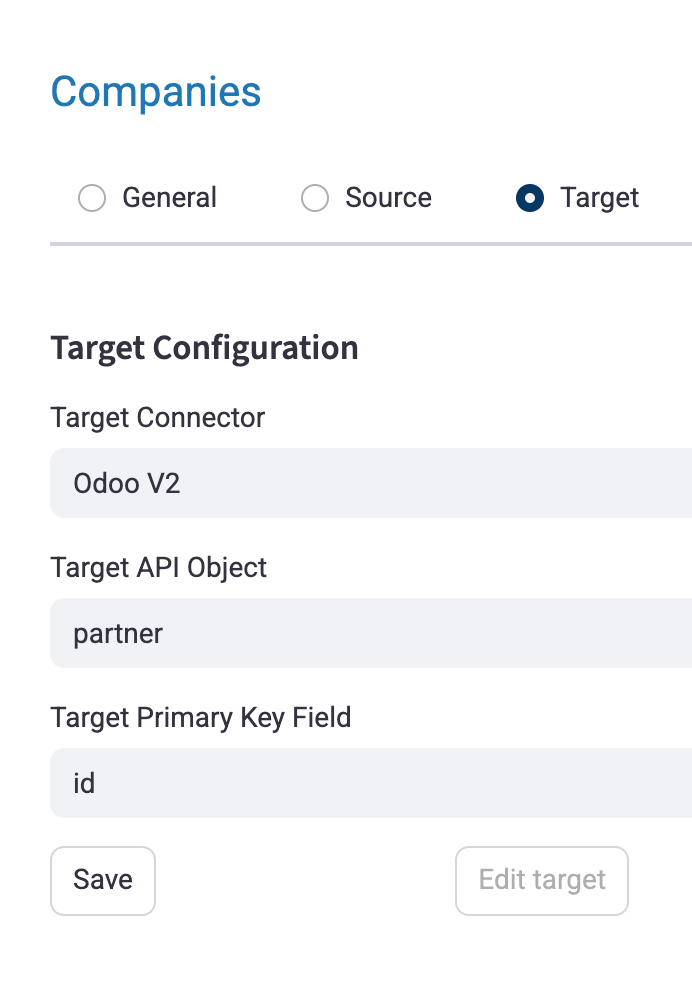
Generic Target Object
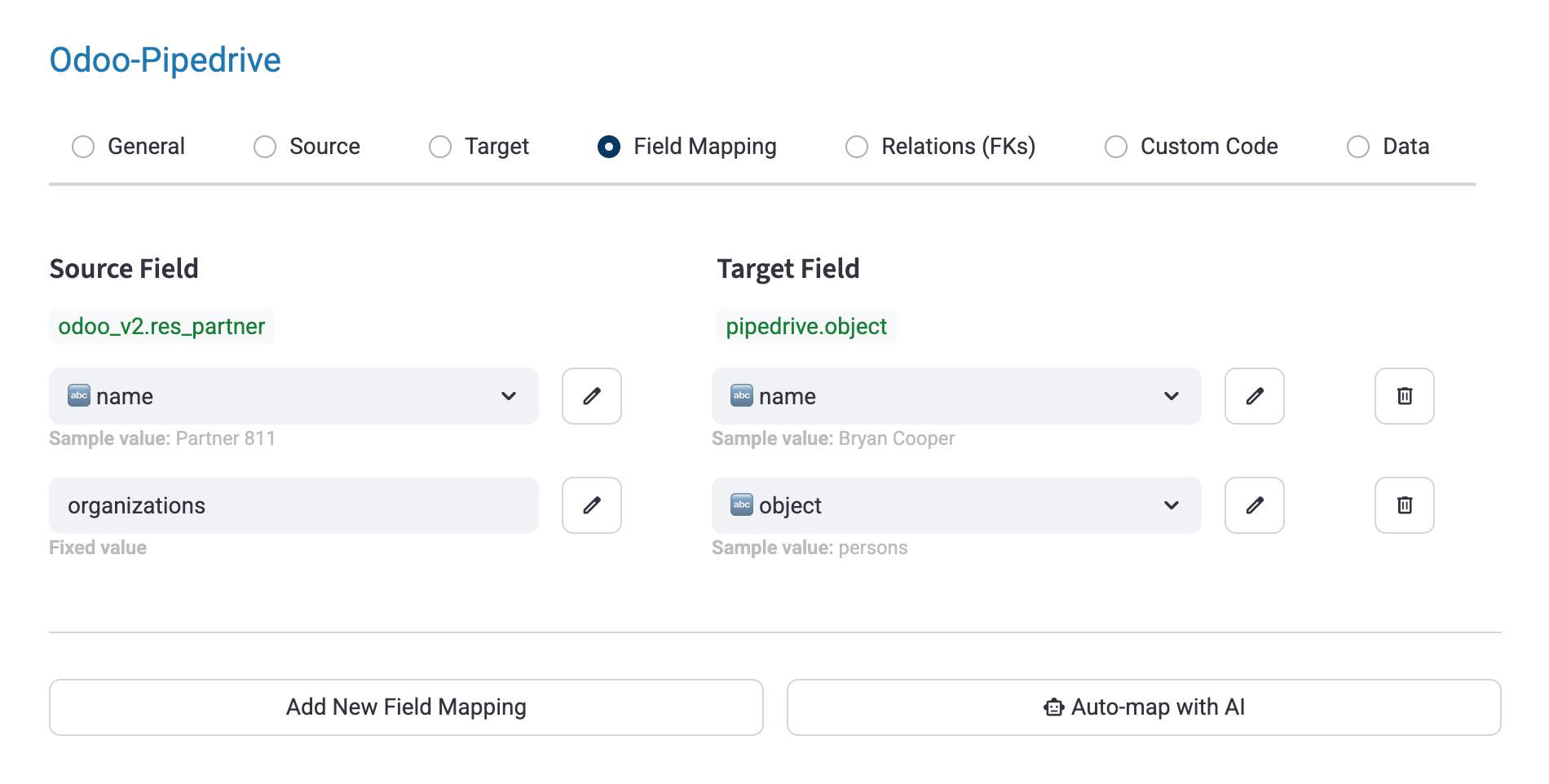
If you cannot find the Target Object that you need, you can select “Object”, if it is available in the target connector that you selected. Example: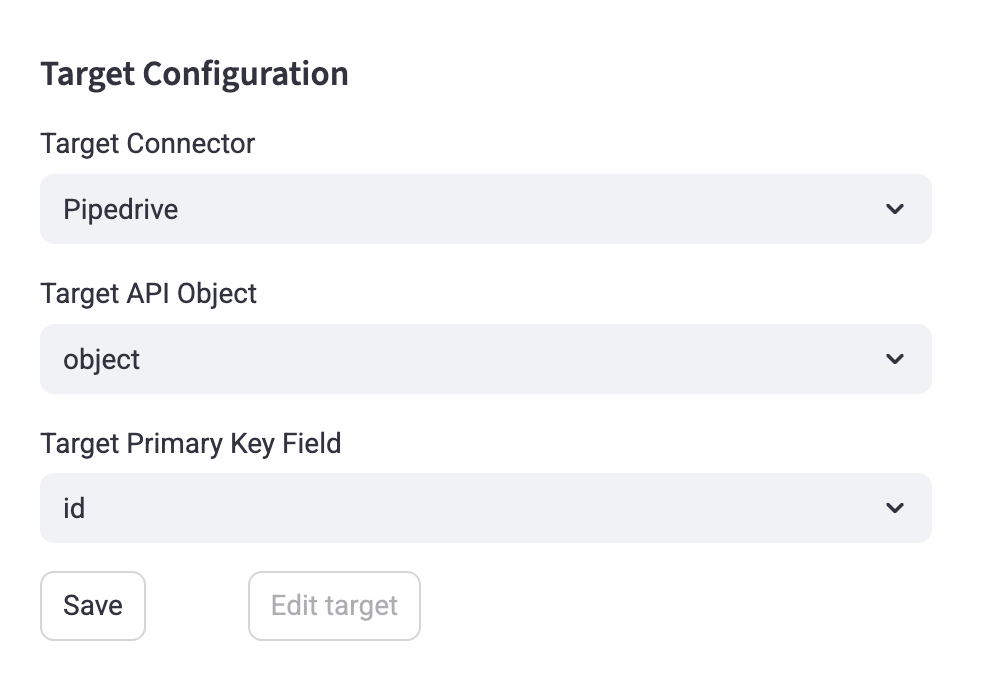
Field mapping tab
Map fields from the source to the target. Do not use “id” fields in the target (column on the right). Those fields are often FK relations in the target, use the “Relations (FK)” tab instead.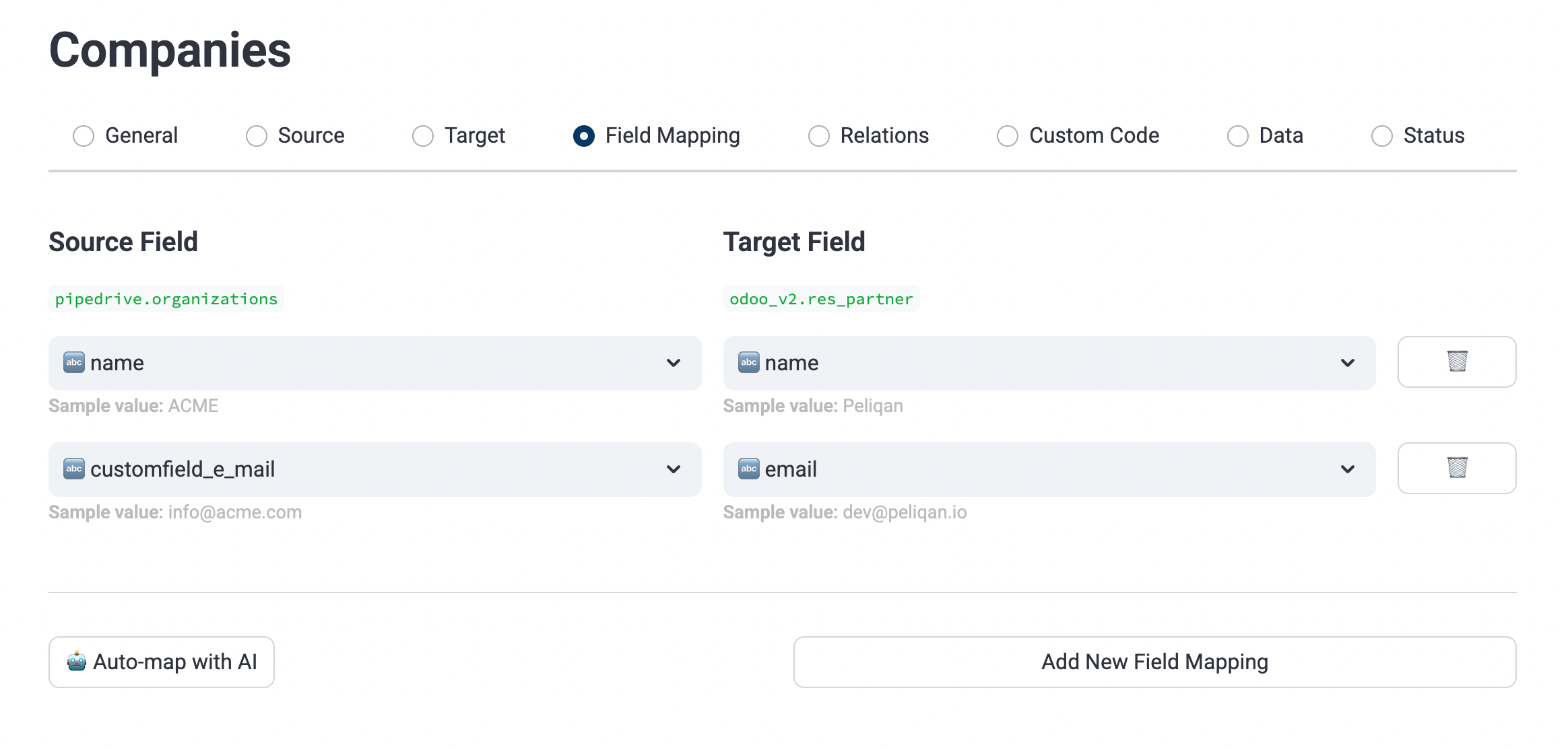
Static source values
Click on the edit icon (pencil) in the left column to enter a static value. For example enter a static value555 that needs to be used for all records, and whic is mapped to a target field division_id (assuming all synced records in the target need to have division_id=555).
Custom fields
Click on the edit icon (pencil) in the right column to enter a target column name. Use this e.g. to write into a custom field in the target.Relations tab (FKs, foreign keys, parent relations)
If you have an FK (foreign key) in the source, which is a relation to a parent object, you probably need to map that to another FK field in the target. You cannot map FK fields directly because the parent object will have another id in the source and in the target. Here is an example where first sync Companies, then we sync Contacts. Each Contact (child) is linked to a Company (Parent):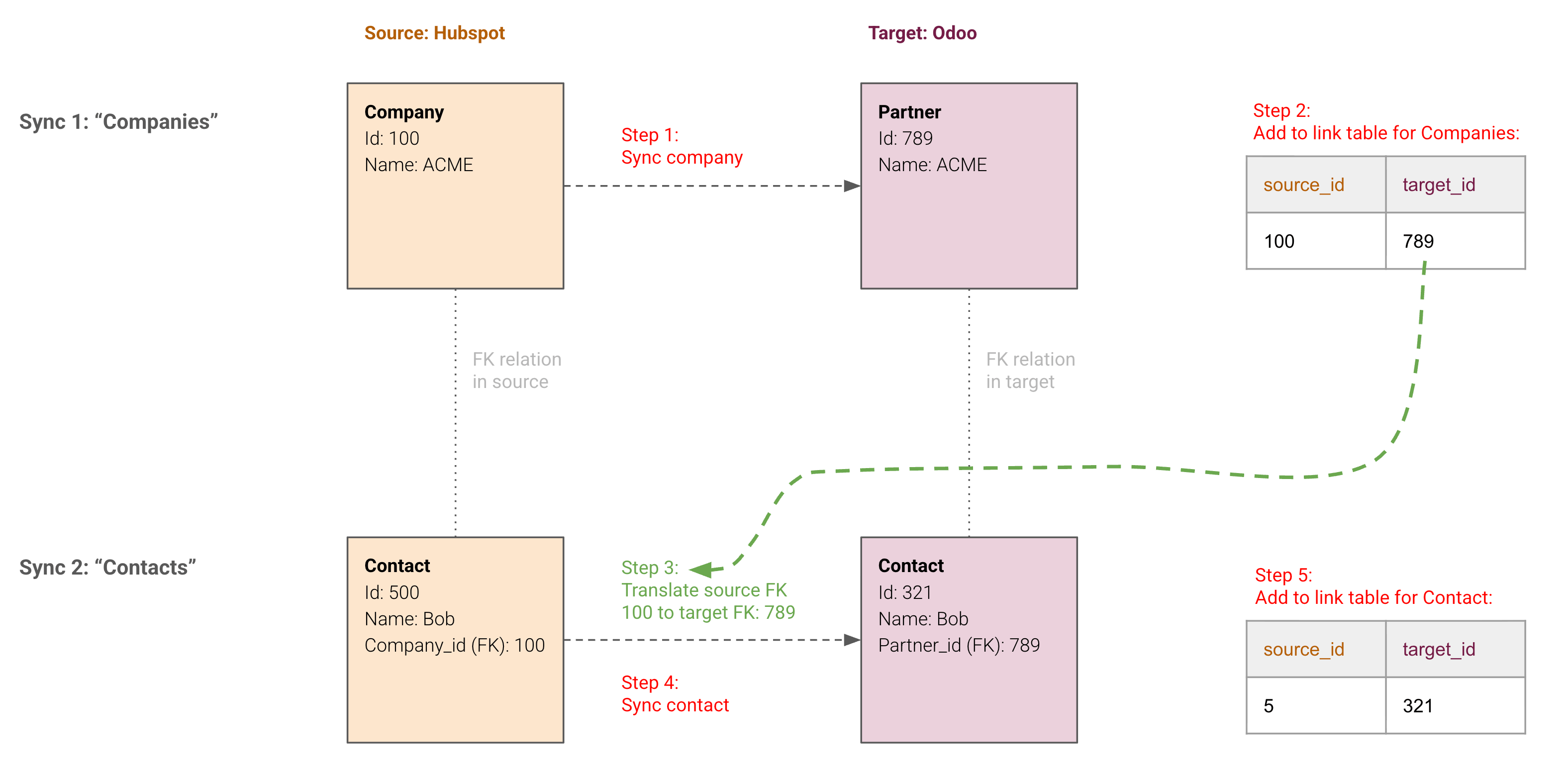
- Source Company id=100 is synced to target Partner id=789.
- Source Contact id=500 is synced to target Contact id=321.
- You cannot map source company_id directly to target partner_id.
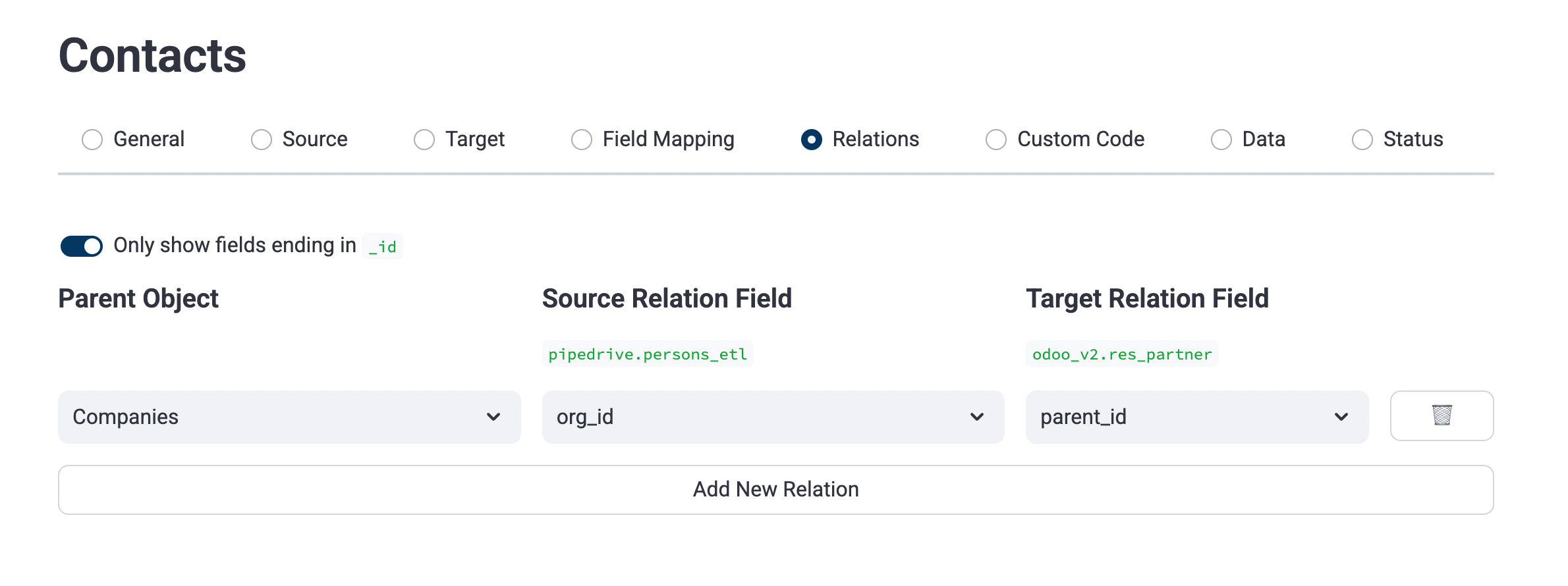
Data tab
Test the Reverse ETL sync
You can test the sync under “Data” by selecting one source record and performing a manual sync. If there are errors, adjust the field mapping and test again.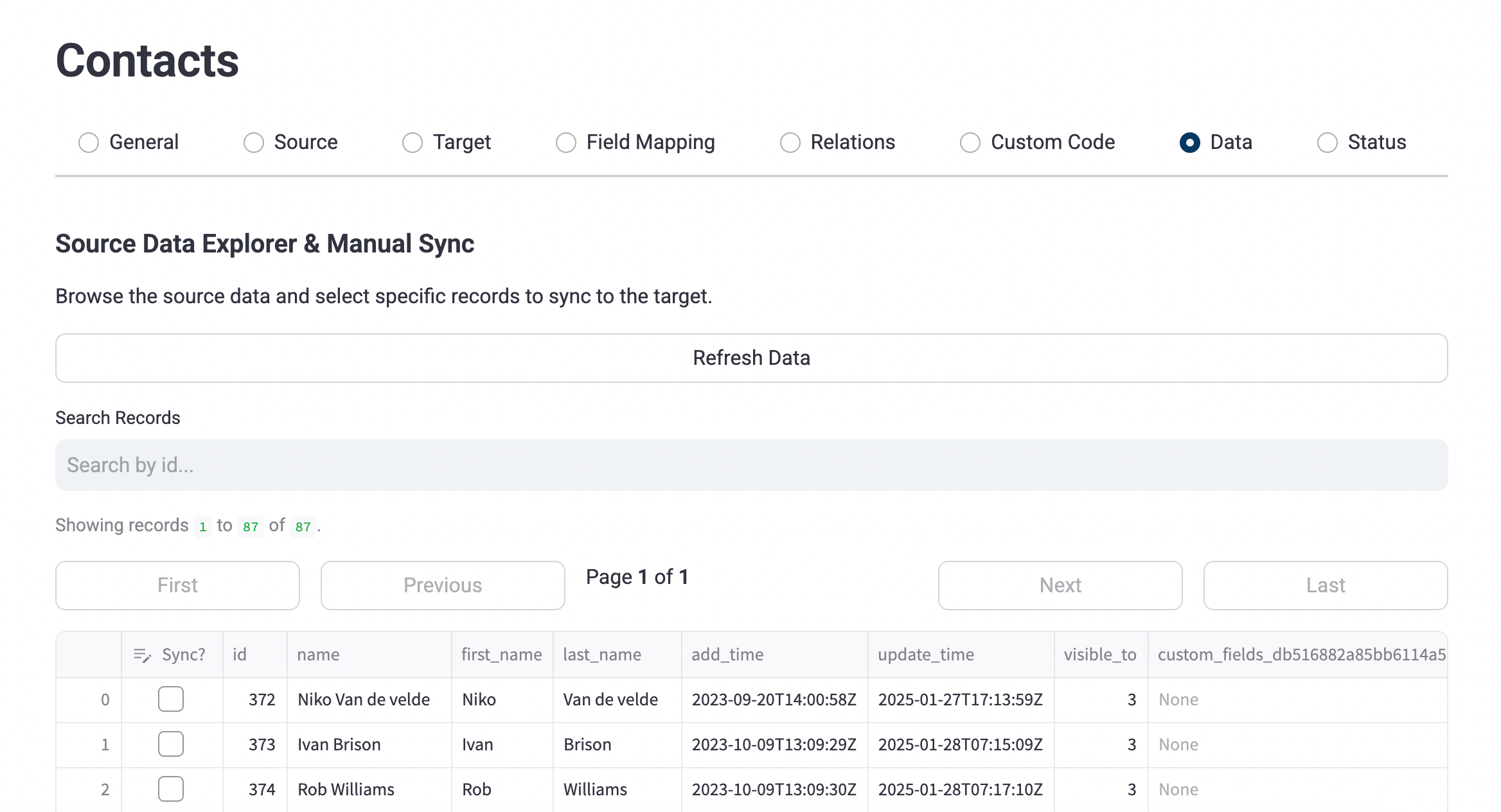
View the status of a sync
View the status of each sync under “Status”. This shows the link table which contains all source ids that have been synced, the timetamps and errors if any.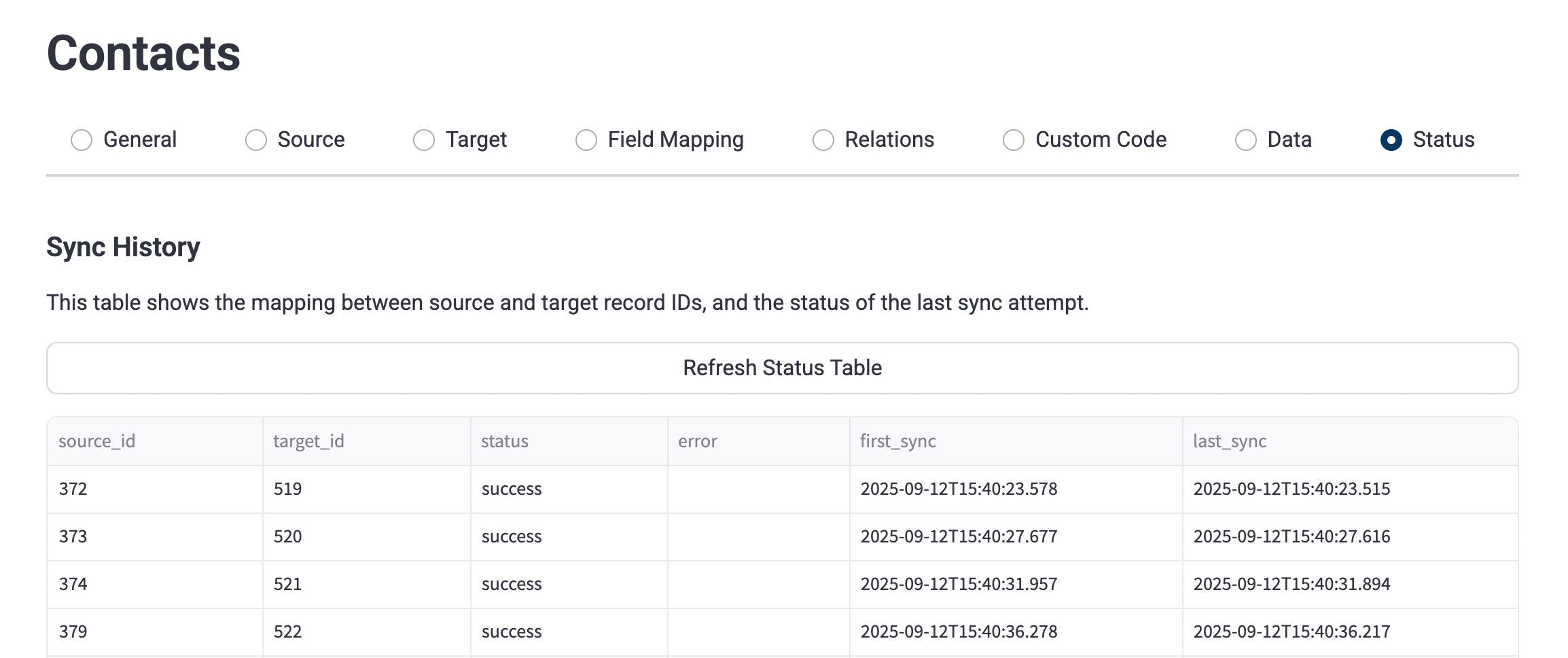
Custom code tab
Examples to use custom code:- Write nested JSON to the target API
- Conditional updates
- Etc.
Write nested JSON to target API
The Reverse ETL app performs API calls to the target for inserts and updates. The JSON payload is a flat objects with keys and values, as defined in the field mapping. Example insert:Note: sending nested JSON can also be done with a JSON column in a source query (without using custom code).
Conditional updates
Example custom code for conditional updates:Link tables
The Reverse ETL app creates a link table under schema link_tables for each sync. The link table keeps track of source ids and target ids. Example of a link table:
Possible values for “status”:
- Success
- Error
- Skipped - “Same hash”: a hash is calculated before every update in the target, based on the input fields. If the hash is identical to the previous update, the update is skipped. This is to avoid unnecessary updates, especially when the source timestamp “last update” is increased but not because of fields that are in scope for the sync.
Handling existing records in target
The Reverse ETL app assumes that the target is empty, or at least that the records that will be created from the source do not exist yet in the target. The Reverse ETL will only check the link table to decide if the target record already exists (and do an update instead of an insert), it will not check the target in real-time. This might create duplicates if the target is not empty. Example: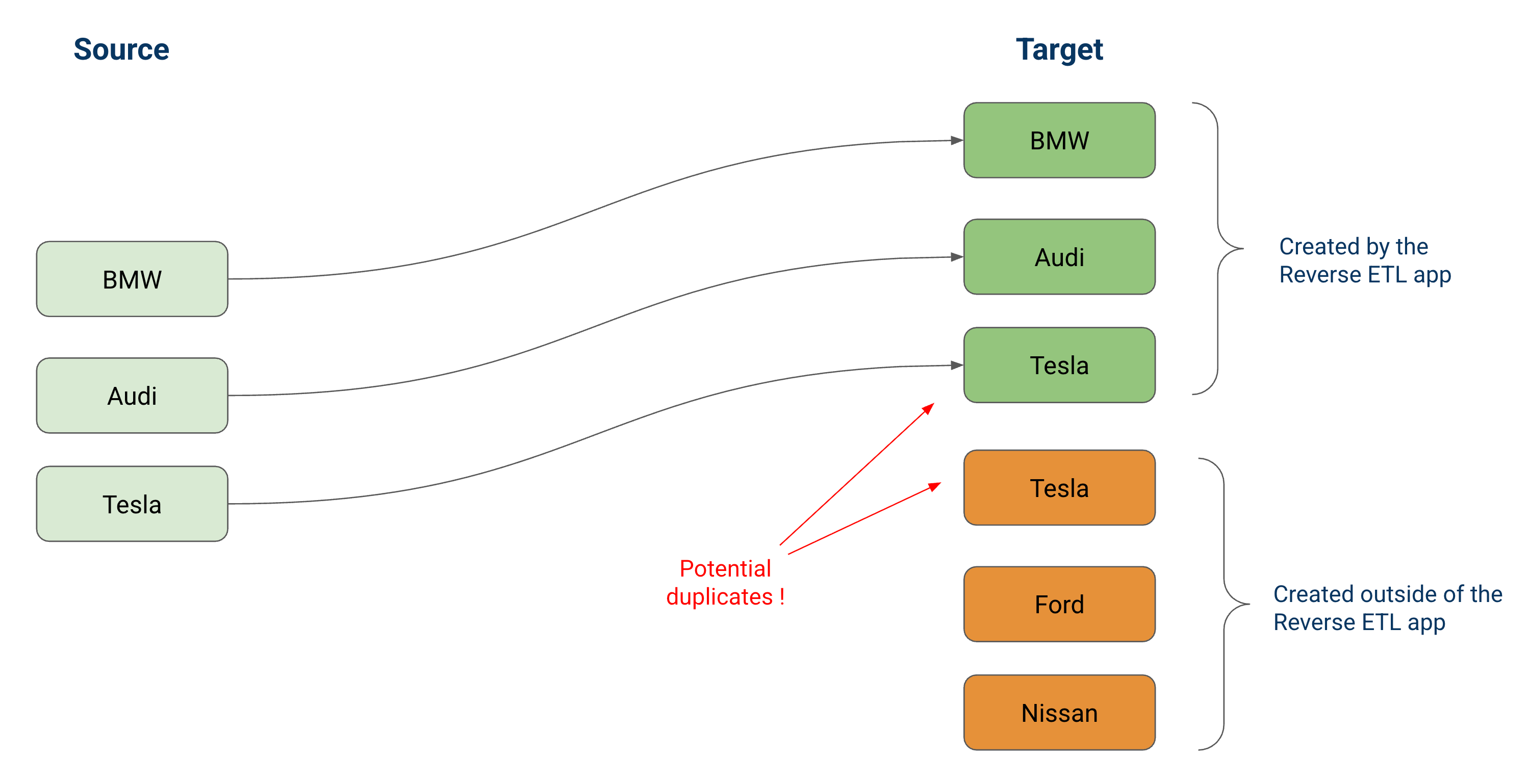
- Do a real-time API lookup before each upsert
- Seed the link table
- Exclude existing records from the source query
Lookup in target before upsert
Add custom code that will do a “Lookup” API call in the target before each upsert, to decide if either an update or insert is needed. Note that the lookup cannot be done based on “id”, it has to be done based on a common key that exists in both the source and target. For example VAT number for companies or email address for contacts. Example custom code:Note that this type of custom code is supported from Reverse ETL version 3.0 and up.
Seeding the link tables
The Reverse ETL app performs an insert in the target, for each source record, and subsequently it performs updates for these source ids. However, the Reverse ETL app does not “match” source records with pre-existing target records. For example, if you sync companies from a source to a target, the Reverse ETL app will ignore Companies that are already present in the target (not insterted by the Reverse ETL app). In order to take these into account, you can add those target records in the link table first. You could e.g. match source & target companies on VAT number and insert matching rows in the link table. Example query:Exclude existing records from the source query
If you want the Reverse ETL app to completely ignore existing records, you can exclude them from your source query. This can be done by joining the source query with the pipeline table of the target. Example source query where Hubspot companies is the source and Odoo partners is the target and we compare them based on VAT number:Settings
Sync order
Make sure to put parent object types above their children, so they sync first. For example sync Customers first, then Invoices that are linked to Customers.Schedule
Once the syncs are working fine, you can add a daily schedule to the Reverse ETL app. The Reverse ETL app will run in the background and process source records for each sync. If the sync is configured as incremental, the source data will be processed incrementally, based on the timestamp last update that is configured. Set a custom schedule You can also set a custom schedule (e.g. every 6 hours). Go to the Build section in Peliqan (rocket icon in left pane), open the app and set a schedule. Make sure to use incremental syncs and configure a daily or hourly sync.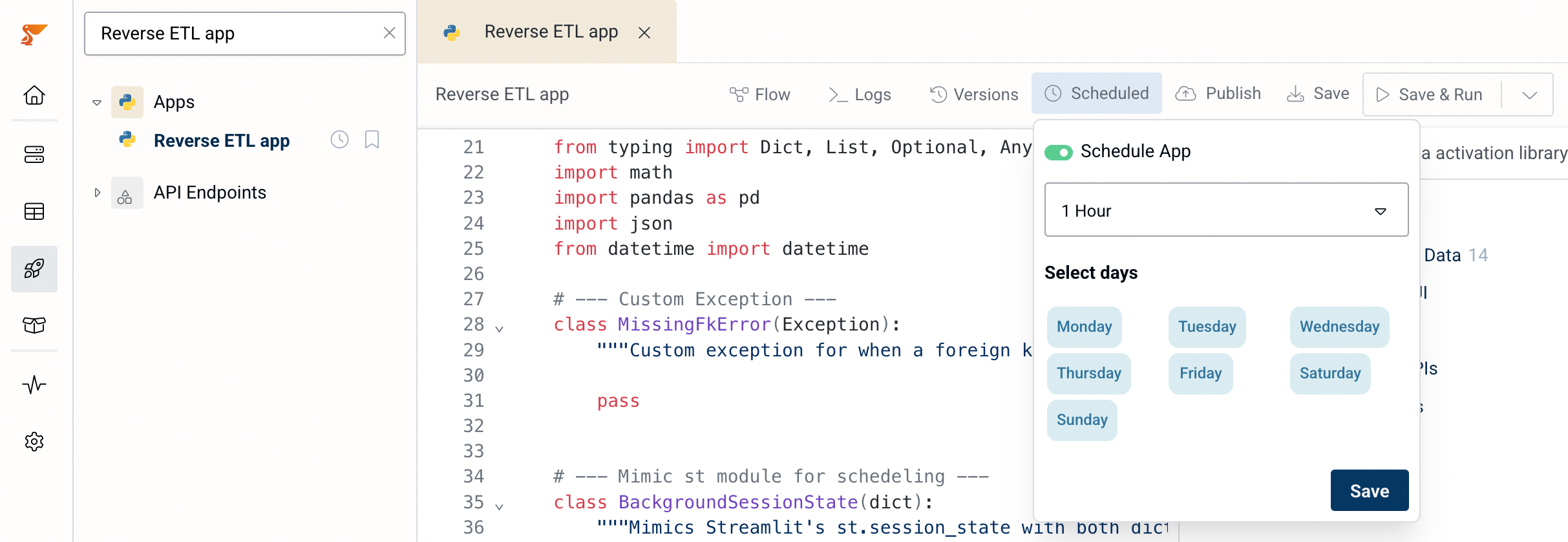
Import/export
Use this to backup your entire Reverse ETL configuration as JSON and to move configurations between Peliqan accounts.Writing a source query (source view)
You can write a source query (view) to prepare data for mapping to the target. Write the query first, and next use it as the source table in the Reverse ETL app. Examples of transformations that are typically handled in a source query:- Transform date formats from the source format to the target format.
- Casting of data types from the source to the target data type
- Combining data from multiple source tables into a single source query
- Mapping of values from source to target
- Adding a columns with a static value for fields that need to have a static value in the target
sync_contacts_source to use as source table in the Reverse ETL app:
Nested data in a source query
Nested data can be created in a source query and mapped to a JSON field in the target. An example is invoice lines for invoices.Notes: You can often also sync child objects (e.g. invoice lines) as a separate Object Type. Sync the parents first (e.g. invoices), next sync the children (e.g. invoice lines) with an FK relation (e.g. invoice_id). You can also handle nested JSON with custom code.
Make sure the column is of type “json” (
jsonb) in the source query and not a text field (varchar). Example where a string representation of JSON is casted to a json column:
Mapping “enum” / select fields
Enum fields (or “Single select fields”) are fields that have a value from a preselected list. For example a field “size” with possible values (options) “Small”, “Medium”, “Large”. The source options often have to be mapped to different options in the target. Example:
This can be accomplished with a scope query (used as the source).
Static mapping
New options must be added manually. Example scope query:Dynamic mapping
New options are automatically mapped. Below example assumes the options are stored in a separate table and that each option has both a “label” and a “value” and the labels on source & target match. Source table field_options:
Target table field_options:
Example scope query:
Handling deleted records
Deleting records in the target, that were deleted in the source, is currently out of scope for the Reverse ETL app. This can be handled in a separate custom pipeline script. More info: Handling deleted rowsBulk inserts
To speed up initial syncs (inserts into an empty target) bulk inserts can be enabled on selected tartget connectors such as Odoo. In that case select e.g. partner_bulk as target object instead of partner. Keep in mind that an entire batch insert will fail if one record in the batch fails. If most of your bulk inserts succeeded and a couple failed, you could switch back from bulk inserts to individual inserts and run the Reverse ETL again. It will then handle the failed records one by one. The batch size is 100 by default but can be updated in the source code of the Reverse ETL app. If you see a400 Timeout error in the log files of the Reverse ETL app, make sure to decrease your batch size. Peliqan will wait maximum 120 seconds for any API call to complete. If a bulk insert API call takes more time, you will receive a Timeout error, and you will have no information whether the records were actually inserted or not. Example error in the log files for Odoo: HTTPSConnectionPool(host='xxx.odoo.com', port=443): Read timed out. (read timeout=120)
QA checks
You can compare source and target data to check if all data was synced as expected. Make sure to run the pipeline of the target connection before performing a QA compare. Write a JOIN query that compares source & target data, using the link table as in-between:source table —> link table —> target table
Example show source records with missing target record:
FAQ & Troubleshooting
My record was not synced. why ?- Is it included in your source table ?
- If you use a source query, is the record included in this query ?
- Is it skipped because of incremental sync (e.g. bookmark in Reverse ETL is higher than _sdc_batched_at in source table.
- Is the record in the link table (source_id) ? If yes, is it in error status ?
- Did you change the scope of the source query ? Is the record still included in the scope of the source query ?
- Is it skipped because of incremental sync (e.g. bookmark in Reverse ETL is higher than _sdc_batched_at in source table.
Project scoping
Make sure to plan your Reverse ETL app projects properly. See below for an example scoping and consecutive project steps.Project type
The project scoping depends on the type of data sync that is being implemented. We distinguish between 4 types of data sync projects, in increasing order of complexity:- Type 1: Data enrichment
- For example enrich leads in Salesforce with info from support tickets
- Goal: extra visibility, e.g. allow sales team to see status of support tickets in their CRM
- One system is leading (data sync from a master to a slave)
- Type 2: Automated data syncs
- For example sync Shopify orders to Odoo ERP customers, sales orders, invoices
- No human in the loop
- Standardized process
- Scalable deployment (built as a product for usage by multiple end-customers)
- One system is leading (data sync from a master to a slave)
- Type 3: One time migration of historic data
- For example sync ERP data from a legacy ERP into a new target
- Target is empty
- No updates in target
- One migration run, preceded by multiple test runs
- One system is leading (data sync from a master to a slave)
- Type 4: Data sync to support a business proces
- Example e.g. keep CRM and ERP in sync
- Process has humans in the loop: e.g. the process consists of manual steps (e.g. data entry) and automated steps (the data sync).
- The process relies on fields, statuses or other specific data entries set by humans, for example “sync leads once they are set to status ‘accepted’ in the CRM”
- Potentially 2 systems are master, depending on the type of data being synced, potentially 2-way sync or two 1-way syncs (one in each direction)
- Data sync supports business processes, e.g. instant syncs are needed to support a hum process
Planning
| MEDIUM SIZE PROJECT | |
|---|---|
| E.g. Automated CRM data sync (one-way), types 1 - 3 | |
| Total effort | 15 - 30 days |
| Total project lead time | 4 - 8 weeks |
| FULL SCALE PROJECT | |
|---|---|
| E.g. ERP data sync with business process impact, type 4 | |
| Total effort | 30 - 90+ days |
| Total project lead time | 2 - 6 months |
Preparation
Preparation intake document (click to expand)
Preparation intake document (click to expand)
Template intake document
| General | |
|---|---|
| Describe the business case | |
| Describe the process step by step. Per step: | |
| • Manual or automated step ? Human in the loop ? | |
| • Which fields are updated ? | |
| Process edge case ? Examples: | |
| • We rely on a status field, status can be reverted | |
| • We rely on specific human input, mistakes are posible | |
| Technical contact at customer | |
| Technical contact has knowledge on relational data models, SQL, Python ? | |
| Technical contact had Reverse ETL onboarding from Peliqan (2 hours) | |
| Project start | |
| Project deadline | |
| Please allow for 4-8 weeks, depending on complexity |
| Overall sync | Source | Target |
|---|---|---|
| Platform name | ||
| Object type name | ||
| Primary key (unique key) | ||
| Connection added in Peliqan ? | ||
| Tables visible in Peliqan ? | ||
| How many rows to process ? Row count > 100K ? |
| Target details | |
|---|---|
| Do inserts in target ? | |
| Do updates in target ? | |
| Do deletes in target ? | |
| Is the target empty ? | |
| If not, should checks be done in target to avoid duplicates ? | |
| What field can be used to match between source and target when checking for existing target records ? | |
| Is the object linked to a parent ? | |
| Is the parent already in the target or should it also be synced using Peliqan’s Reverse ETL app ? | |
| How many records have to be synced in total ? | |
| Do you want to write the ID of the target back into a custom field in the source ? |
Example filled out intake document
| Overall sync | Source | Target |
|---|---|---|
| Platform name | Hubspot | Odoo |
| Object type name | Contacts | Partners |
| Primary key (unique key) | id | id |
| Connection added in Peliqan ? | Yes | Yes |
| Tables visible in Peliqan ? | Yes | Yes |
| Target details | |
|---|---|
| Do inserts in target ? | Yes |
| Do updates in target ? | Yes |
| Do deletes in target ? | No |
| Is the target empty ? | No |
| If not, should checks be done in target to avoid duplicates ? | No, the companies present in Odoo are unrelated, the Reverse ETL app can safely add all companies from Hubspot as new entries in Odoo. |
| What field can be used to match between source and target when checking for existing target records ? | VAT number, but not needed |
| Is the object linked to a parent ? | Yes: Company |
| Is the parent already in the target or should it also be synced using Peliqan’s Reverse ETL app ? | Also synced by Reverse ETL app |
| How many records have to be synced in total ? | Around 100K |
| Do you want to write the ID of the target back into a custom field in the source ? | Yes to a custom field “Odoo_id” which we added in Hubspot for Contacts. |