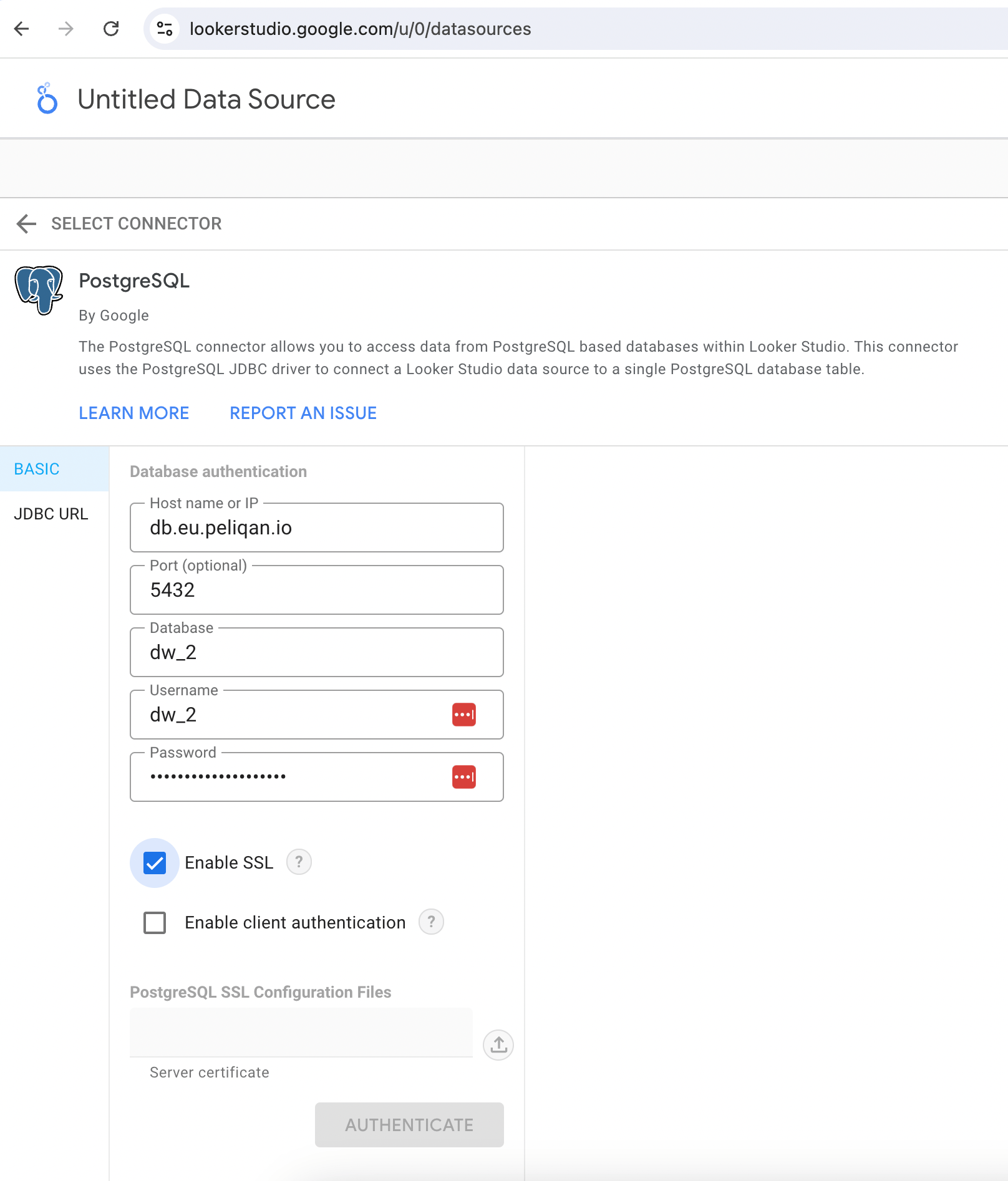
- Connection type: Postgres (default data warehouse type in Peliqan)
- Server:
- db.eu.peliqan.io
- db.mydatacloud.com
- db.us.peliqan.io
- … (check in your account under Connections > Data warehouse connection)
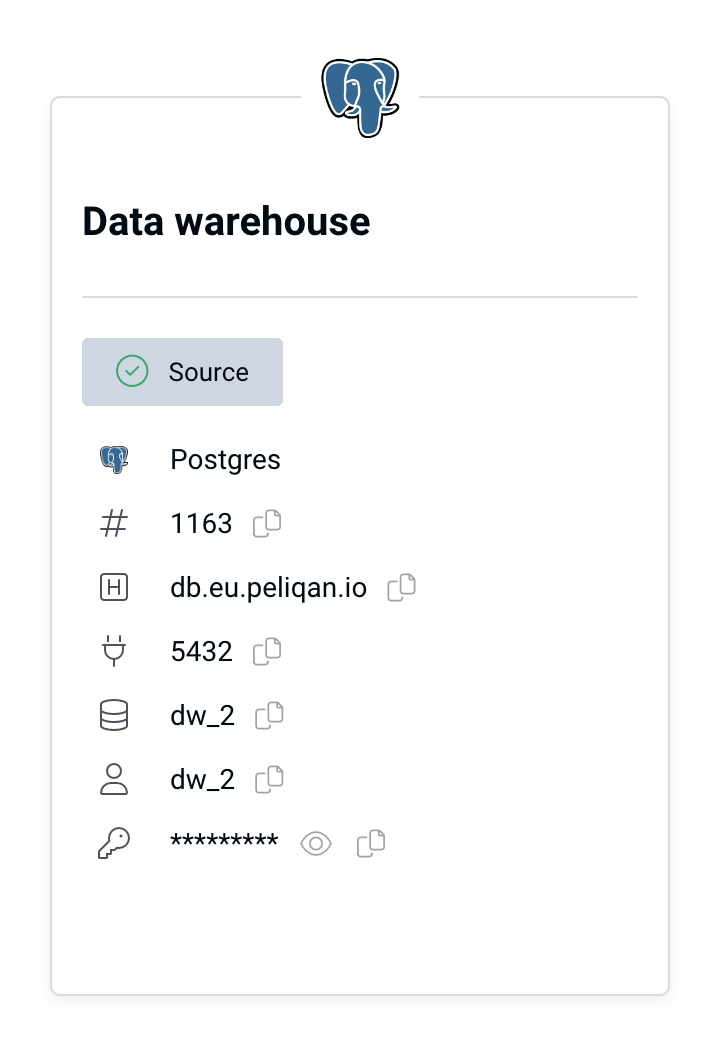
- User name & password: copy / paste from the Data Warehouse Connection tile (see above)
- Database name: same as the user name
- SSL: enabled
Step by step
In Looker Studio, click on “Create” and choose “Data source”.- Connection type: Postgres (default data warehouse type in Peliqan)
- Server:
- db.eu.peliqan.io
- db.mydatacloud.com
- db.us.peliqan.io
- … (check in your account under Connections > Data warehouse connection)
- User name & password: copy / paste from the Data Warehouse Connection tile (see above)
- Database name: same as the user name
- SSL: enabled
Step by step
In Looker Studio, click on “Create” and choose “Data source”. Select PostgreSQL from the list:Select PostgreSQL from the list: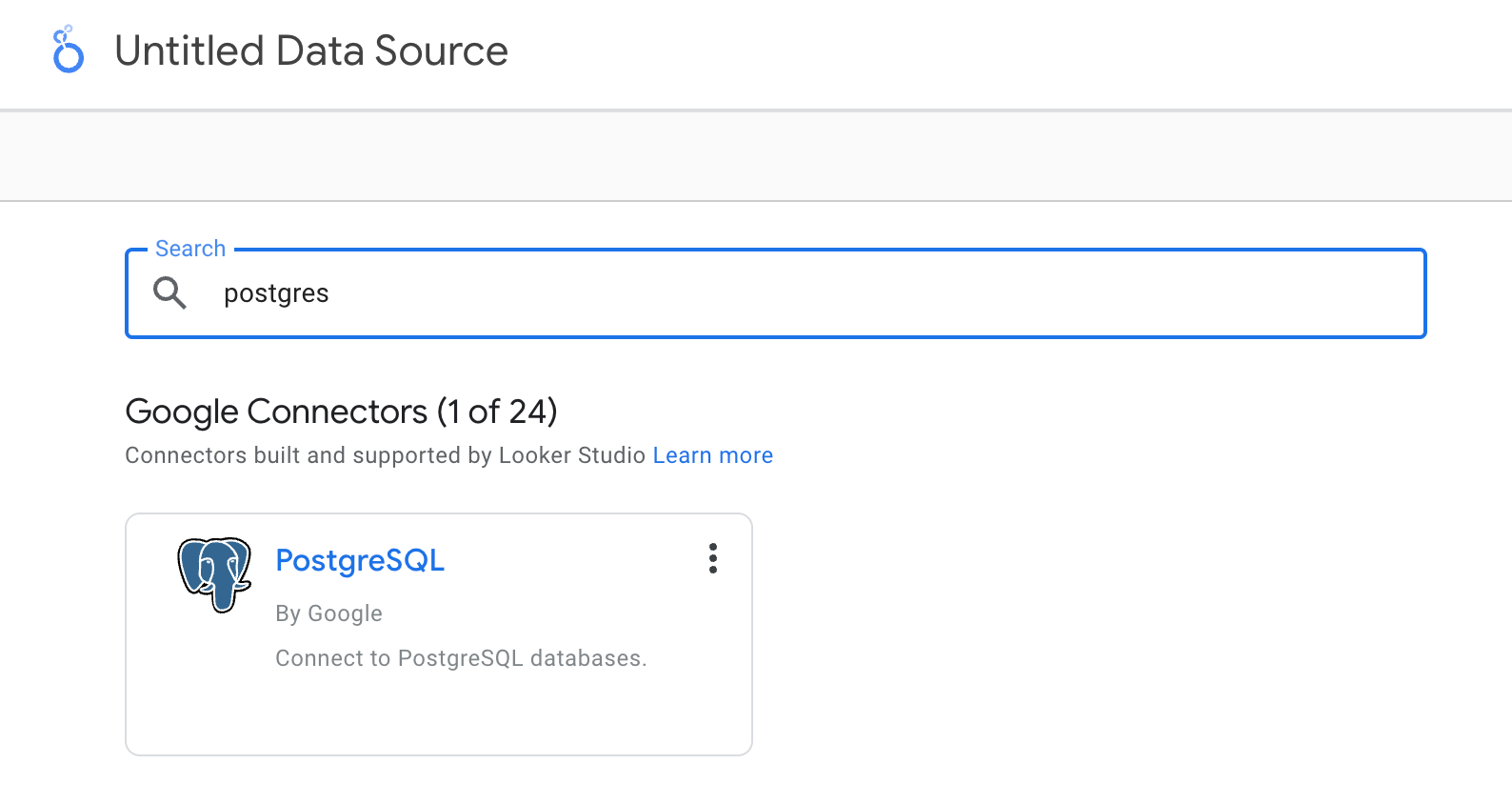
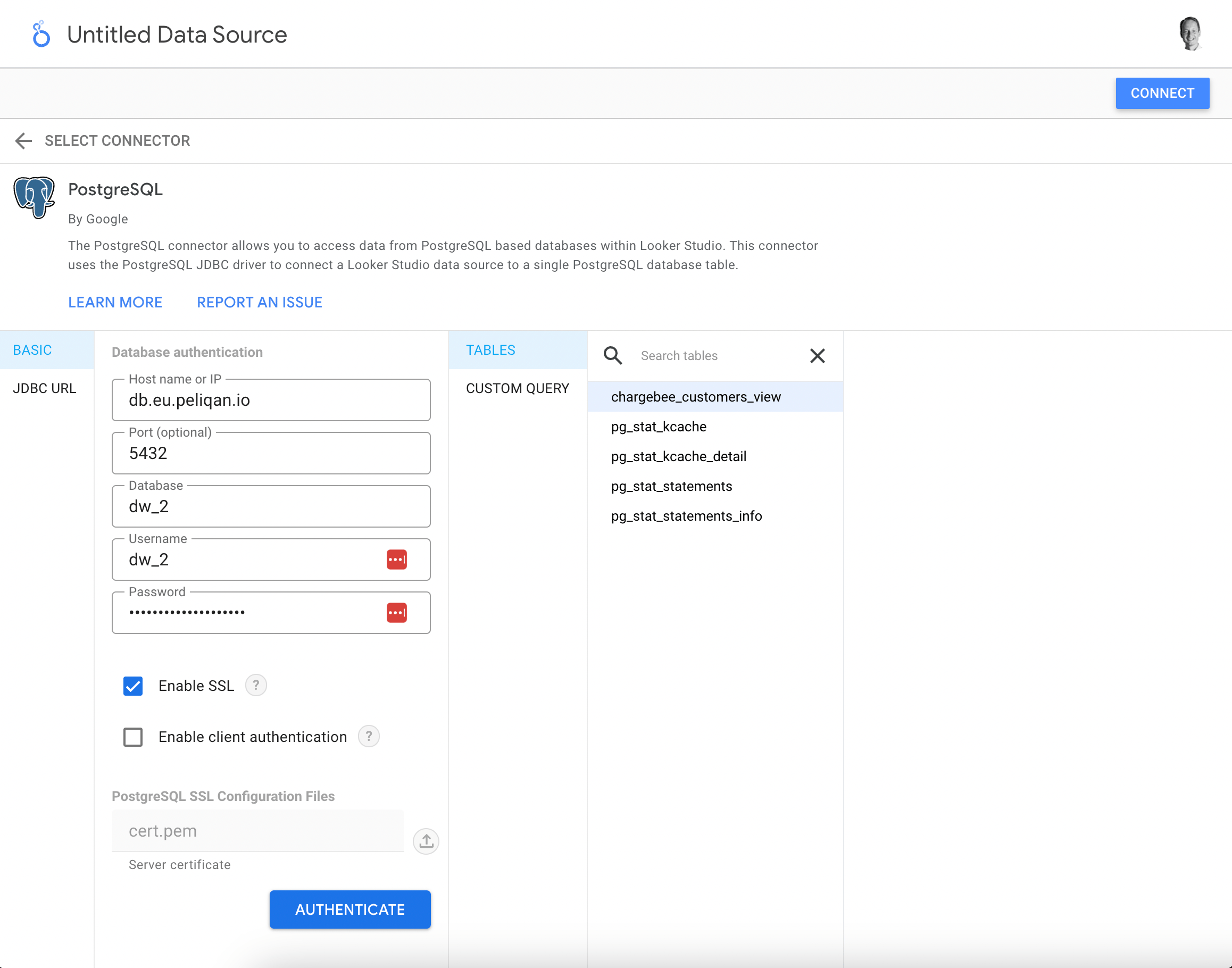
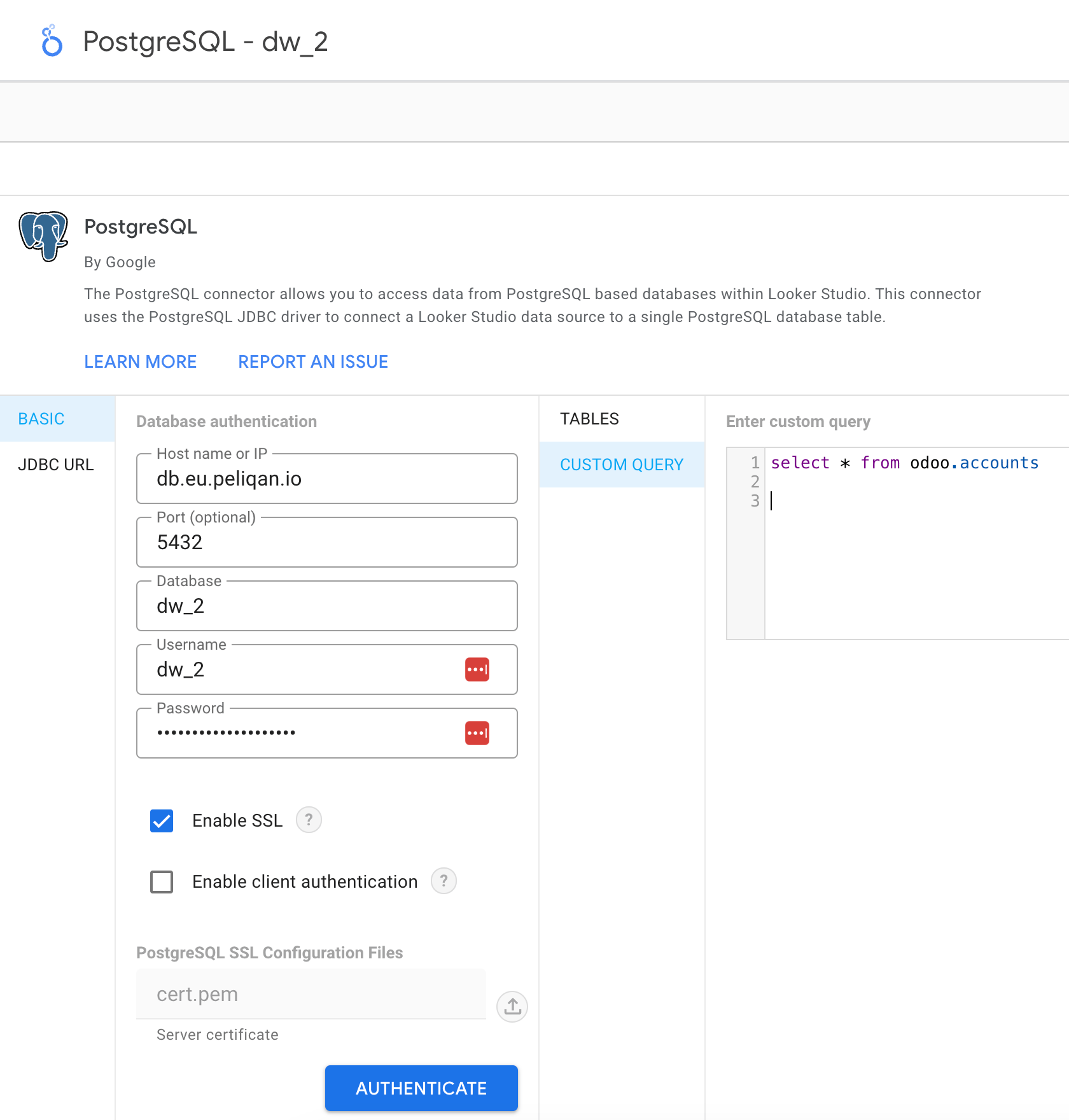
db.eu.peliqan.io , the database name, username and password and check the checkbox “Enable SSL”:Paste the host name from the Peliqan data warehouse, e.g. db.eu.peliqan.io , the database name, username and password and check the checkbox “Enable SSL”: