
Overview
The Data Mapper helps you create a mapping/enrichment table on top of an existing source table. Typical use cases- Add a
category,region,owner,status, or any other business label to existing rows. - Maintain a manual mapping table that can be joined back to the source table using a primary key.
- Source columns are read-only.
- Mapping columns are editable.
- When you click Save, the app writes everything to a destination table (it does not modify the source table).
How it works (high level)
- Select a source table (warehouse → schema → table)
- Choose source columns to display
- Pick a primary key and define a destination table
- Add mapping columns
- Fill values (inline editor) or upload a file
- Save to the data warehouse
- (Optional) Save a configuration so you can reload everything later
Data flow
UI structure
The app has 2 main areas:- Sidebar: setup + saved configurations
- Main panel: editing, upload, and data quality
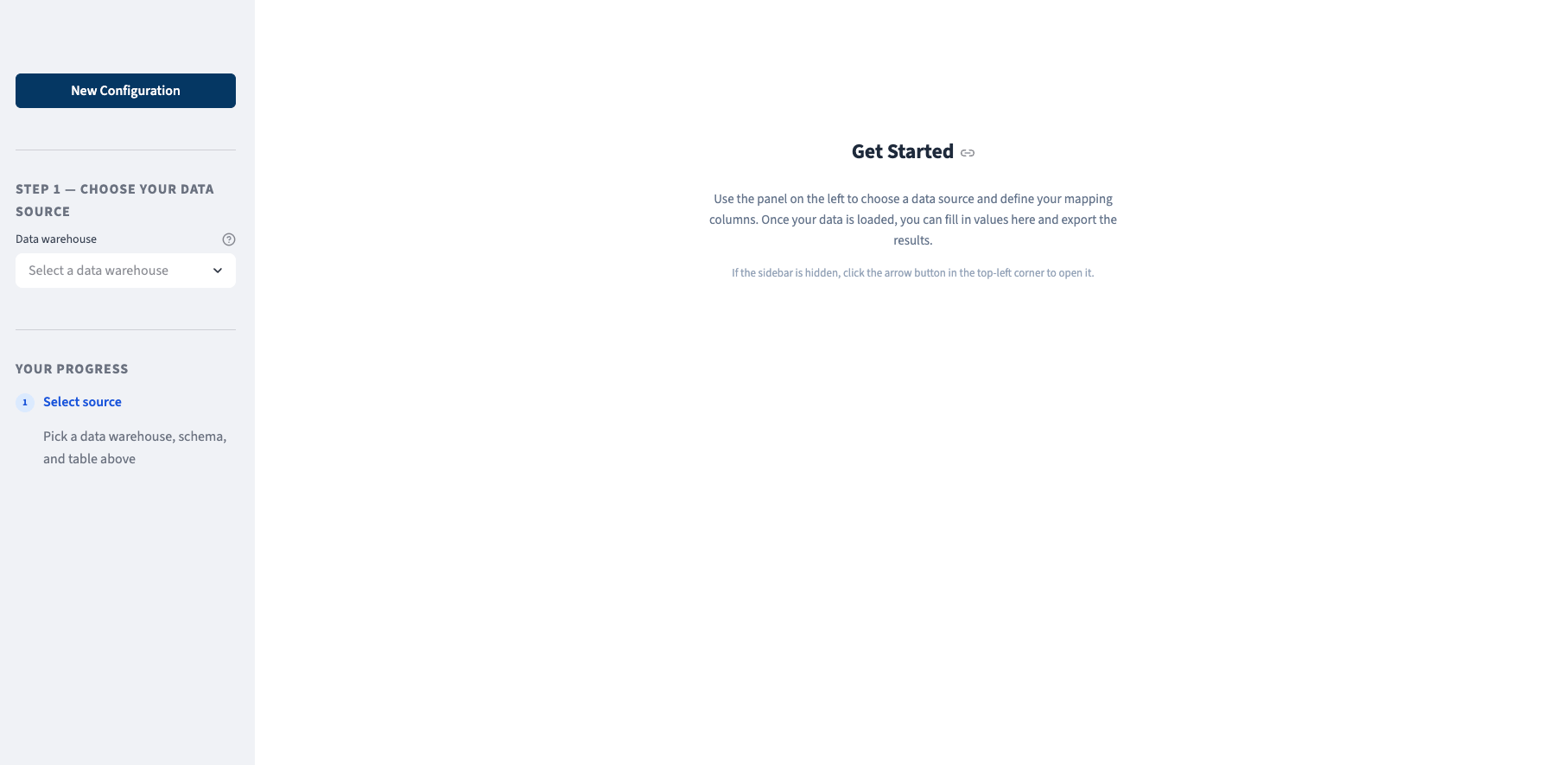
- Preview and Edit Mappings
- Upload from File
- Data Quality
Step-by-step usage
Step 1 — Choose your data source
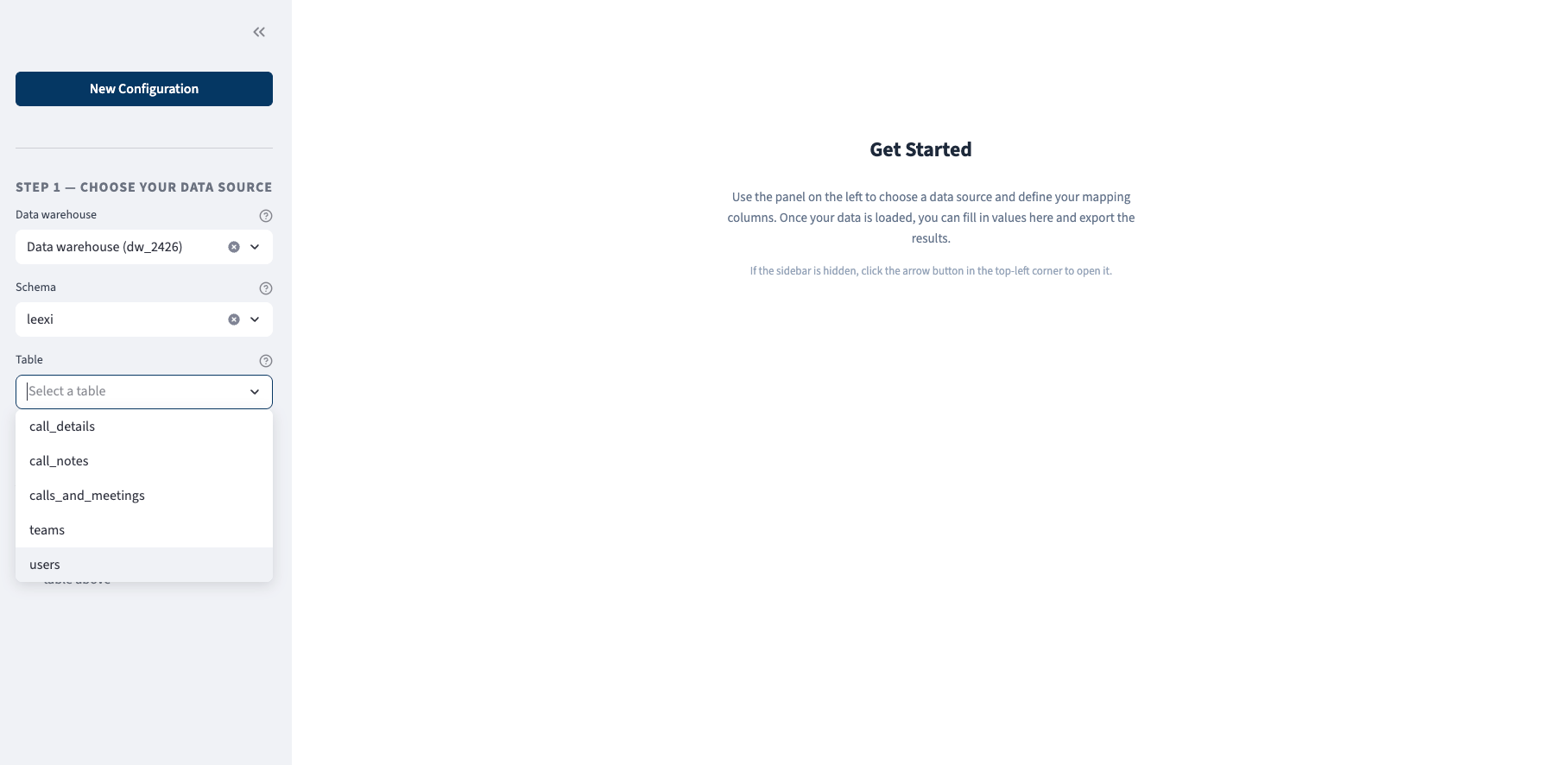
- Select Data warehouse
- Select Schema
- Select Table
- Loads metadata (schemas/tables) via
pq.list_databases(). - Fetches available columns from the selected table.
Step 2 — Choose columns to display
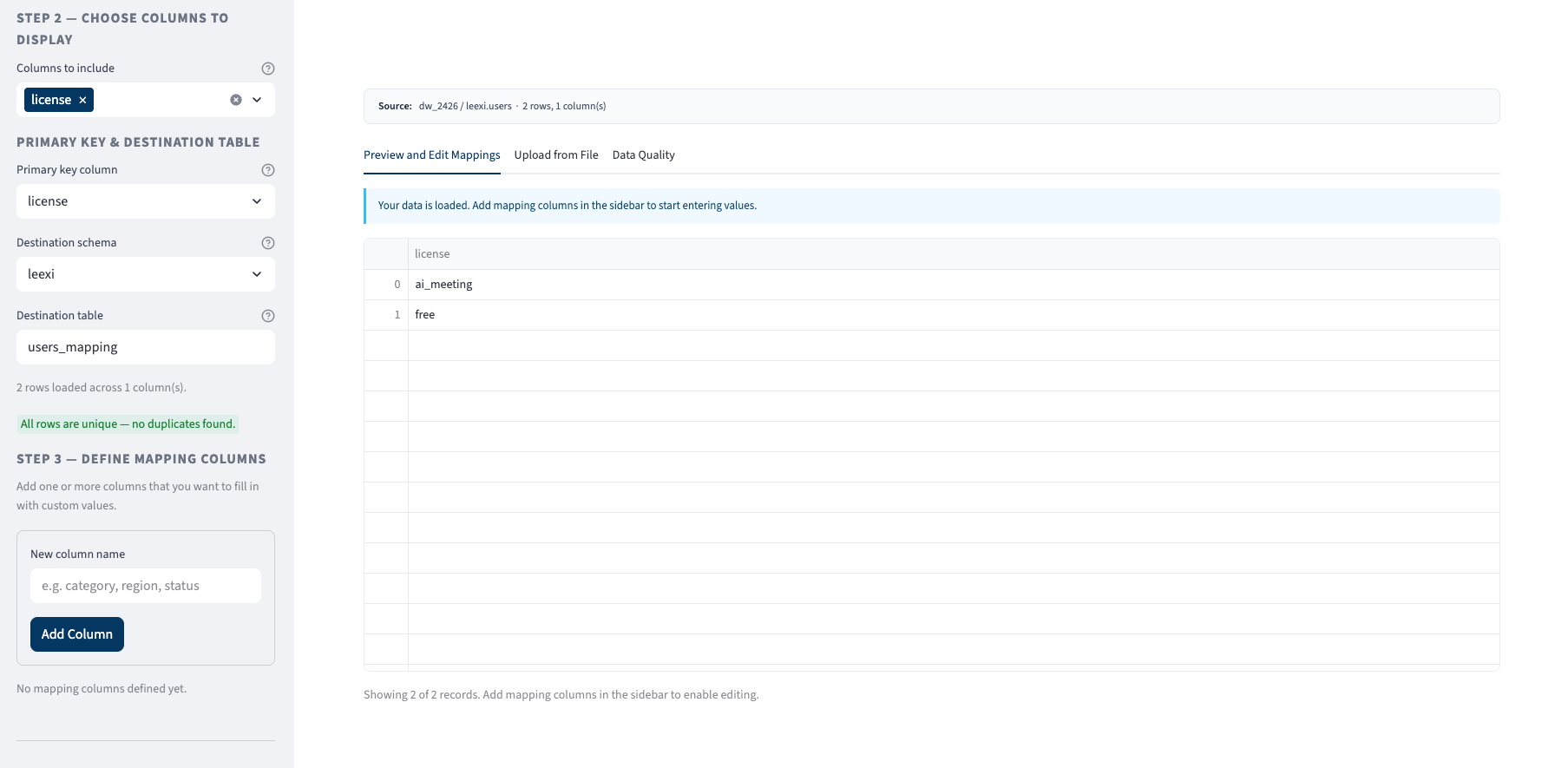
- Fetches rows for just the selected columns and stores them in session state.
- Detects duplicate rows based on the selected columns (for a quick warning).
Primary key & destination table
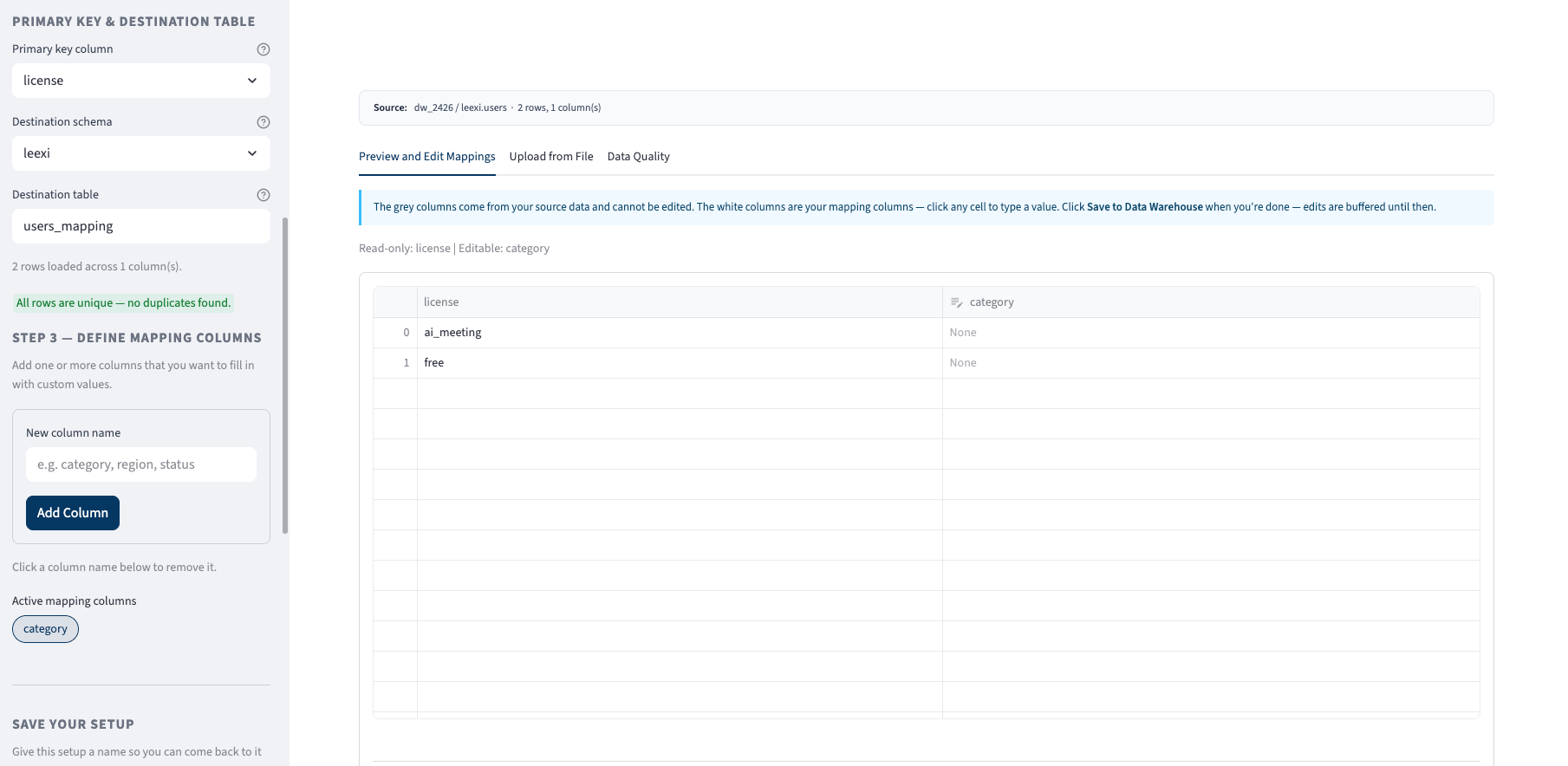
- Choose a Primary key column (recommended: a true unique identifier).
- Set:
- Destination schema
- Destination table (default is
<source_table>_mapping)
- The primary key is used to join existing saved mappings back onto the source when you reload.
Mapping columns
Step 3 — Define mapping columns
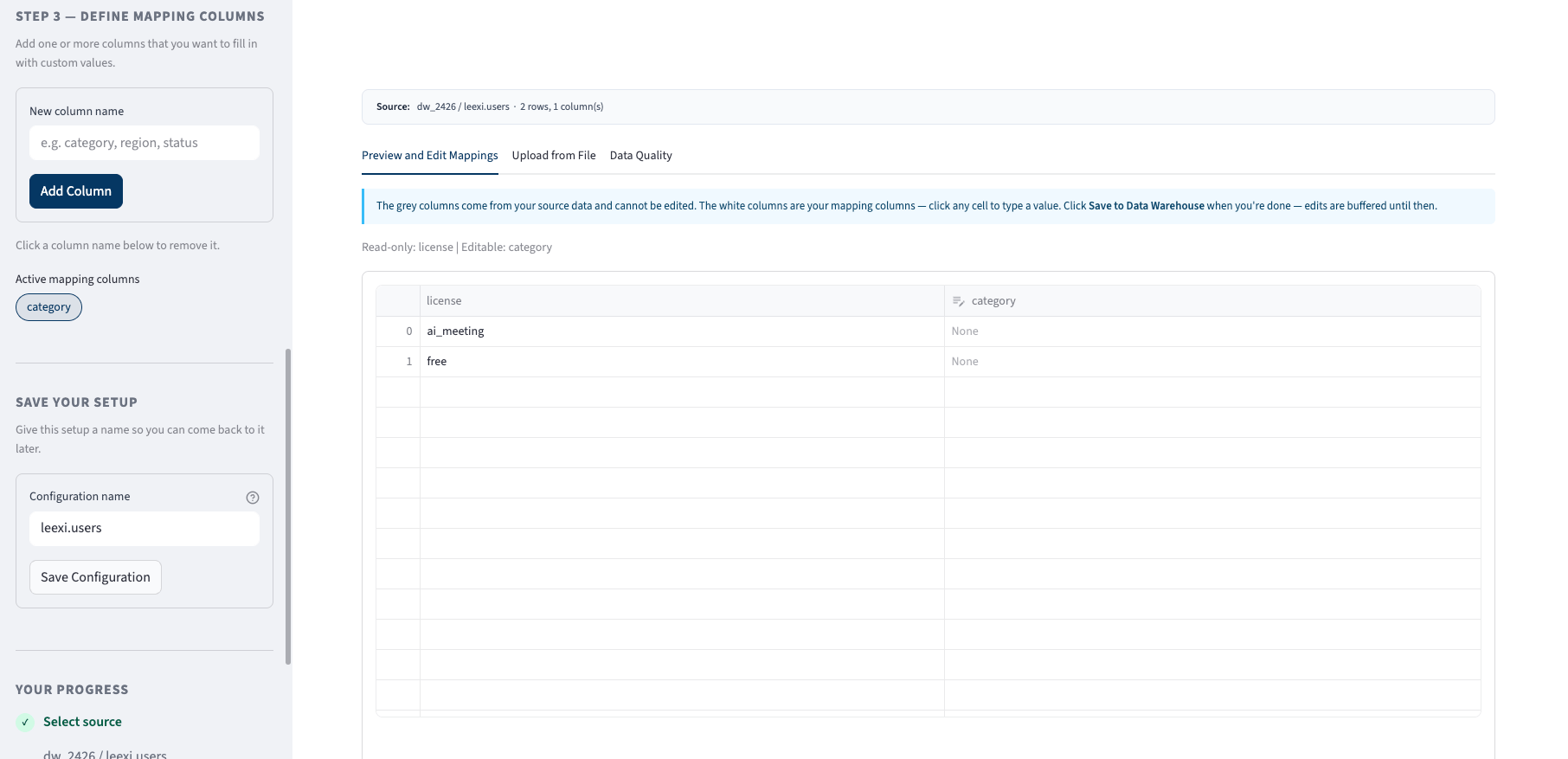
category, segment, country_group).
Rules
- Mapping column names must be unique.
- Mapping columns cannot reuse a source column name.
idis reserved.
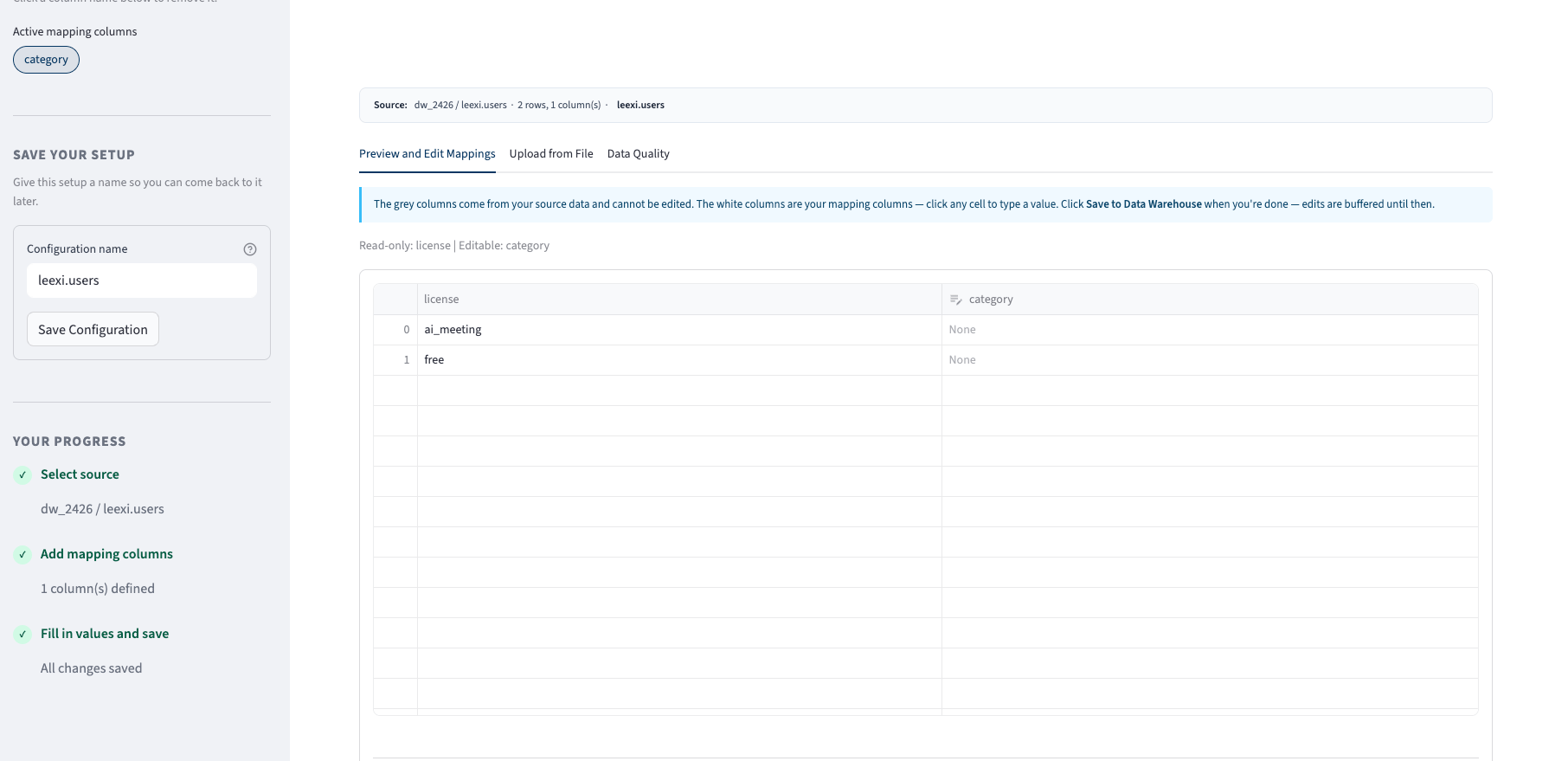
Editing mappings (Tab: Preview and Edit Mappings)
When mapping columns exist, the grid becomes editable:- Grey / disabled columns: source columns (read-only)
- White columns: mapping columns (editable)
Saving
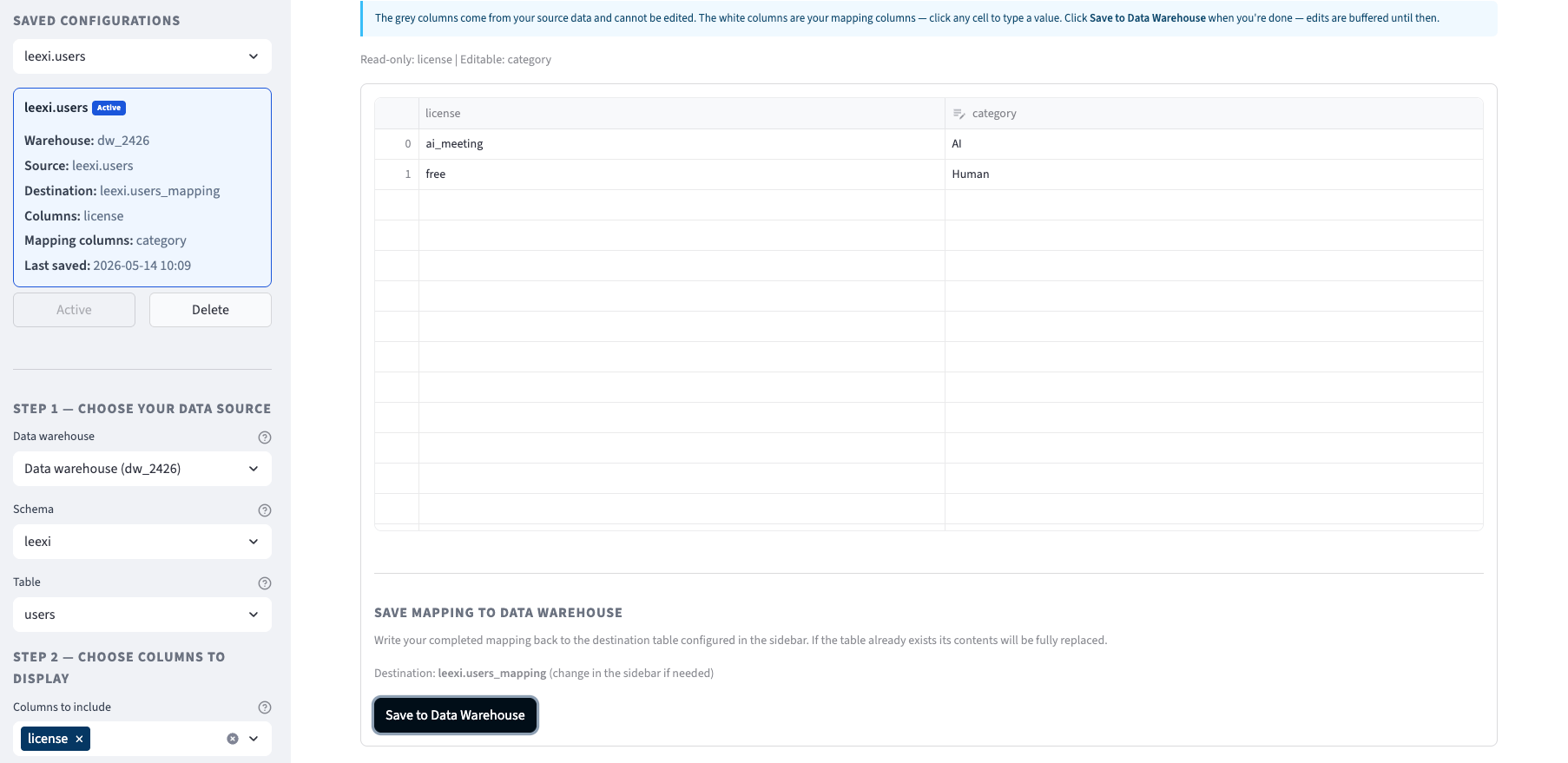
- The destination table is fully replaced.
- The app writes a table using a helper
write_table(...)function.
- If you selected a primary key and it exists in the grid, that column is used as the PRIMARY KEY in the destination table.
- Otherwise, the app generates a synthetic
idfrom the selected columns.
Uploading mappings (Tab: Upload from File)
This tab is for bulk updates.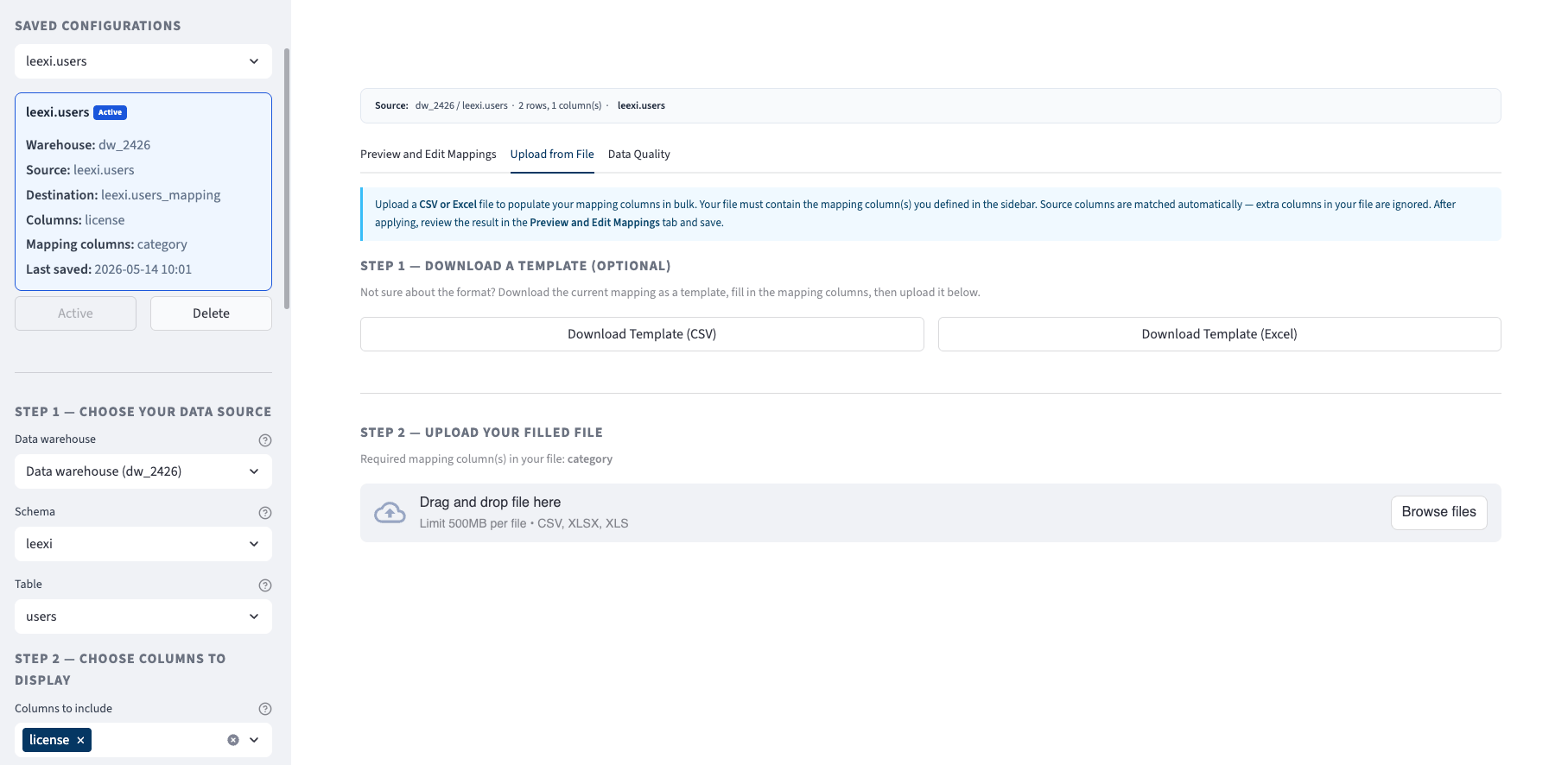
Template download
You can download the current grid as:- CSV template
- Excel template
Upload rules
- Your file must contain the mapping column(s) you defined.
- Extra columns in your file are ignored.
How rows are matched
The app uses one of two strategies:- Match by source columns (recommended)
- If the upload contains one or more source columns, the app merges on those columns (string-normalized).
- Apply by row position
- If the upload contains no source columns, mapping values are applied top-to-bottom.
Saved configurations
In the sidebar, you can Save Configuration with a human-friendly name.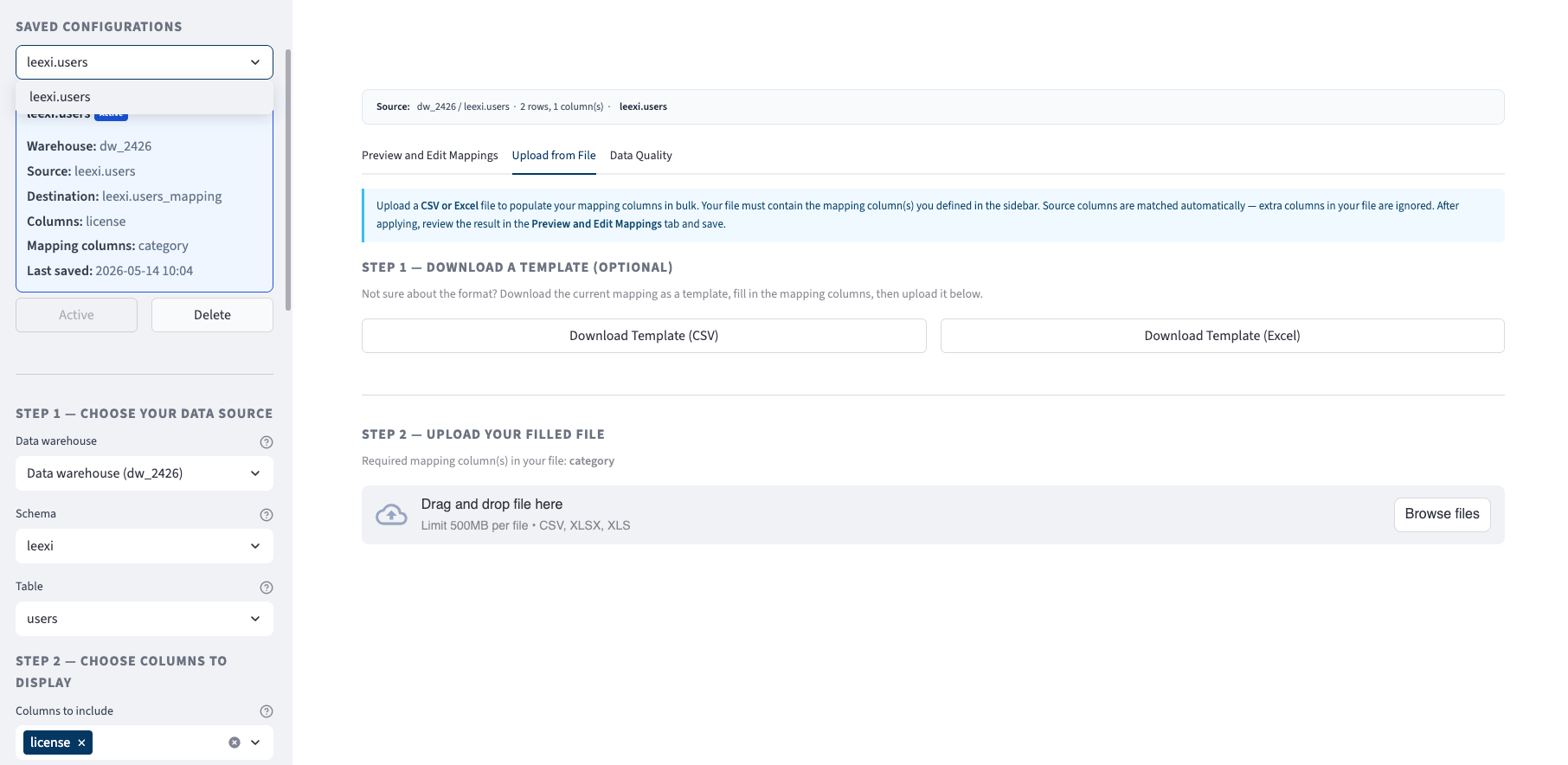
dw_id,schema_id,table_idselected_cols- mapping column names
primary_key- destination schema/table
Loading a configuration
When you click Load, the app:- Reloads the source metadata + data
- Restores mapping columns
- If a destination table exists, performs a PK-based LEFT JOIN to bring back previously saved mappings
- The app deduplicates source and destination by primary key.
- It keeps destination columns that are not in the source table as mapping columns.
- It merges them back onto the source rows (LEFT JOIN).
Data Quality tab
This tab runs quick checks to help ensure the mapping table will be reliable.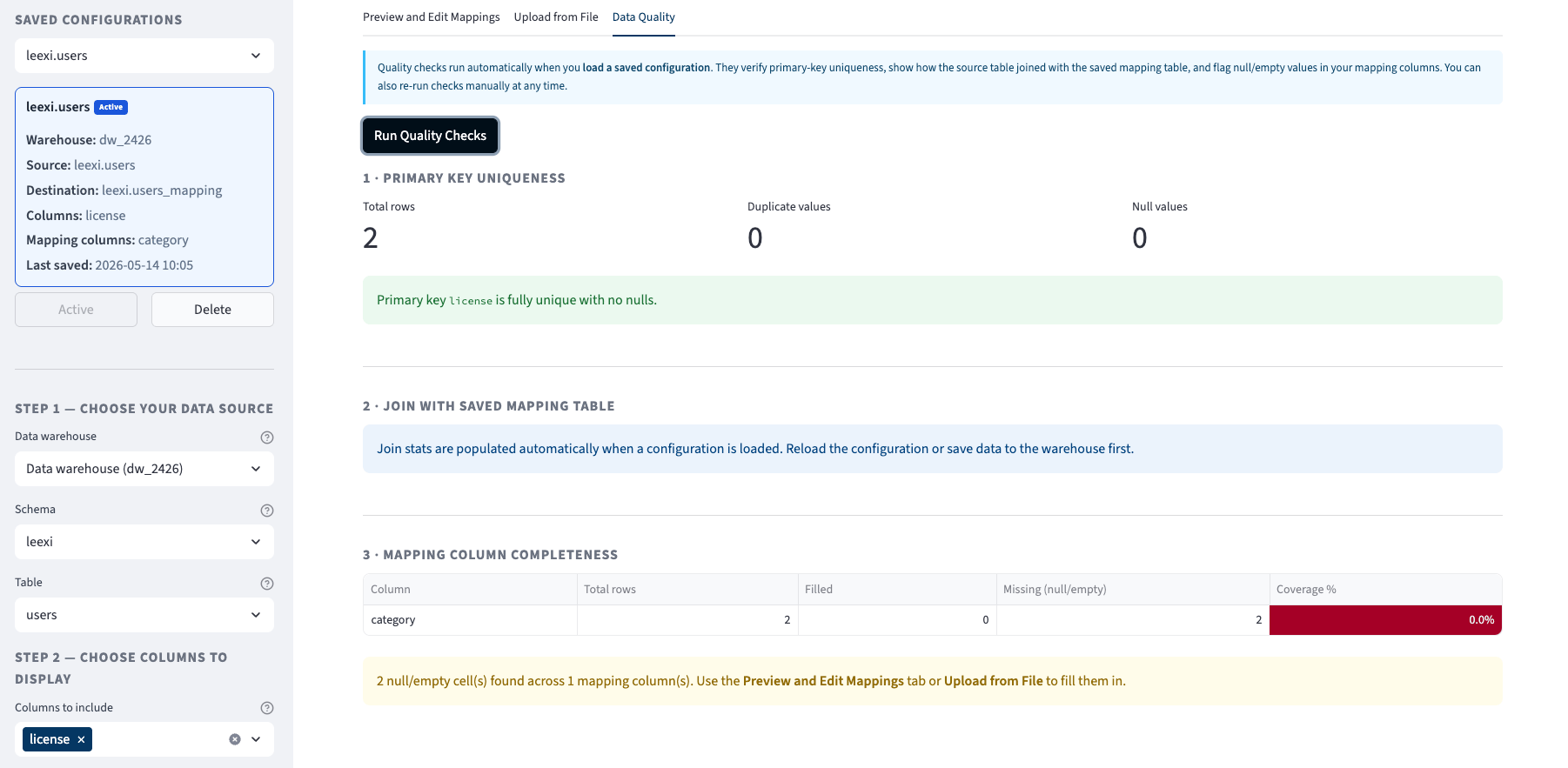
1) Primary key uniqueness
- Counts nulls and duplicates for the selected PK in the source data.
2) Join coverage (source vs destination)
- When a configuration is loaded, the app reports:
- source row count
- destination row count
- matched rows
- unmatched rows
3) Mapping completeness
- For each mapping column, counts:
- null values
- empty strings
- coverage %
Operational notes / gotchas
- The destination table is replaced on each save, so treat it as an app-managed artifact.
- If the primary key is not truly unique or contains nulls, join results will be unreliable.
- If you change mapping column names after saving, the destination table structure may no longer match.
- Large tables: editing in the UI is practical for small/medium sets. For large mappings, prefer file upload.
Troubleshooting
I can’t see any schemas/tables
- Verify the account has a data warehouse and you have access.
Save succeeds but mappings don’t reappear when reloading
- Confirm you selected the same destination schema/table.
- Confirm the PK matches between source and destination.
Join shows many “unmatched” rows
- The destination table doesn’t contain those PKs yet (first time mapping) or PK values changed.
Upload didn’t apply values
- Ensure your file includes the mapping columns with the exact same names.
- If matching by source columns, ensure the source columns in your file match the source rows (whitespace/casing differences can reduce matches).