Contact your Peliqan account manager to set up a white-label environment for your business.
Partner settings
In your Partner account, go to Admin > Partner Settings. You can configure the connectors that are available to your customers (e.g. when using embedding) and you can configure the whitelabeling of the platform into your own brand.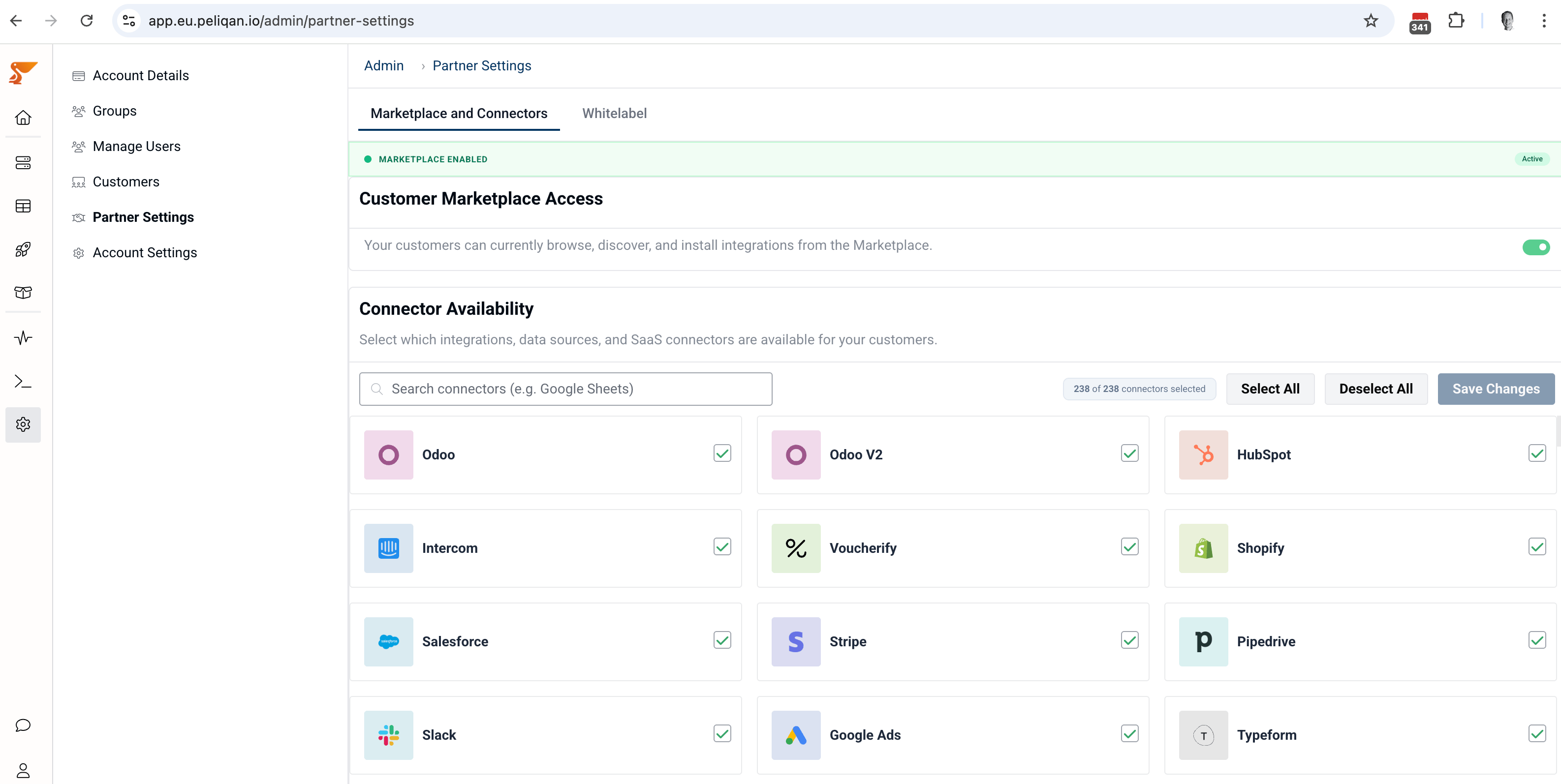
Manage sub accounts
In your Partner account, go to Admin > Customers. Click the edit icon next to a sub account, to update the sub account details such as the license, expiry date etc.Logging in to sub accounts
Use the “Login as” button to login into the sub account.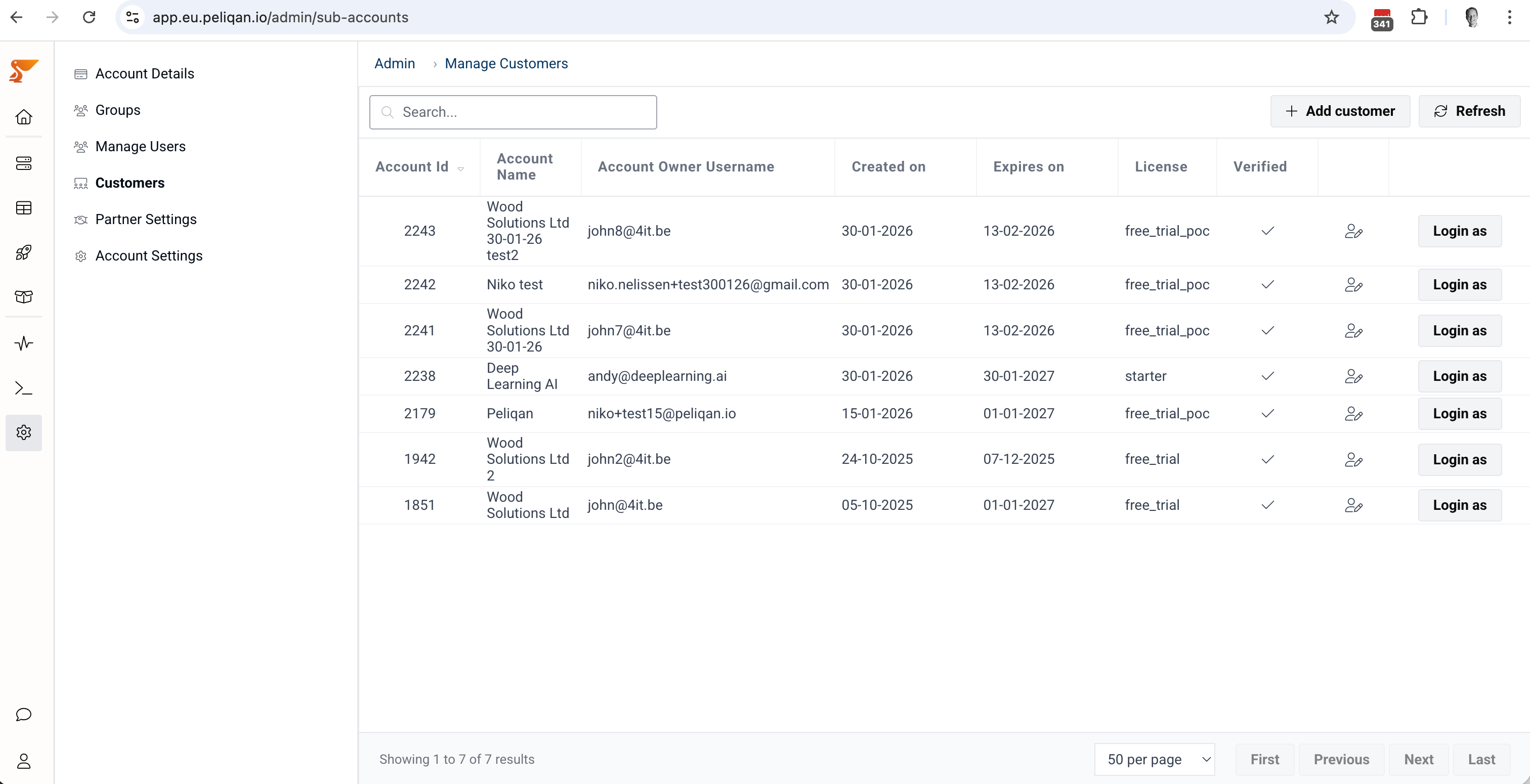
Every user in the partner account has access to the sub accounts via the “Login as” button, except if Support access is disabled inside the sub account.Every user in the partner account can create new sub accounts.After logging in to the sub account with the “Login as” feature, the user will be an Account Admin in the sub account (full access to all features in the sub account).If you want users to have access to only a selection of sub accounts, create a user in each sub account separately. Note that logins (email addresses) have to be unique. A typical pattern is to use john.doe+subaccount1@acme.com, john.doe+subaccount2@acme.com etc.When using the “Login as” feature, a new user is automatically created in the sub account, with username
support+sub_account_name+sub_account_id@domain.com (e.g. your whitelabel domain or peliqan.io), for example for customer ACME from MySaaS.com this will become support+acme+123@mysaas.com.For more information on creating users and roles, see:PermissionsCreate new sub accounts
From the partner account
In your Partner account, go to Admin > Customers > button “Add customer”.Self-service sign-up
You can allow your customers to sign-up on your whitelabel data cloud. In your Partner account, go to Admin > Partner Settings > Whitelabel > toggle “Signup Enabled”.Automated creation of sub accounts
You can use the Peliqan Partner REST API to automate the provisioning of sub accounts, or you can use pq functions, inside Peliqan. More info: Partner API pq Functions for partnersHydration of sub accounts
“Hydration” means delivering assets in sub accounts. Hydration can be done using the Partner API or by using Peliqan’s pq functions to handle sub accounts. More info: Partner API You can install Peliqan’s Data App to publish scripts in sub accounts. This is useful if you have built your own solutions on top of Peliqan (e.g. your own Data Apps) and you want to make them available in selected sub accounts. In your Partner account, go to the Build section, go to Data App templates and install this template: