Metadata
Primary keys
Peliqan automatically detects primary keys (PK’s) in every table. However, you can change the PK for each table (including queries) by going to the table in the Grid view, click on Details and next click on “Edit” in the top menu bar: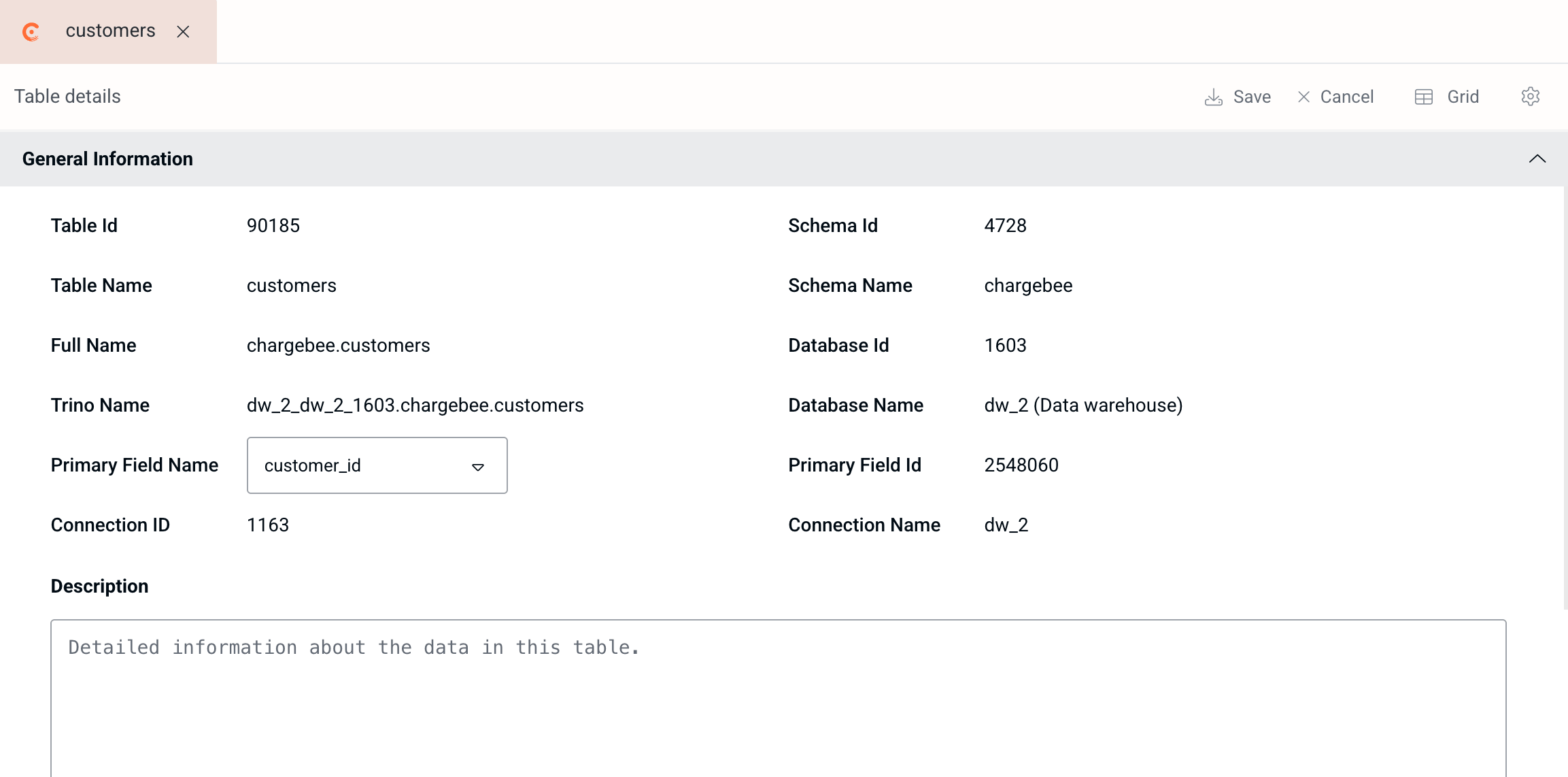
Foreign keys (relations)
You can manually set a relation on a column. In the Grid view, click on a column header and select “Edit field” from the menu. Choose the column type “Link to table” and set the related table: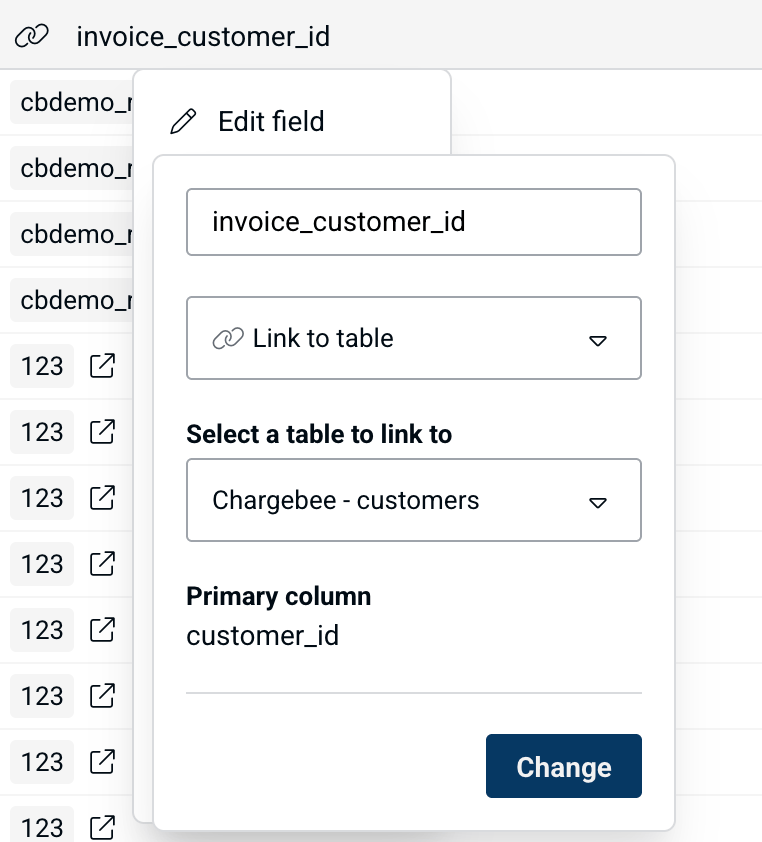
Table descriptions
You can document the meaning of tables in a dataset, by adding a description to each table. Click on “Details” in the top menu above a table in the Grid view to edit the metadata of the table, including the description:.png?fit=max&auto=format&n=YRHnL7-4qstObFqf&q=85&s=967c4a4ec9b9ae885d1762ae71b801e1)
Column descriptions
You can document the meaning of columns per table, by adding a description to each column. Click on a column header in the Grid view, and select Show details from the menu. You will now be able to set a description to the column, as well as a background color and icon:.png?fit=max&auto=format&n=YRHnL7-4qstObFqf&q=85&s=d7b174742302e9943b4f15c79aca93ac)
Data models
Peliqan allows you to build up business-ready data models from your raw data, which was landed in the data warehouse by the ELT pipelines. Depending on the use case, you might want to use a Medallion data model, build up a Star Schema, use the Data Vault modeling technique or simply write views that translate raw data into understandable tables.Building a Star schema
Building a Medallion architecture