
Setup in Azure
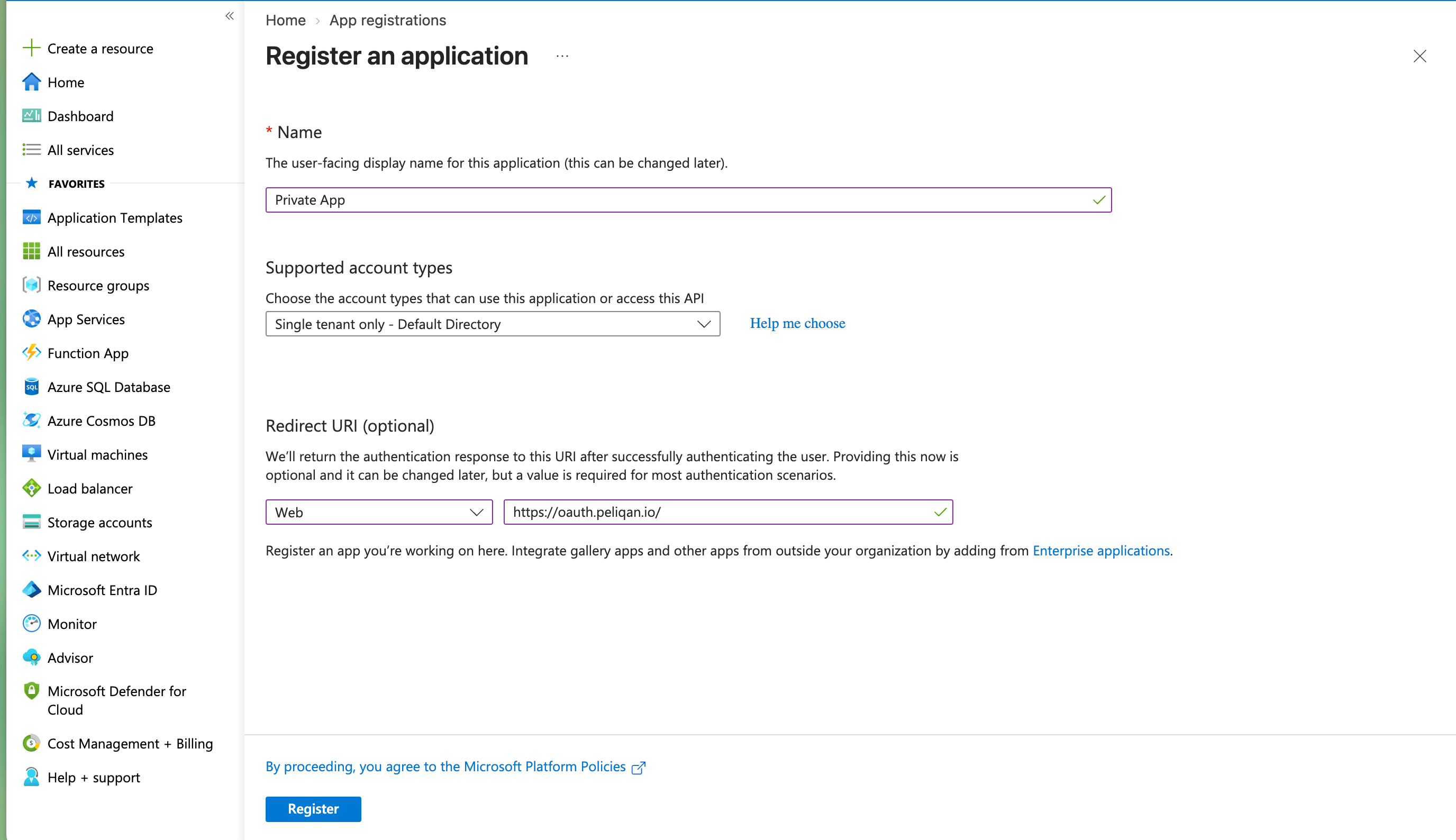
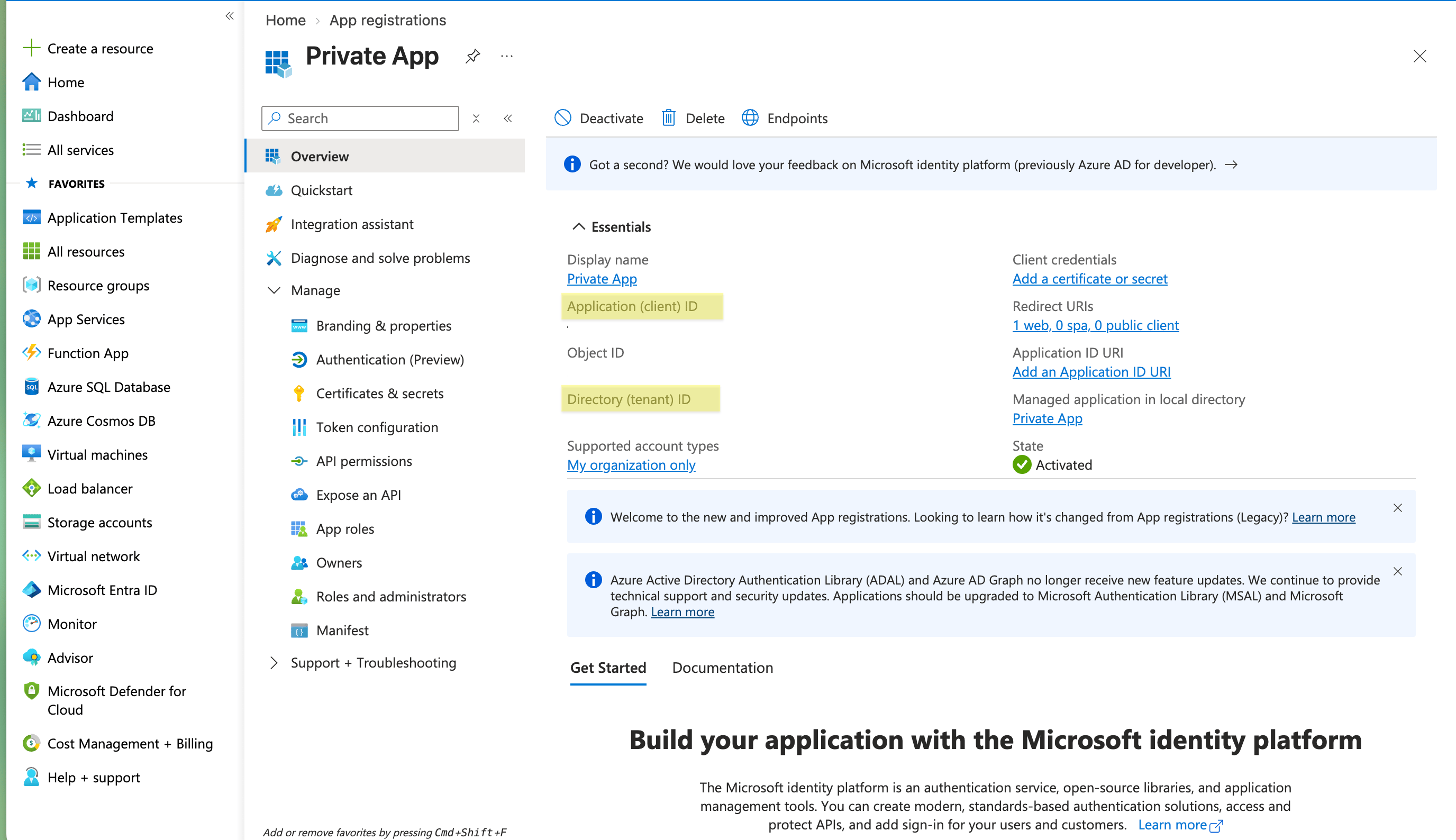
This needs to be performed by your Azure administrator. Step 1. Go to Microsoft Entra ID → App registrations → New registration and register an app.- Supported account types: Accounts in this organizational directory only (single tenant).
- Redirect URI: platform Web, value
https://oauth.peliqan.io/
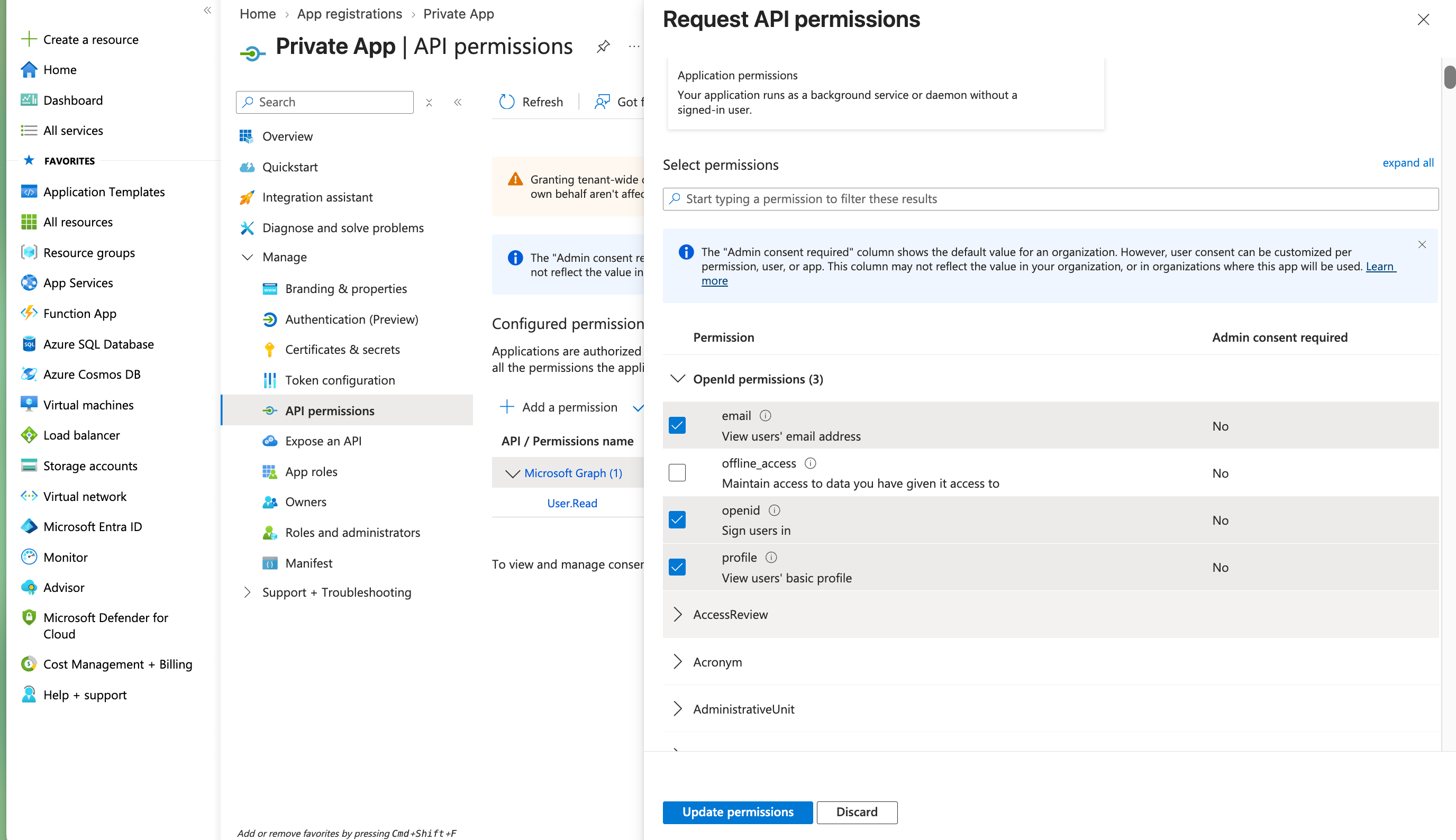
openidprofileemailUser.Read
Send the details to Peliqan
Step 5. From the app’s Overview page, send your Peliqan contact or Peliqan support:- Directory (tenant) ID
- Application (client) ID
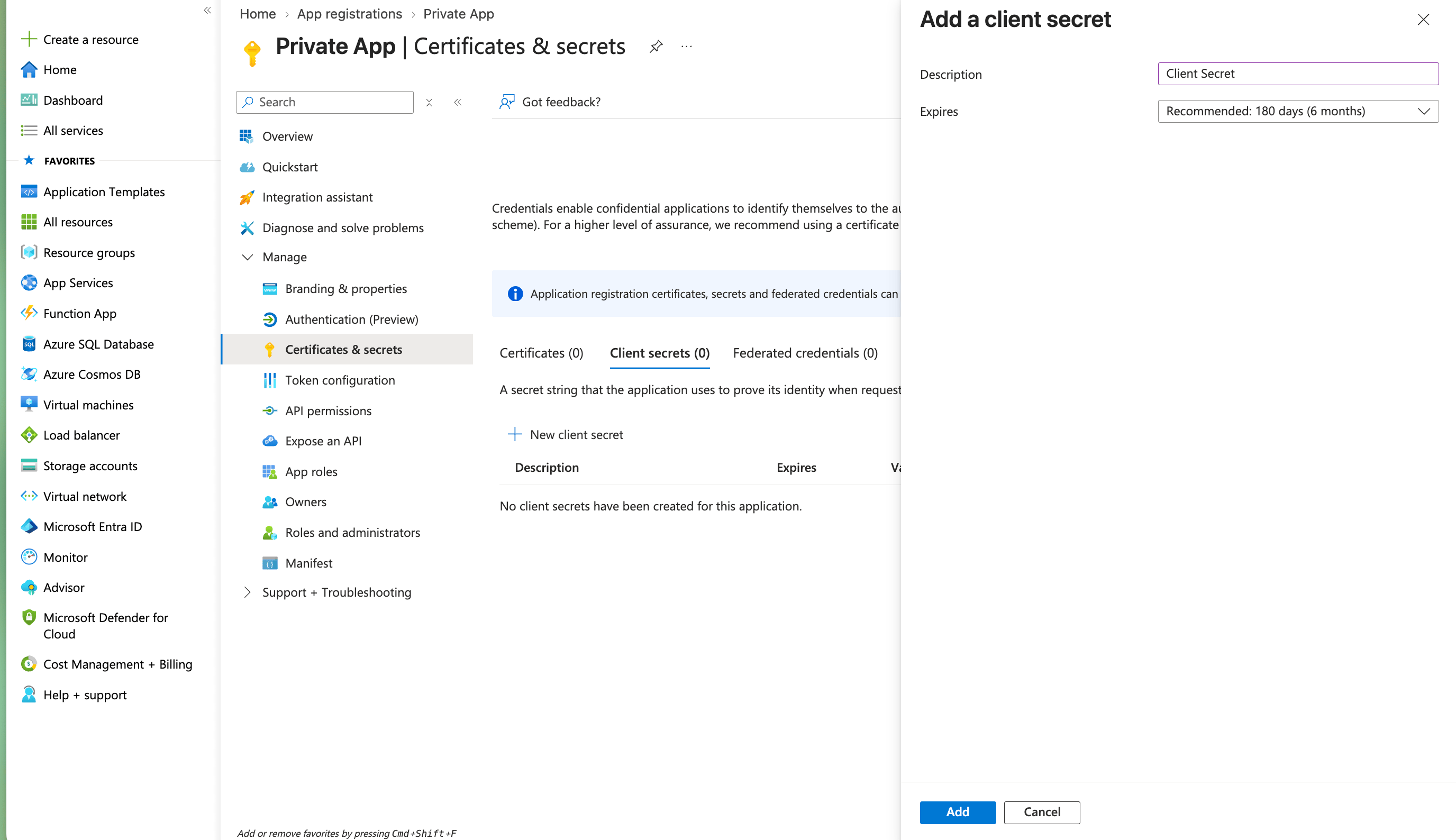
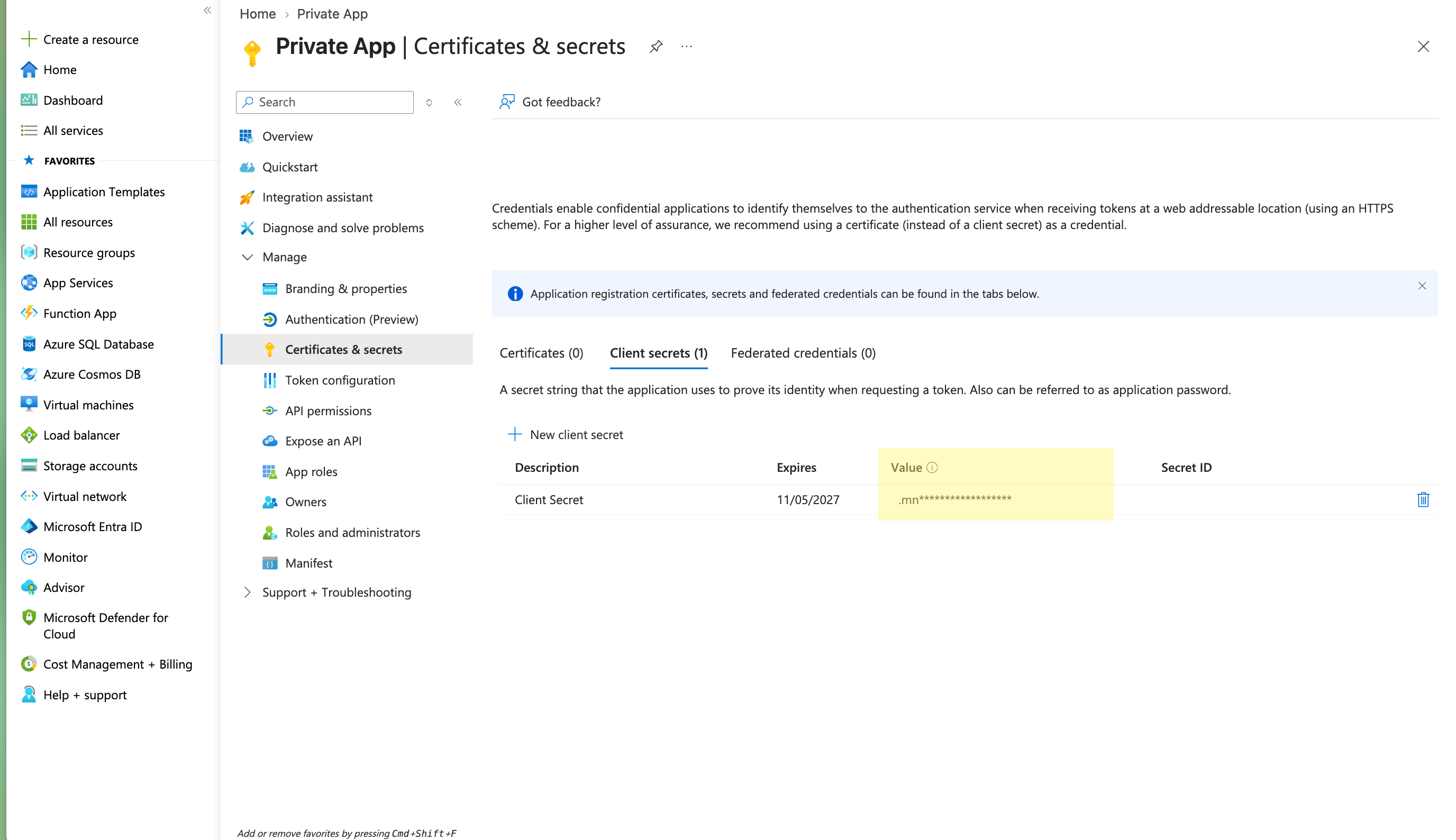
- Client secret value from step 3
Good to know
- No fallback to the Peliqan app. Once your app is linked, all Microsoft sign-ins on your environment go through it. If the secret is wrong or expired, sign-in fails. It doesn’t silently switch to the Peliqan SSO app.
- Client secrets expire. Azure sets an expiry date when you create the secret. Create a new secret before the old one expires and send the new value to Peliqan. Sign-in stops working when the secret expires.
- Single tenant only. Peliqan signs users in through your tenant ID, so only users from that tenant can sign in. Users from another Azure tenant are refused.
- Changing the app. If you register a new app (new client ID), send a new secret too. The old secret isn’t reused with a different client ID.
- Switching back. Ask Peliqan support to unlink the app. The stored secret is deleted with it, and the Microsoft button goes back to the Peliqan SSO app.