
- Your Azure administrator: steps 1–4 (Setup in Azure)
- A Peliqan Account owner or Account admin: steps 5-9 (Setup in Peliqan)
- Everyone on your team: step 10 (Sign in to Peliqan with Microsoft)
Setup in Azure
This needs to be performed by your Azure administrator. Step 1. Sign in to Peliqan with Microsoft once. If you see “Need admin approval”, approve Peliqan SSO for your organisation in Azure. This step will add Peliqan SSO as an Enterprise Application in Azure. Step 2. in Azure, go to Enterprise applications → Peliqan SSO → Users and groups. Step 3. Click Add user/group, choose a group, and click Assign. Do this for each group you want to allow access to Peliqan.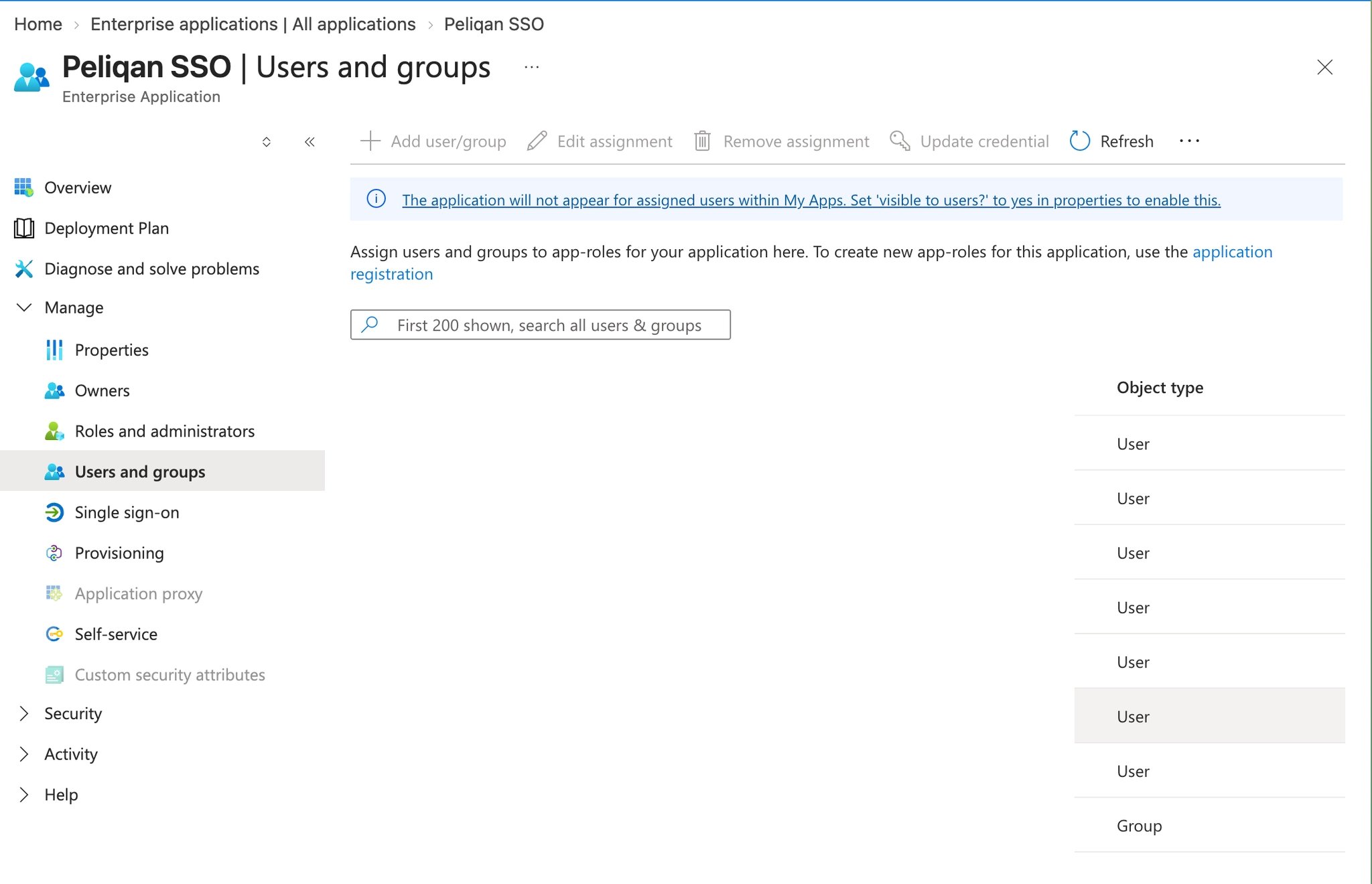
Setup in Peliqan
This can only be performed by a Peliqan Account owner or Account admin.Create users
Step 5. Create each user in Peliqan with the exact same username as the UPN (username) in Azure.How to find the UPN
In Azure, go to Microsoft Entra ID → Users → All users and check the User principal name column. You can also click a user and find it on their Overview page. The UPN is often the same as the email address, but not always (for example name@company.onmicrosoft.com).
In Azure, go to Microsoft Entra ID → Users → All users and check the User principal name column. You can also click a user and find it on their Overview page. The UPN is often the same as the email address, but not always (for example name@company.onmicrosoft.com).
Group mapping
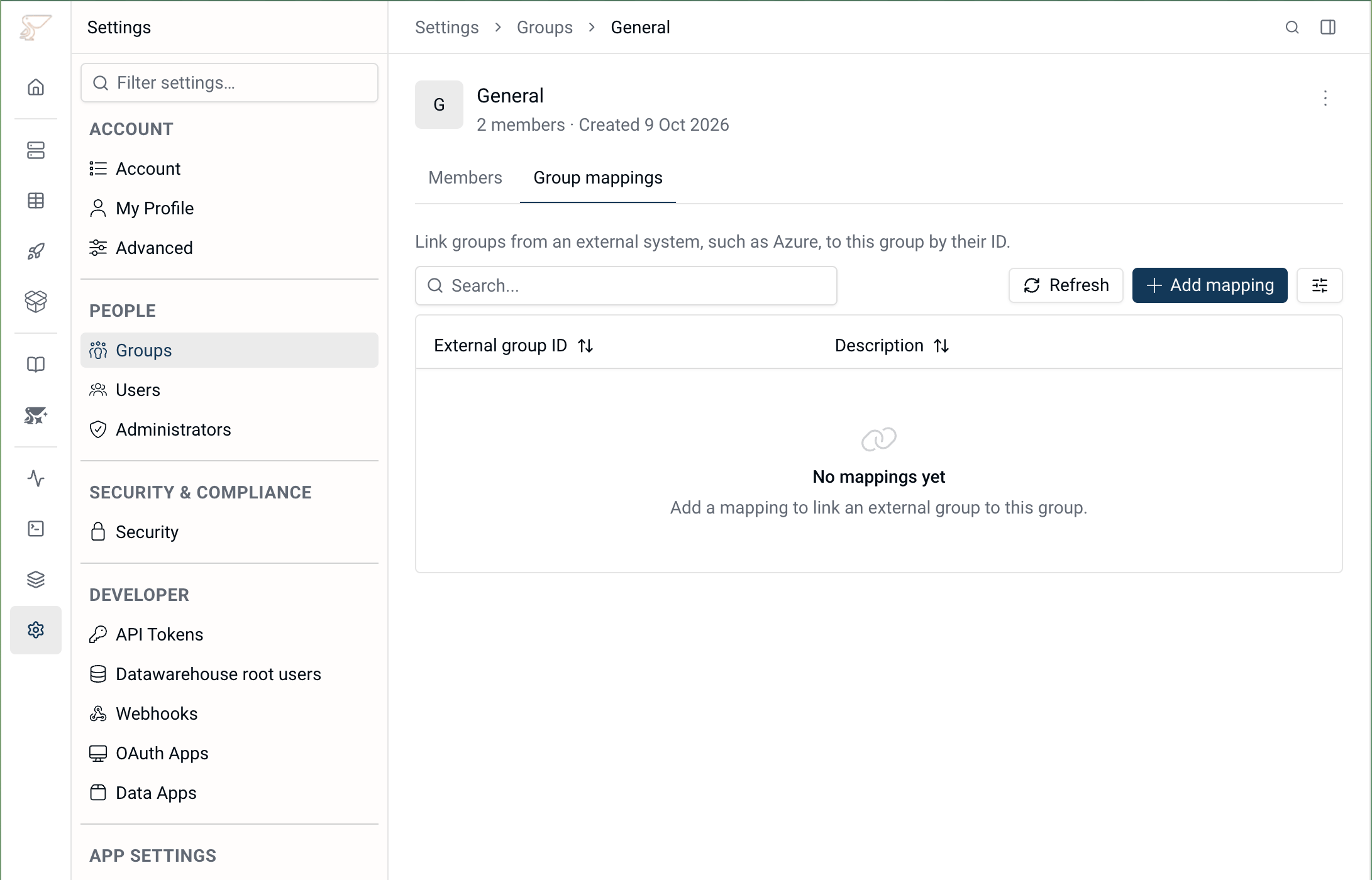
Step 6. Go to Settings → Groups and create a group.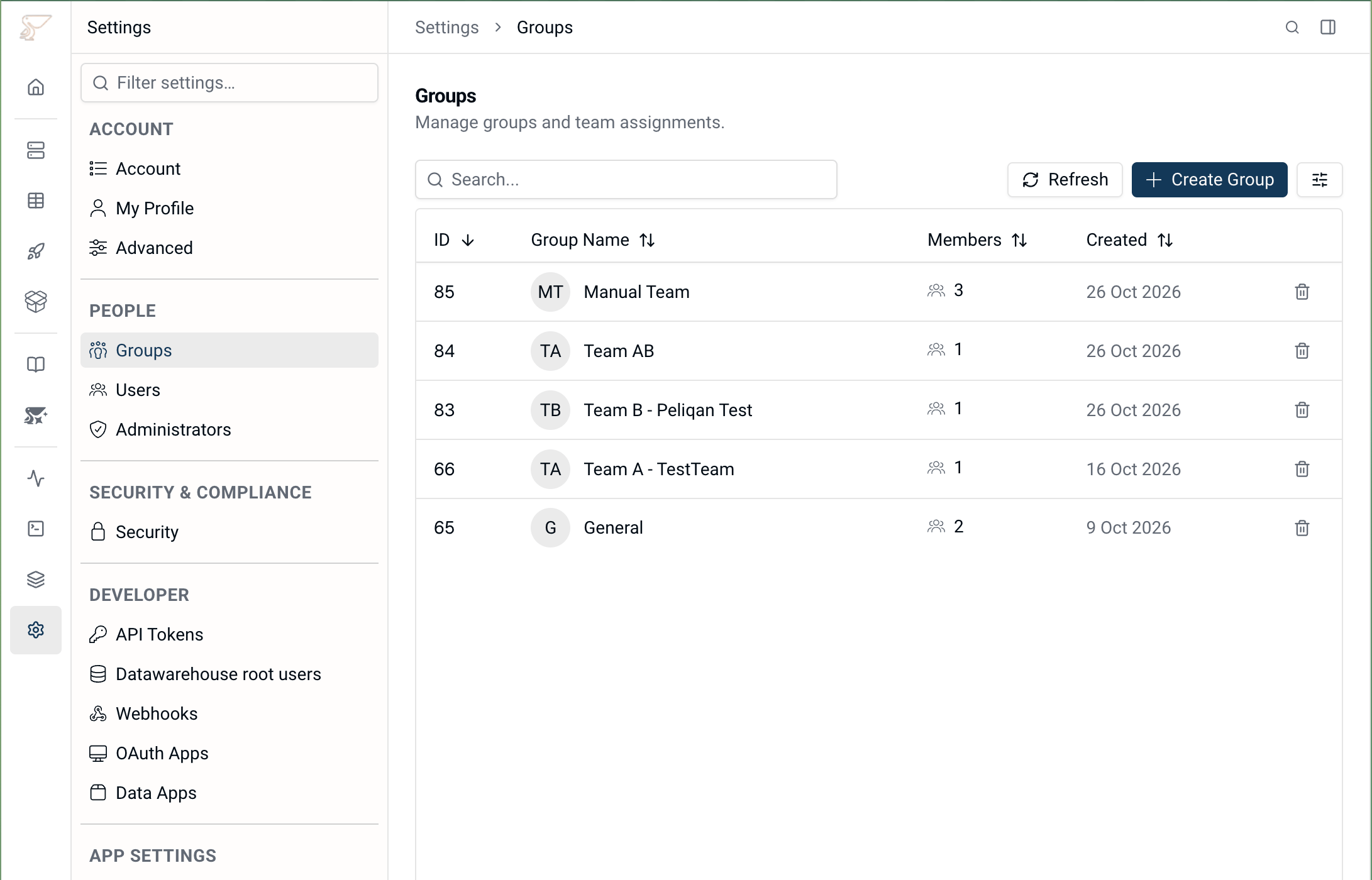
Limit access to sub accounts based on groups
Step 8. Go to Settings → Customers → Access and choose Access based on groups. If you want to restrict access to customer sub accounts based on groups, you need to enable this feature. The account owner or an Account admin needs to turn on “Access based on groups” on the Customers page. Step 9. Go to Settings → Customers, open each customer, and choose its group. Members and viewers of groups in Peliqan can now only login to customer sub accounts within their groups. For other sub accounts, the “Login” button is disabled. Account owners and Account admins still login to all customer sub accounts. For more info on managing sub accounts, visit: Manage sub accountsPeliqan login with Microsoft Azure
Step 10. (Everyone on your team) Sign in to Peliqan with Microsoft. The user is added to the mapped Peliqan groups on login, based on its Azure groups.Adding a new group later
- Your Azure admin: Assign the new group to Peliqan SSO (step 3 above).
- A Peliqan Account owner or Account admin: Add a mapping with its Object ID (step 6 above).
Good to know
- Only assigned groups work. Peliqan only sees groups assigned to Peliqan SSO in Azure.
- Changes apply at the next sign-in. If someone leaves a group in Azure, they lose access to the mapped Peliqan group the next time they sign in to Peliqan. When someone leaves your company, also deactivate the user in Peliqan so that it takes effect immediately.
- API scripts: a script runs as the user who owns its API token. If that user is a member, the script can only reach customers in their groups.
Peliqan API - automate provisioning of users with Microsoft SSO
Provisioning of Peliqan users with Microsoft SSO can be automated with the Peliqan API, for example from a script. Use the API token of a Peliqan Account owner or Account admin. Every request needs this header:{PELIQAN_HOST} with your Peliqan host, for example app.eu.peliqan.io.
Create Peliqan groups and add group mappings
List your Peliqan groups and their IDs:external_group_id is the Object ID from the group in Azure:
Enable sub account access based on groups
Turn on the feature to restrict access to sub accounts based on groups (false turns it off):
Assign a sub account to a group
Assign customer sub account to a group, using the customer external ID that you configured when the customer was added in Peliqan (null removes it from its group):
"access_group_id": 12 to the body: