
Prerequisites
- A Peliqan account
- An account on for example Claude.ai or ChatGPT, or Claude Code or Claude Desktop installed (or any other MCP Client)
Setup
Use one of the following MCP URLs:| Peliqan MCP | Peliqan Build MCP | Custom MCP | |
|---|---|---|---|
| When to use | Use this for “conversational analytics”: query your business data (CRM, ERP, Accounting) and talk to your business apps. | Use this to manage the Peliqan platform via MCP, e.g. managing data pipelines, vibe coding & publishing Data Apps etc. | Use this to implement custom Tools, Resources etc. in your MCP server. |
| EU region | https://mcp.peliqan.io/mcp | https://mcp.eu.peliqan.io/mcp | More info |
| US region | https://mcp.peliqan.io/mcp | https://mcp.us.peliqan.io/mcp | More info |
| Private cloud & other regions | Contact support | Contact support | More info |
Setup in ChatGPT
Setup in ChatGPT
In ChatGPT click on your user name (bottom left corner), in the menu go to Settings > Plugins> Browse plugins > Click ”+” (plus) icon in the right top corner, and enter the Peliqan MCP URL: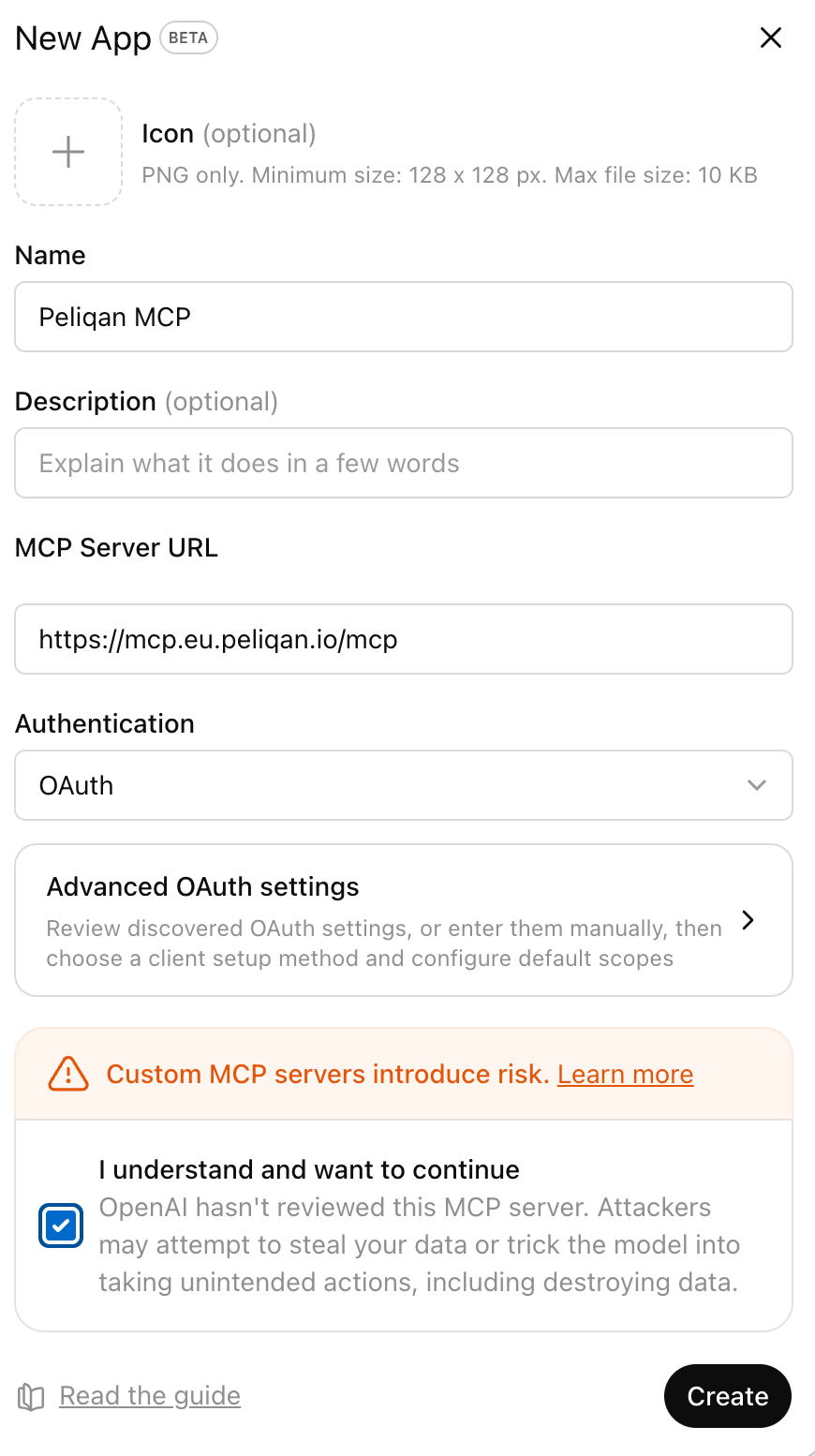
Setup in Claude
Setup in Claude
In Claude Desktop or in Claude.ai in your browser, click on Customize in the top left corner > Connectors > Click on the plus icon > Select “Add custom connector” and enter the URL of the Peliqan MCP Server: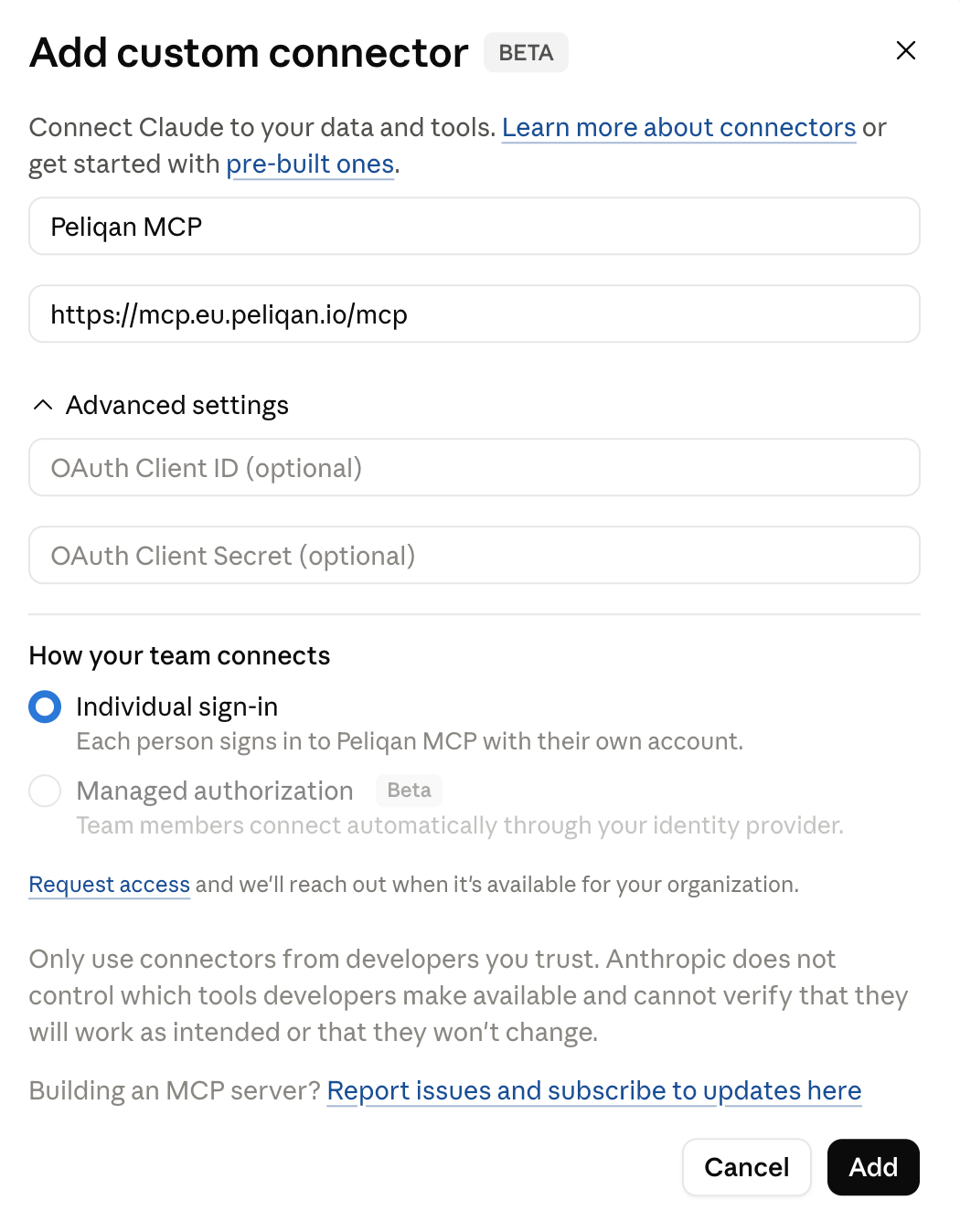
Setup in Claude in an Organization account
Setup in Claude in an Organization account
In Claude Desktop or in Claude.ai in your browser, click on your username (bottom left corner), select Organization Settings from the menu > Connectors > Add > Custom > Web, and enter the URL of the Peliqan MCP Server: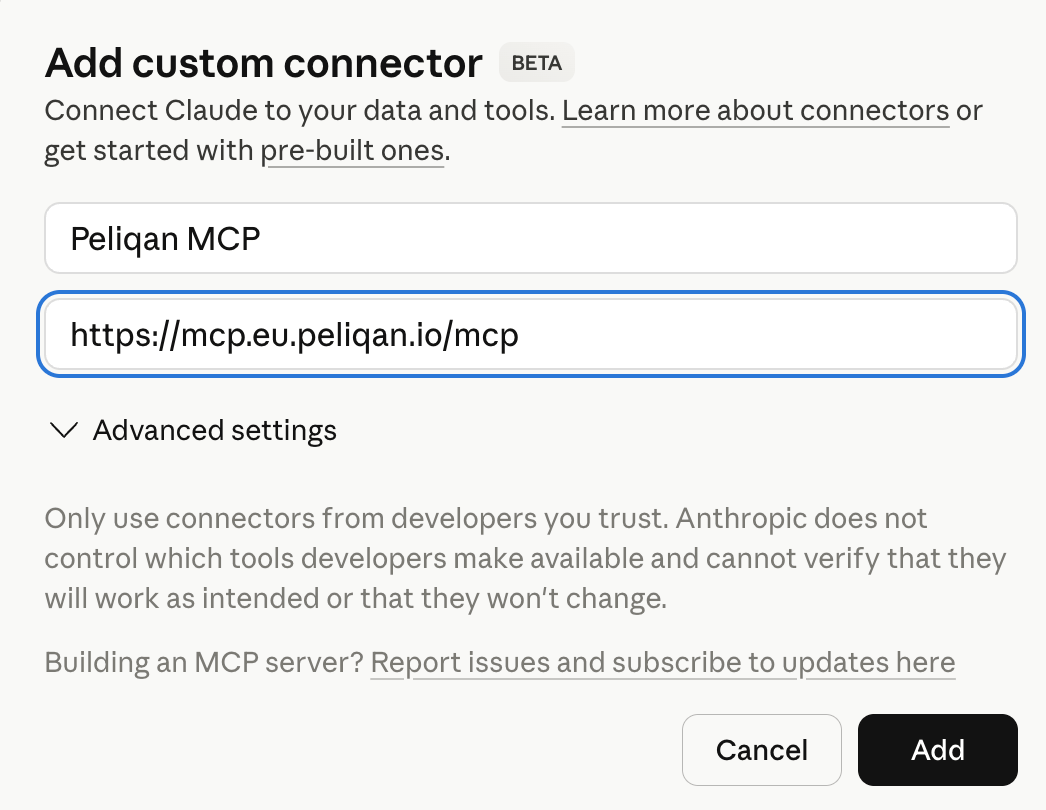
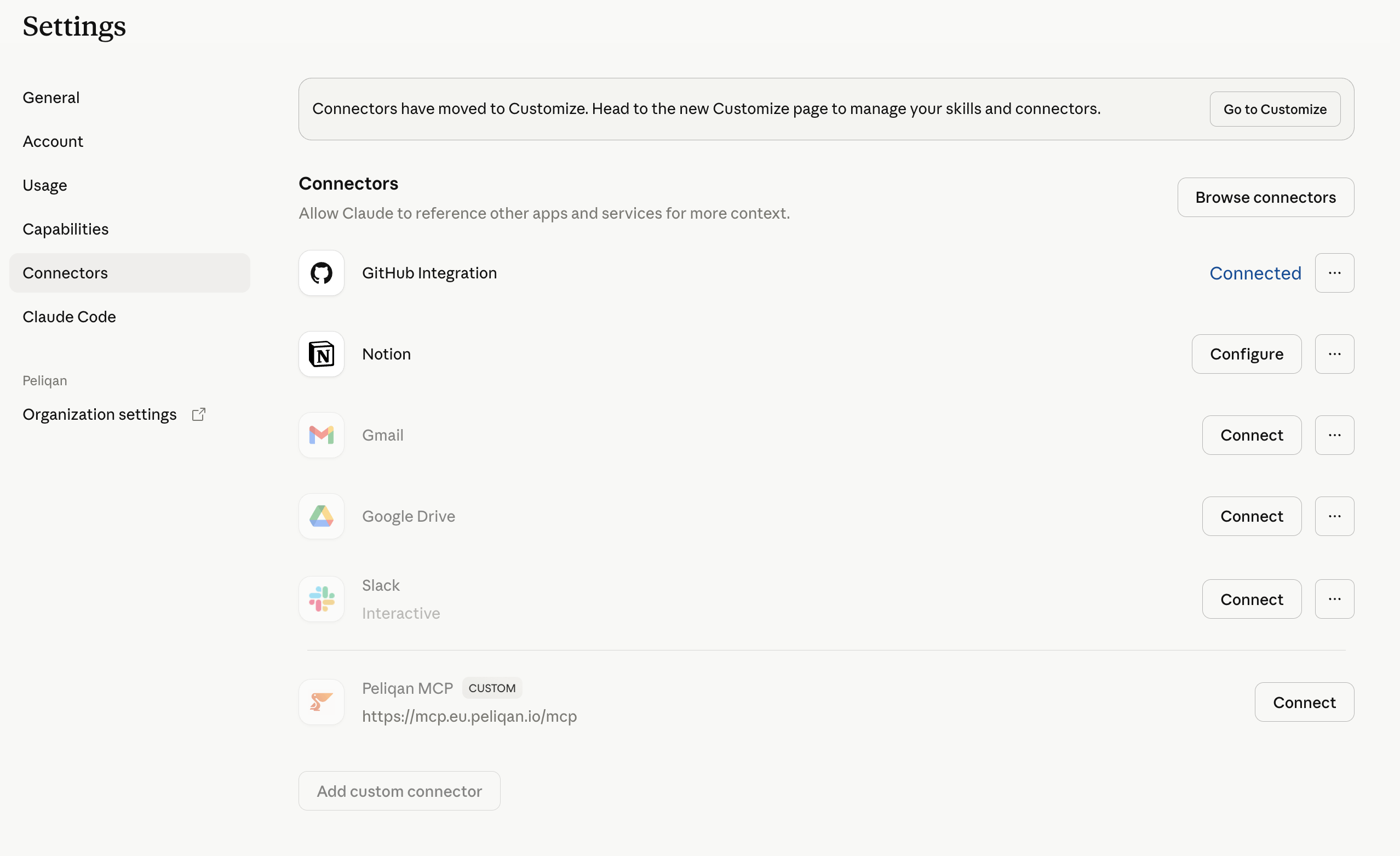
Setup in Claude Code (terminal)
Setup in Claude Code (terminal)
Run this command:Or add the following to your After saving, restart Claude Code. You should see Peliqan listed when you type
~/.claude.json file. If the file doesn’t exist yet, create it./mcp in the chat.Setup in Microsoft Copilot
Setup in Microsoft Copilot
Steps to add an MCP Server in Copilot: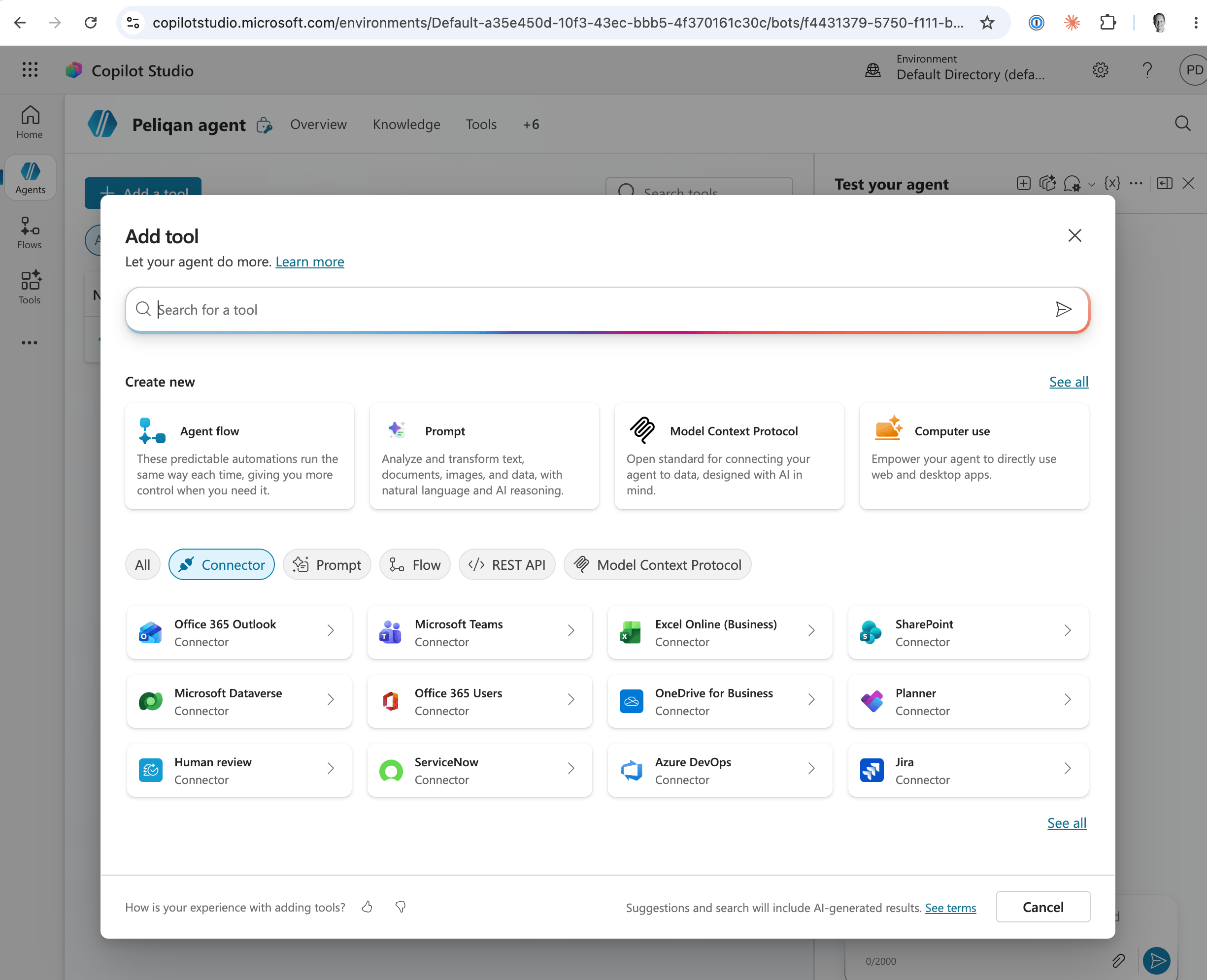
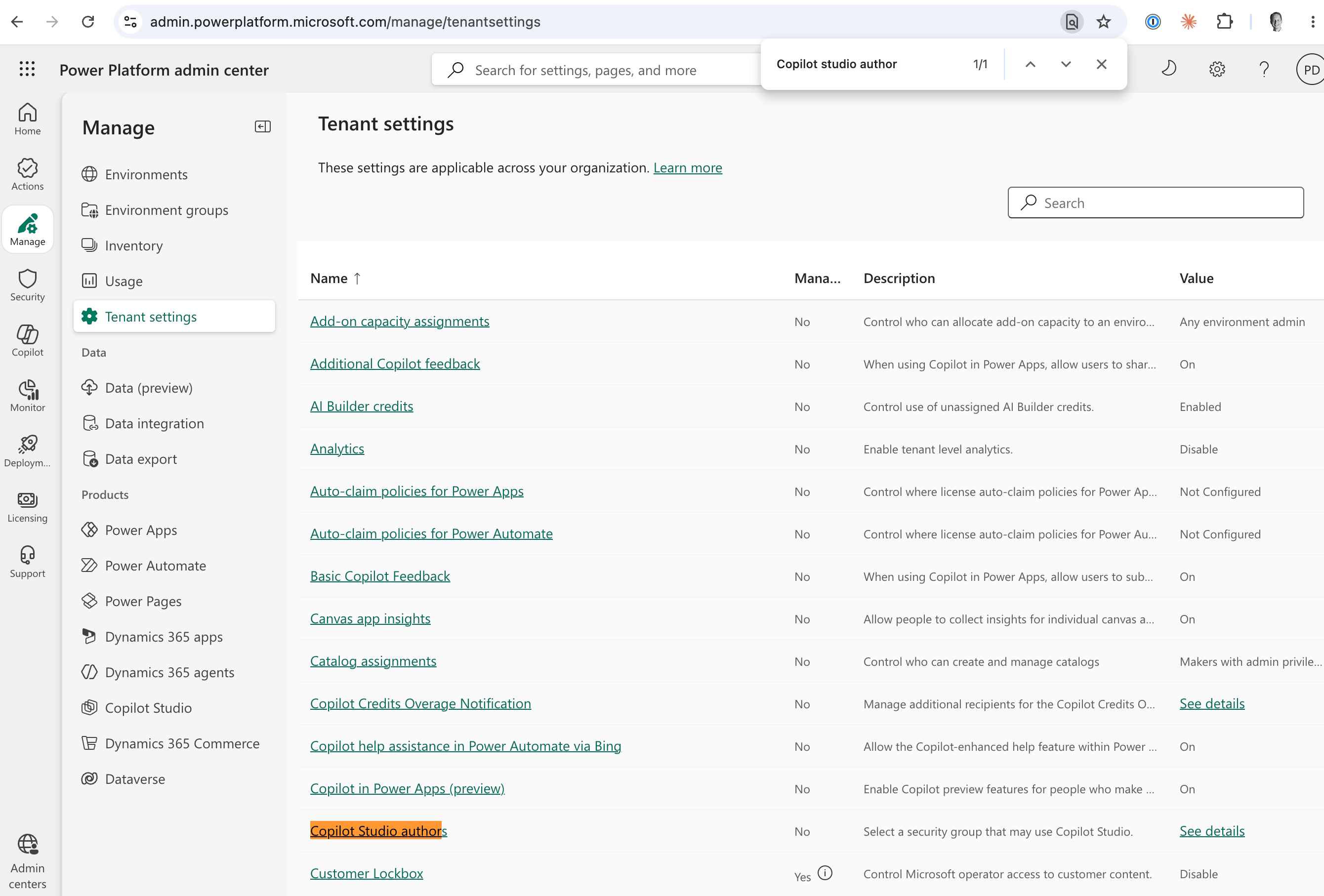
- Open Copilot Studio: https://copilotstudio.microsoft.com
- Create an Agent
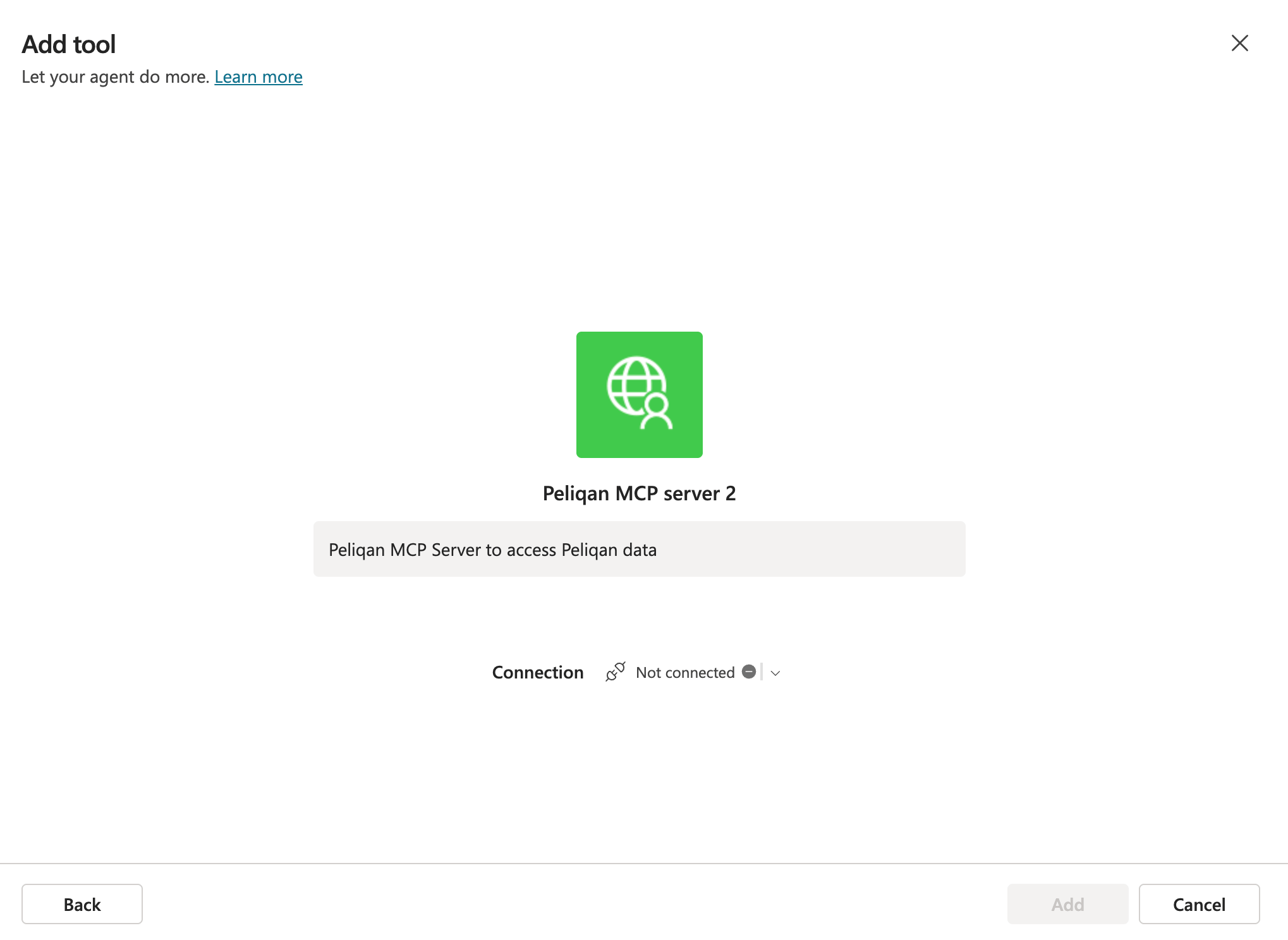
- In the agent, add a Tool > MCP Server
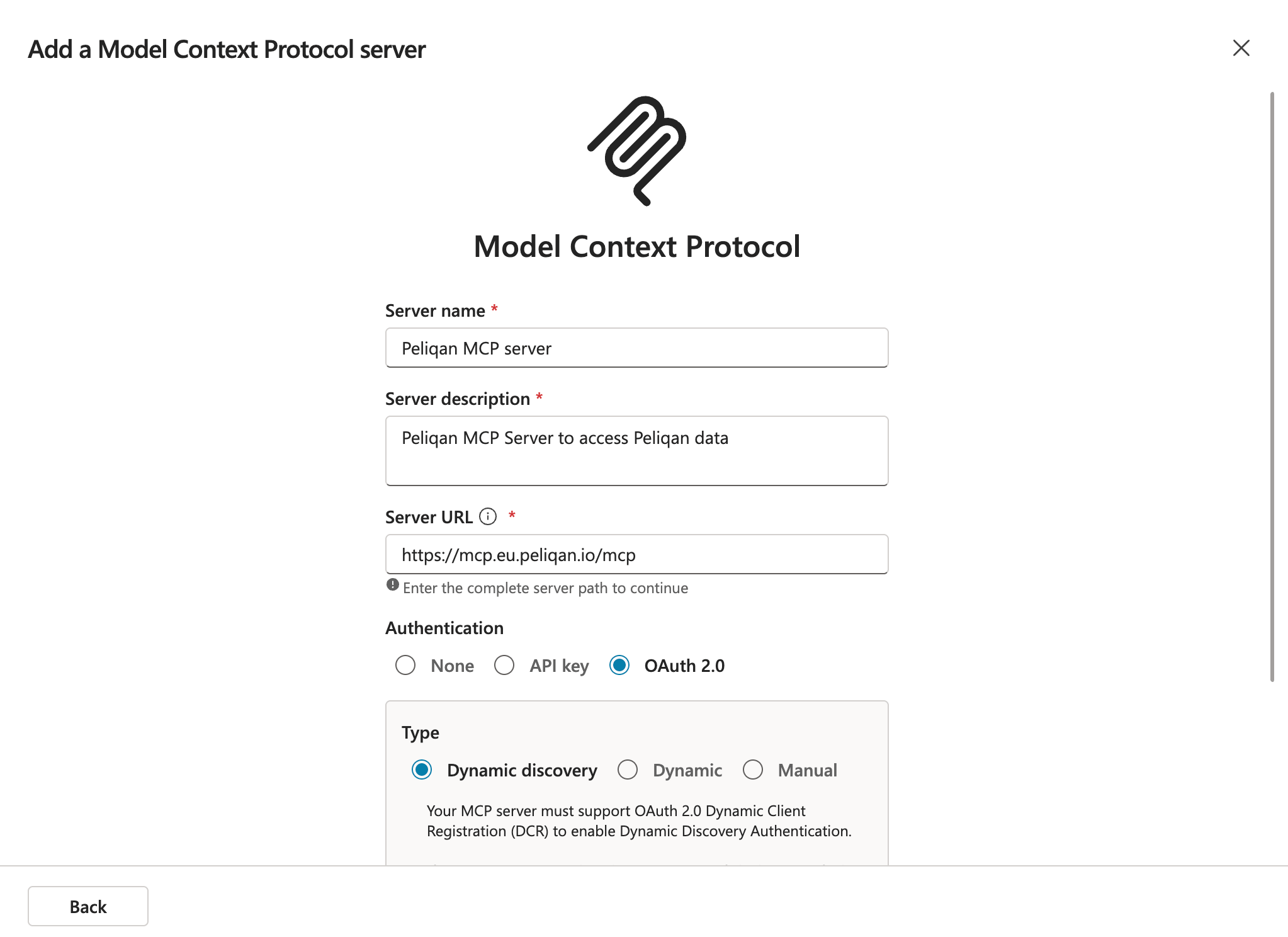
- Server name: Peliqan
- Server description: Peliqan MCP Server to access Peliqan data
- Server URL:
https://mcp.eu.peliqan.io/mcp(example for the EU instance of Peliqan) - Authentication: oAuth 2.0
- Type: Dynamic discovery
Setup in Copilot in Visual Studio (VS Code)
Setup in Copilot in Visual Studio (VS Code)
Open
mcp.json (or create this file) in the .vscode folder under your Project root in VS Code and add this MCP configuration:Setup in other MCP Clients
Setup in other MCP Clients
Check your client’s documentation on how to add an MCP Server. You can use any MCP-compatible AI client that supports HTTPS transport, and connect using the Peliqan MCP Server URL:
- EU customers: use
https://mcp.eu.peliqan.io/mcp - US customers: use
https://mcp.us.peliqan.io/mcp
Verifying the connection
Once connected, try these prompts to confirm everything is working:- “List my Peliqan connections”
- “Show me all databases in my Peliqan account”
- “List my data apps”
What the Peliqan MCP Server can do
Debug connections & pipelines
- See all your data source connections and their sync status
- View recent pipeline run history
- Read raw error logs when a sync fails
Explore your data
- Browse all databases, schemas, and tables
- Inspect column names and types
- Preview rows of data
Manage query tables
- View run history and error logs for a failing query table
- Check upstream/downstream dependencies before making changes
- Create, update, and delete SQL query tables
- Test fixes in an isolated schema before applying to production
Build & run Data Apps
- Write Python scripts and run them as background jobs (shell mode)
- Create interactive Streamlit web UIs and publish them with a shareable URL
- Build HTTP API handlers and expose them as REST endpoints
- Schedule scripts to run automatically
- Get and set the state of Data Apps (e.g. get configuration of an app, stored in the state)
Manage API endpoints
- Create, update, and delete HTTP endpoints backed by your Python scripts
- View recent call logs for any endpoint
Sub-account management (partner accounts only)
- List all customer sub-accounts
- Run any tool against a specific sub-account by passing
sub_account_id
Resources the AI can read
These resources are automatically available to the AI — no extra setup needed.
Example prompts to get started
Debug a failing sync
Debug a failing sync
“My Salesforce connection hasn’t synced since yesterday. Can you check what’s wrong and show me the error logs?”The AI will list connections, find the failing run, and read the logs for you.
Explore your data model
Explore your data model
“Show me what tables exist in the ‘analytics’ schema and preview the first 10 rows of the orders table.”The AI will browse schemas and return a data preview.
Write and run a data app
Write and run a data app
“Write a Python script that reads from our Stripe connection, calculates monthly revenue, and prints the results. Run it now.”The AI will write the script, create a data app, and run it in shell mode — returning the output in the chat.
Fix a broken query table
Fix a broken query table
“Query table ‘monthly_summary’ is failing. Can you diagnose the issue and fix it?”The AI will read the run logs, identify the error, test a fix in a temp schema, and apply it to production.