
Prerequisites
Make sure you have installed on your local computer:- Node.js LTS
- Yeoman:
npm install -g yo - Yeoman SharePoint Generator:
npm install -g @microsoft/generator-sharepoint - Gulp:
npm install -g gulp
Steps to create a custom web part
1. Create your project
Open a terminal and run:yo @microsoft/sharepoint
The generator will ask questions:
- Solution name: e.g.
PeliqanAppEmbed - Target framework: SharePoint Online only
- Place of files: Use current folder
- Framework: Choose “No JavaScript Framework”
- Web part name: e.g.
PeliqanAppEmbed - Description: Peliqan App Embed
2. Run the project locally (optional)
Inside your project folder:gulp serve
This will start the SharePoint Workbench in your browser where you can test your web part:
https://localhost:4321/temp/workbench.html
3. Edit the web part code
Open the following.ts file, add the below function getUrl() and update the render() function as defined below:
src/webparts/peliqanAppEmbed/PeliqanAppEmbedWebPart.ts
tsconfig.json.
You can further extend the web part code to send context from Sharepoint into the embedded Peliqan app, for example the currently logged in user in Sharepoint, the current Sharepoint page etc. Add these as params to the querystring of the app and read the querystring within the app to retrieve this information in the app.
4. Package the solution
When ready, bundle and package:gulp bundle --ship
gulp package-solution --ship
This creates a .sppkg file in: /sharepoint/solution/
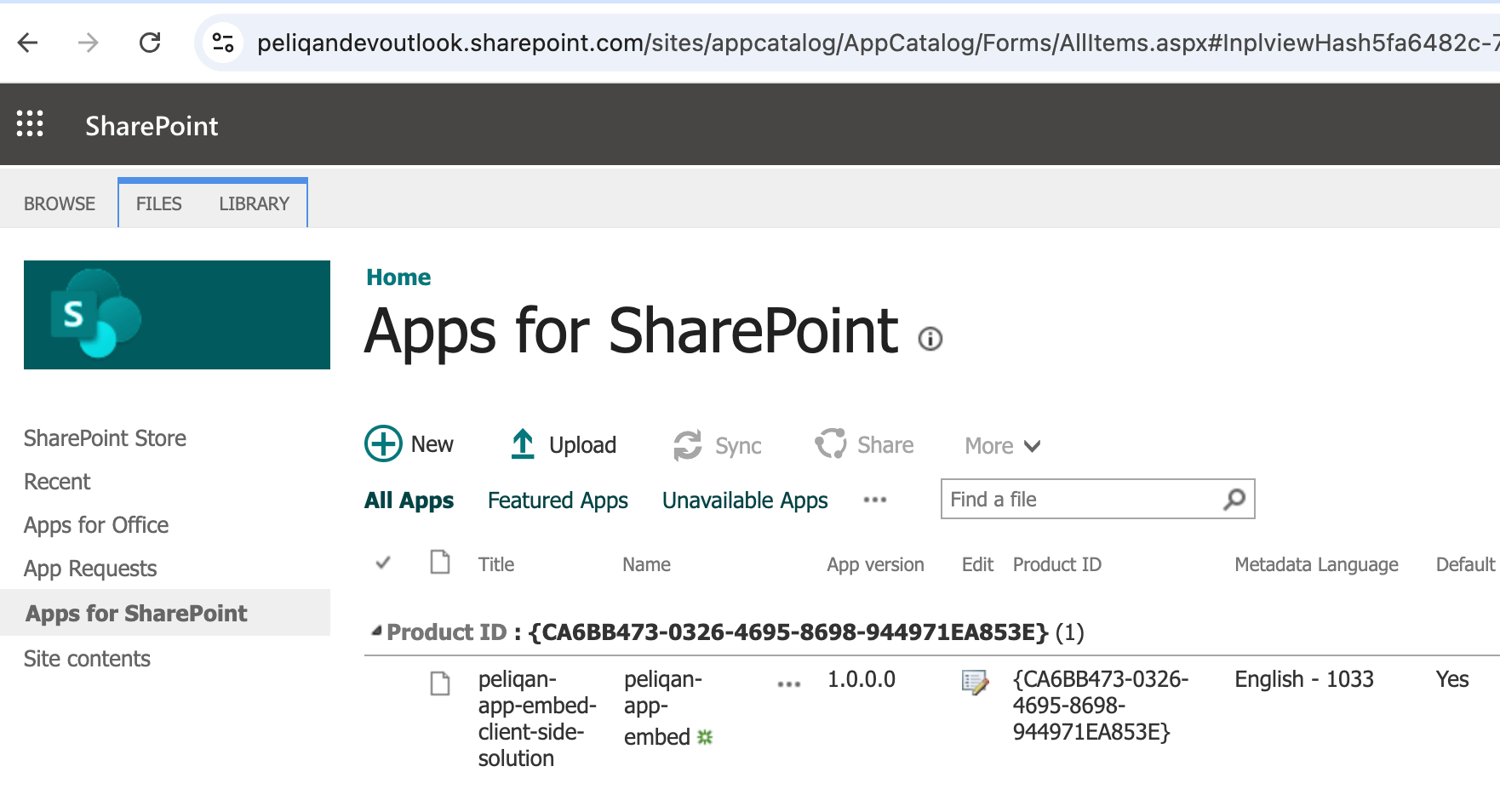
5. Deploy to App Catalog
- Go to your SharePoint App Catalog (must be enabled by your admin), URL:
https://<your_sub_domain>.sharepoint.com/sites/AppCatalog - Upload the
.sppkgfile. - Approve deployment.
- Make sure to check the checkbox “Enable in all Sharepoint sites”
- Now your web part is available in your Sharepoint sites.
6. Add the web part to a page
- Edit a SharePoint page.
- Click + Add web part (right pane)
- You’ll see your custom web part under “Custom”