> ## Documentation Index
> Fetch the complete documentation index at: https://help.peliqan.io/llms.txt
> Use this file to discover all available pages before exploring further.
# Google Cloud Document AI - Getting started in Peliqan
> Set up the Google Cloud Document AI connector in Peliqan to process documents with OCR and extract structured data using custom pipeline scripts and GCP processors.
Google Cloud (GCP) Document AI allows you to create document processors that help automate tedious tasks, improve data extraction, and gain deeper insights from unstructured or structured document information. Document AI helps developers create high-accuracy processors to extract, classify, and split documents.
This guide provides an overview of setting up the **Google Cloud Document AI** Connector in Peliqan. For technical assistance or custom integration requirements, please [contact our support team](https://peliqan.io/contact).
## Setup
Perform these steps:
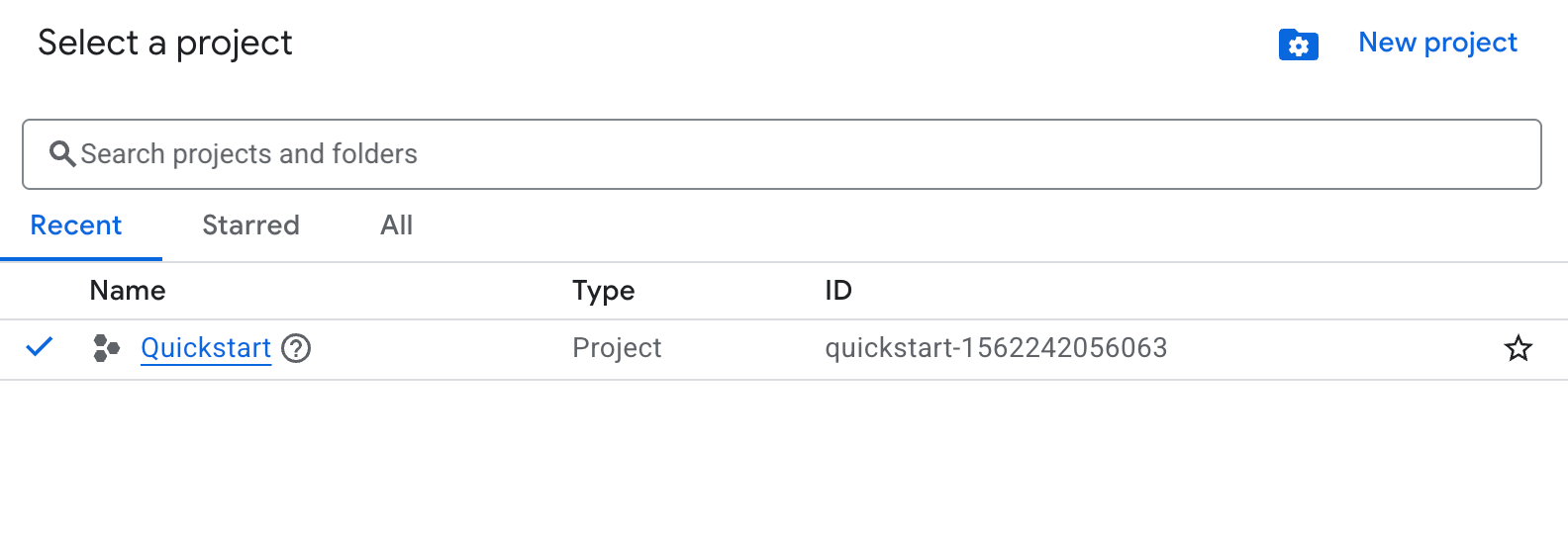
* Create a Project on [Google Cloud (GCP)](https://console.cloud.google.com/)
* Copy your Project ID
 * [Enable the Document AI API](https://console.cloud.google.com/apis/library/documentai.googleapis.com)
* Set up billing in your Google Cloud account
* Enable a processor (e.g. "OCR") in Document AI:
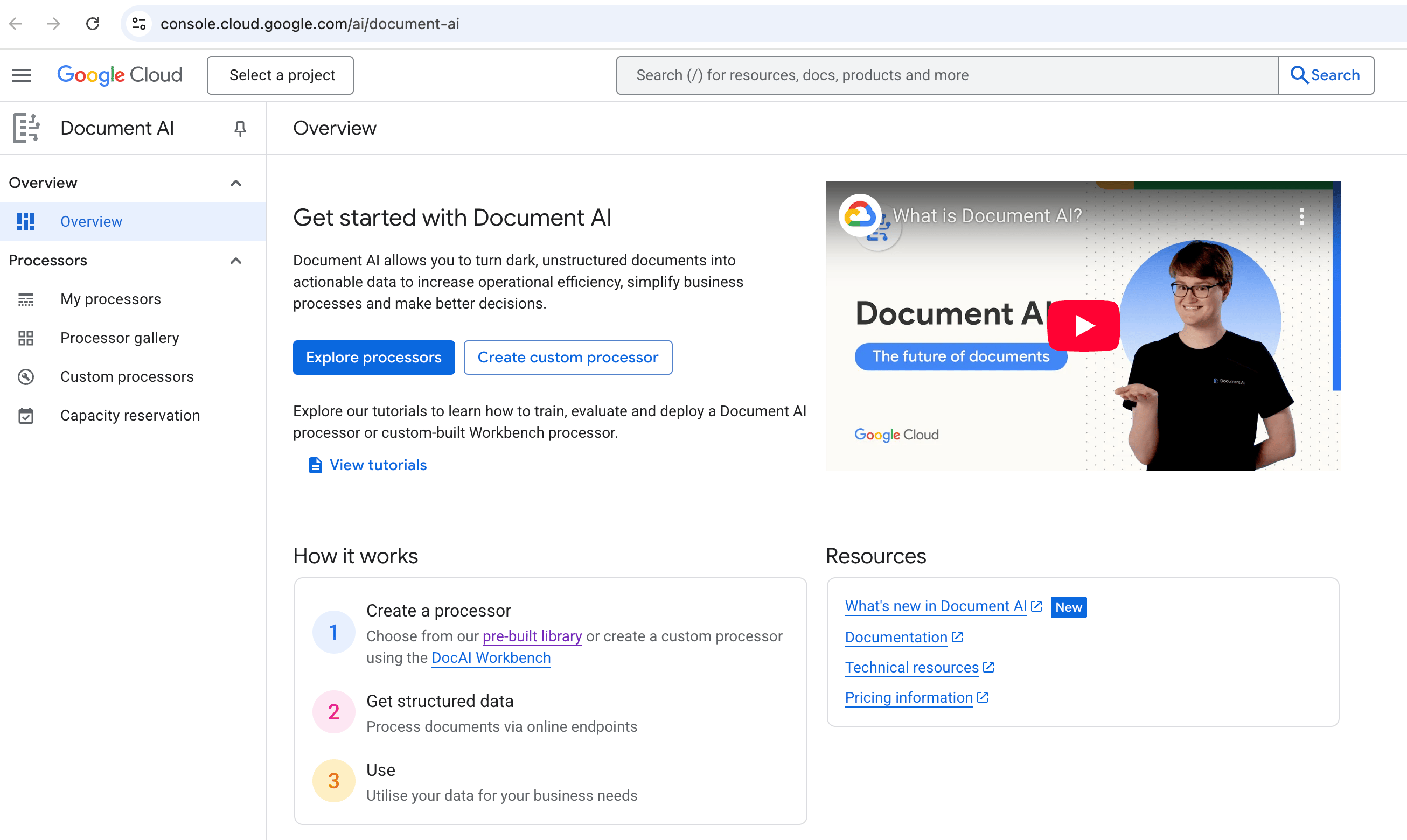
* Go to [https://console.cloud.google.com/ai/document-ai](https://console.cloud.google.com/ai/document-ai)
* Click on Explore Processors
* [Enable the Document AI API](https://console.cloud.google.com/apis/library/documentai.googleapis.com)
* Set up billing in your Google Cloud account
* Enable a processor (e.g. "OCR") in Document AI:
* Go to [https://console.cloud.google.com/ai/document-ai](https://console.cloud.google.com/ai/document-ai)
* Click on Explore Processors
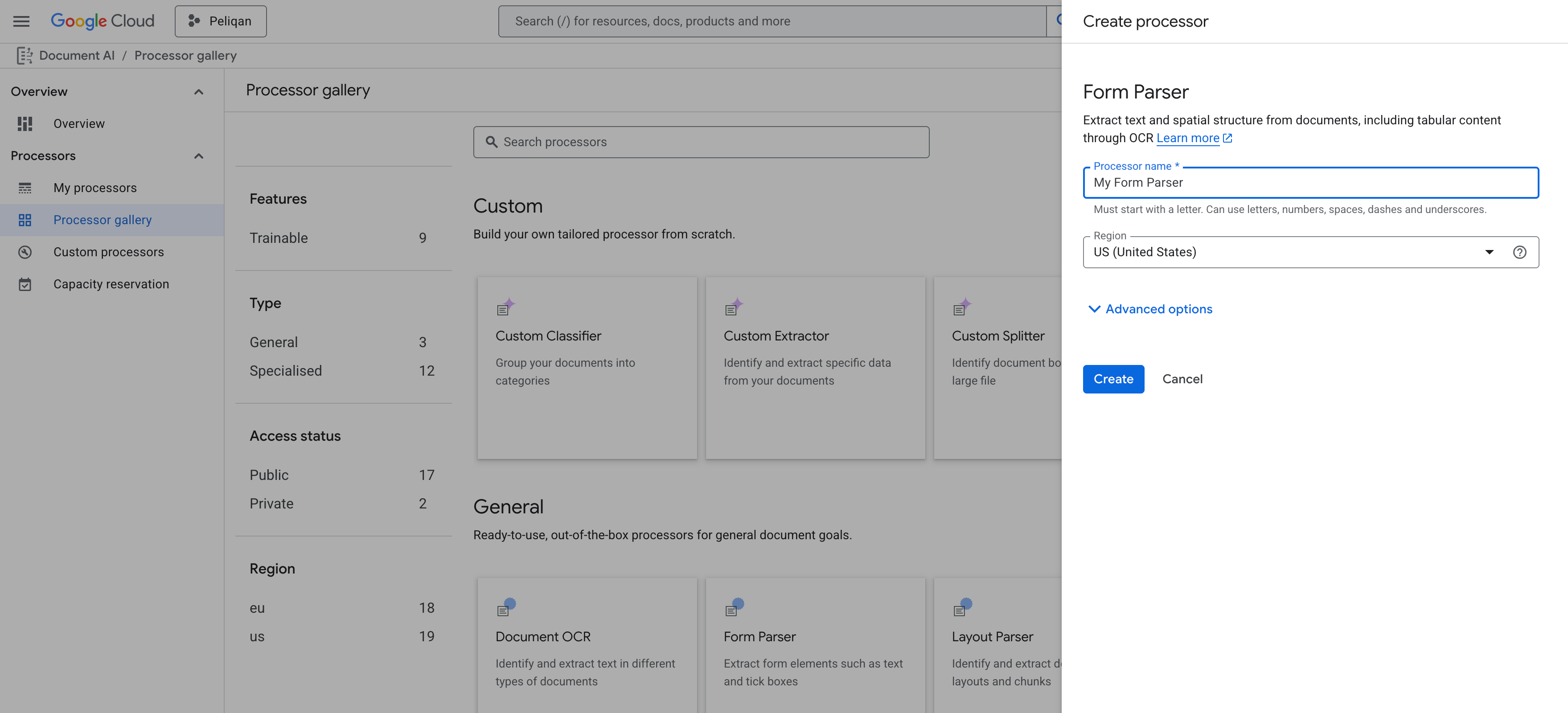
 * Select a processor, give it a name and click on "Create"
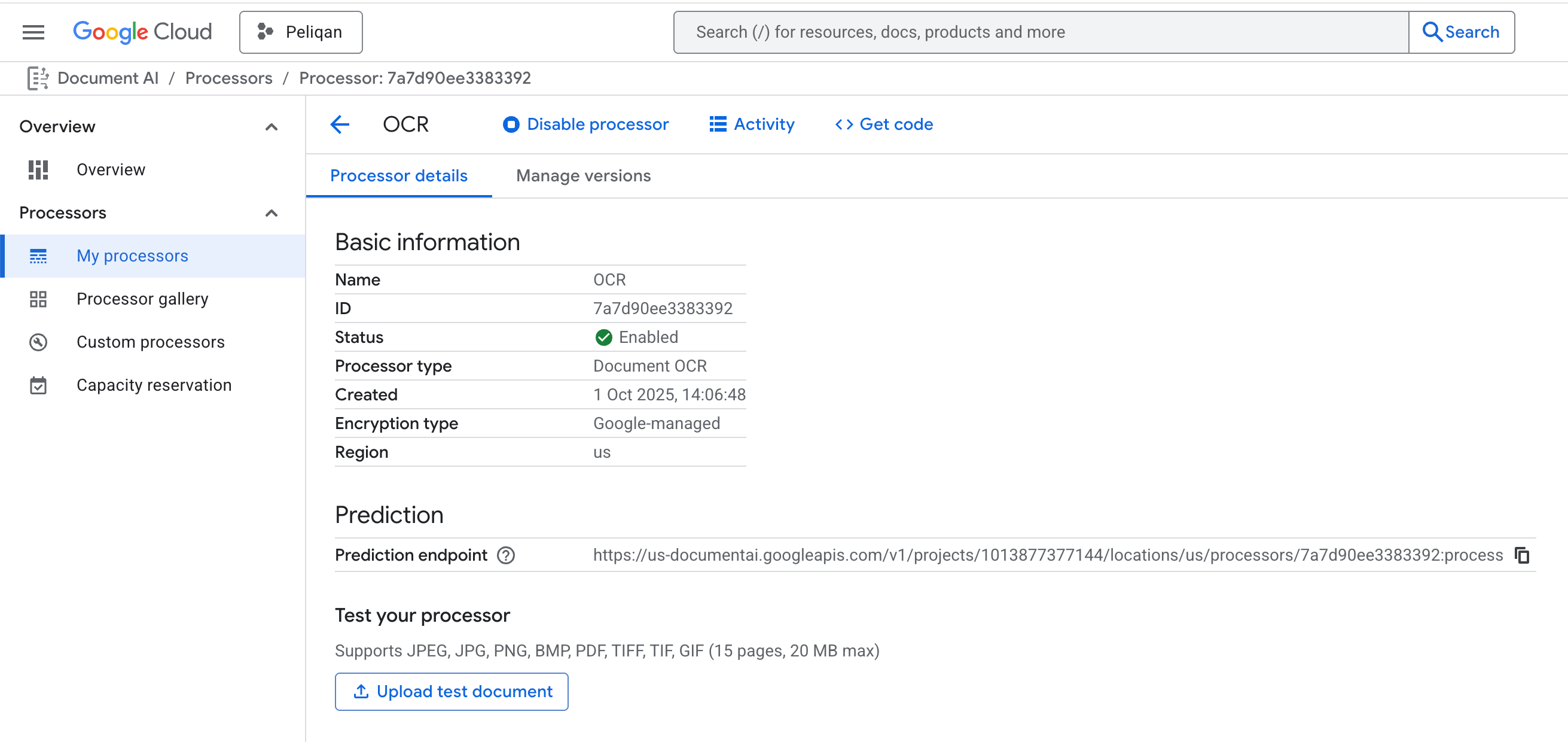
 * Copy the Processor ID
 * Add a connection in Peliqan for "Google Document AI" and authorize Peliqan to access the Google GCP project
## Example script
```python theme={null}
google_document_ai_api = pq.connect('Google Document AI')
import base64
import requests
allowed_upload_file_type = 'pdf'
uploaded_file = st.file_uploader(f"Upload {allowed_upload_file_type} file", accept_multiple_files=False, type=[allowed_upload_file_type])
if uploaded_file is not None:
file_contents = uploaded_file.read()
file_base64 = base64.b64encode(file_contents).decode('utf-8')
params = {
'base64_content': file_base64,
'mimetype': "application/pdf"
}
result = google_document_ai_api.get('process_document', params)
st.json(result)
```
This documentation is built and hosted on [Mintlify](https://mintlify.com), a developer documentation platform.
* Add a connection in Peliqan for "Google Document AI" and authorize Peliqan to access the Google GCP project
## Example script
```python theme={null}
google_document_ai_api = pq.connect('Google Document AI')
import base64
import requests
allowed_upload_file_type = 'pdf'
uploaded_file = st.file_uploader(f"Upload {allowed_upload_file_type} file", accept_multiple_files=False, type=[allowed_upload_file_type])
if uploaded_file is not None:
file_contents = uploaded_file.read()
file_base64 = base64.b64encode(file_contents).decode('utf-8')
params = {
'base64_content': file_base64,
'mimetype': "application/pdf"
}
result = google_document_ai_api.get('process_document', params)
st.json(result)
```
This documentation is built and hosted on [Mintlify](https://mintlify.com), a developer documentation platform.