> ## Documentation Index
> Fetch the complete documentation index at: https://help.peliqan.io/llms.txt
> Use this file to discover all available pages before exploring further.
# DBeaver
You can connect with DBeaver to your Peliqan data warehouse.
In Peliqan, go to Connections, find the Data Warehouse tile and copy/paste all connection details:
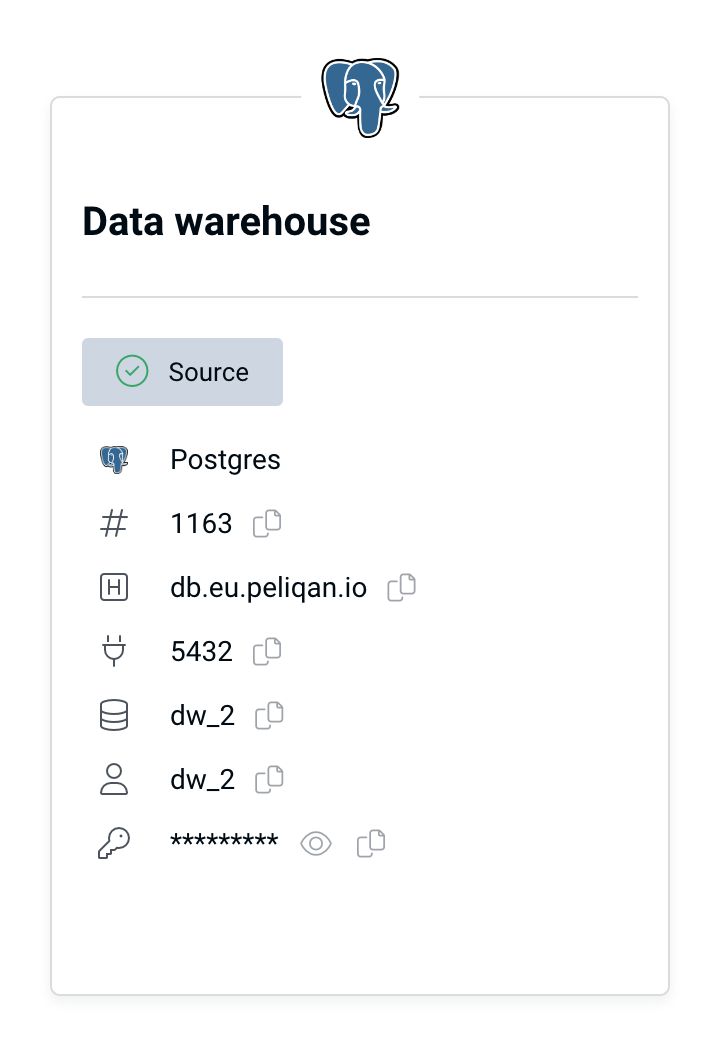 Use these settings in DBeaver to connect:
* **Connection type**: Postgres (default data warehouse type in Peliqan)
* **Host**: `db.eu.peliqan.io` (for EU instance)
* **Port**: 5432 (for Postgres)
* **User name & password**: copy / paste from the **Data Warehouse** Connection tile (see above)
* **Database name**: same as the user name
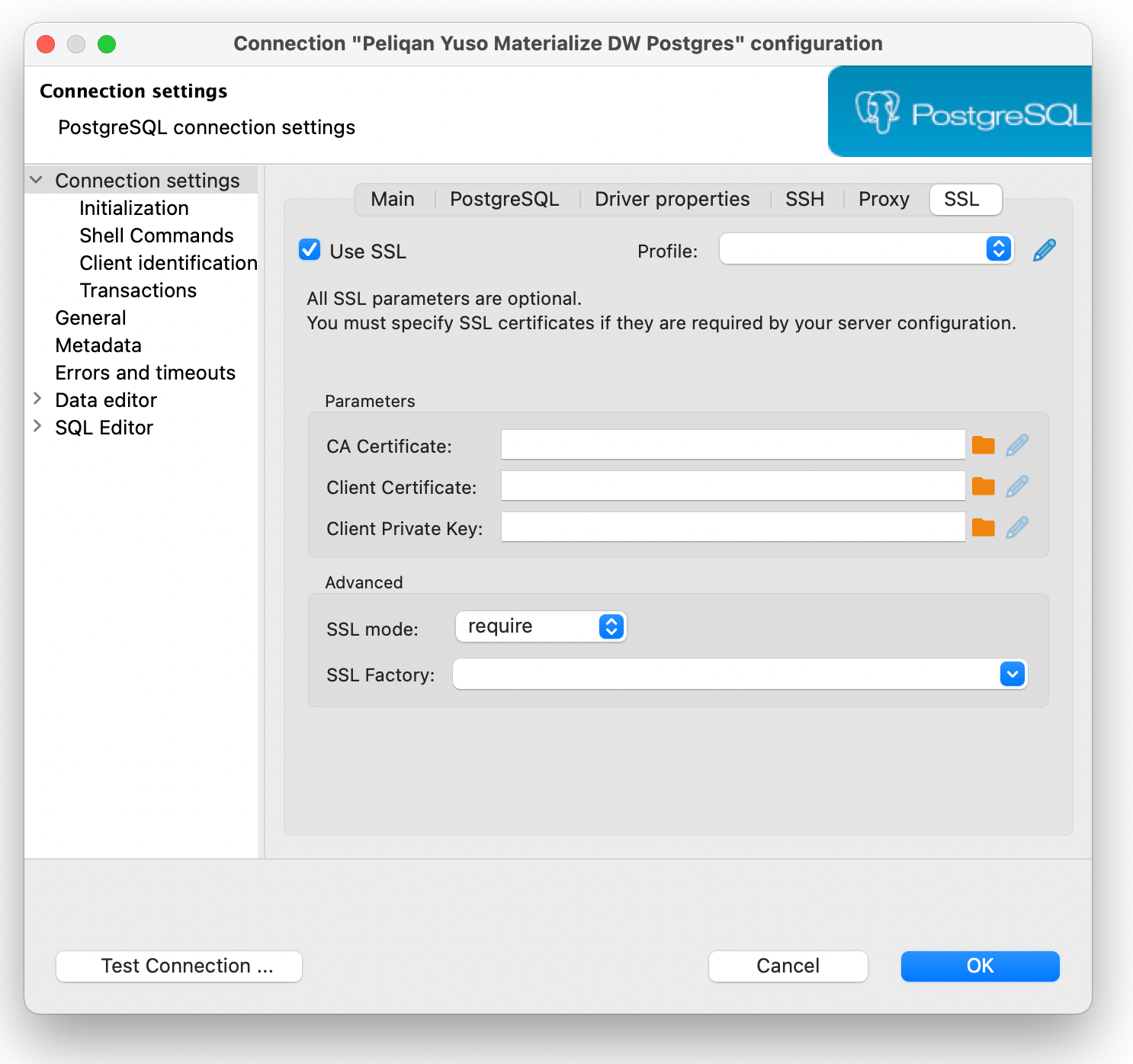
* **SSL mode**: set to “require”
Make sure to set SSL Mode to “require”:
Use these settings in DBeaver to connect:
* **Connection type**: Postgres (default data warehouse type in Peliqan)
* **Host**: `db.eu.peliqan.io` (for EU instance)
* **Port**: 5432 (for Postgres)
* **User name & password**: copy / paste from the **Data Warehouse** Connection tile (see above)
* **Database name**: same as the user name
* **SSL mode**: set to “require”
Make sure to set SSL Mode to “require”:
 This documentation is built and hosted on [Mintlify](https://mintlify.com), a developer documentation platform.